Why some USB ports are yellow (and less common than others)
Not every USB port color means what you think. Learn why yellow ports are so uncommon and what to check before you plug in anything important.
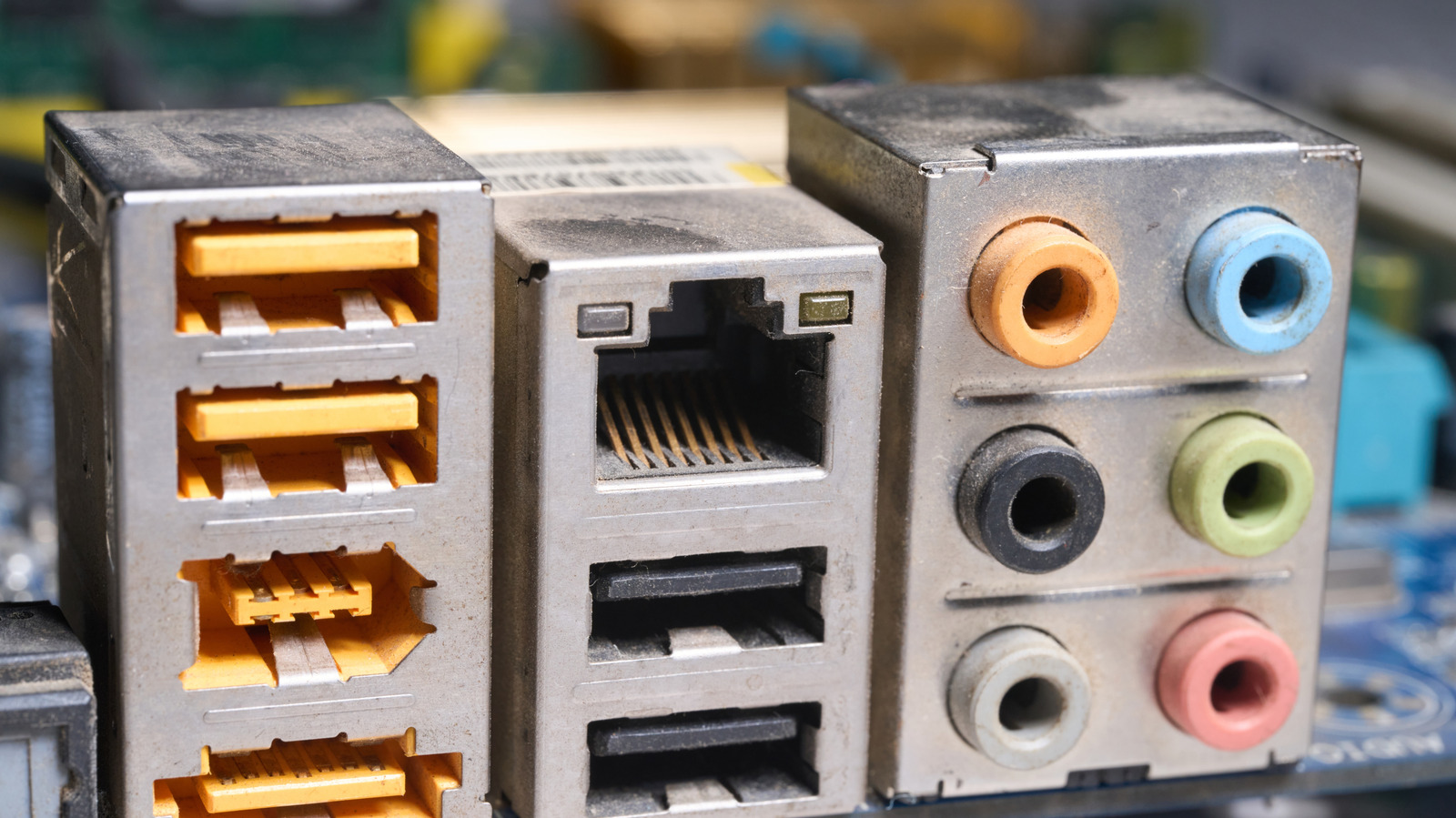
Certain USB ports exhibit a yellow color, indicating they are Always On charging ports. However, the exact meaning of the color varies based on the manufacturer's preferences. The USB Implementers Forum (USB-IF) advises using blue for distinguishing USB 2.0 and USB 3.0 ports, but this is merely a recommendation rather than a rule.
Manufacturers have the freedom to use any color they desire for USB-A ports. Lenovo, for instance, has historically used yellow for Always On charging ports on specific models, but later versions replaced them with battery icons. Yellow USB ports are not widespread as they are specialized features typically found in enterprise or business laptops.
Instead, manufacturers are increasingly relying on symbols, such as a battery icon for Always On charging or a trident for USB version identification. Many modern PCs and laptops are eliminating color coding altogether on USB-C ports, as a single shape can accommodate various capabilities. It's essential to note that a yellow USB port does not automatically imply it's ready for immediate use.
Some laptops require enabling the Always On setting in the BIOS, while others may have the Charge in Battery Mode feature disabled, restricting charging to when the laptop is connected to an AC power source. The speed of USB ports is not determined by color coding alone. For example, red ports are often used for 10 Gbps to 20 Gbps connections, while yellow ports do not have a defined speed category in color charts.
Manufacturers like Corsair and USB Memory Direct provide inconsistent information on yellow ports' compatibility with USB versions. A teal USB port may indicate USB 3.1 Gen 2 or USB 3.2 Gen 2, with speeds up to 10 Gbps. On the other hand, black and white ports indicate lower-speed connections, and blue ports typically support USB 3.0 at 5 Gbps.
Ultimately, the speed and functionality of a USB port depend on the manufacturer's specifications, making it crucial to refer to the user manual or the manufacturer's specifications to determine the port's capabilities accurately.
Written by urgent.news from Engadget's reporting — not their text. Machine-written — may contain errors; check the original before relying on it.