How to change the default browser on your Mac and stop any reverts
If your chosen browser isn't sticking, here are a few things you can try.
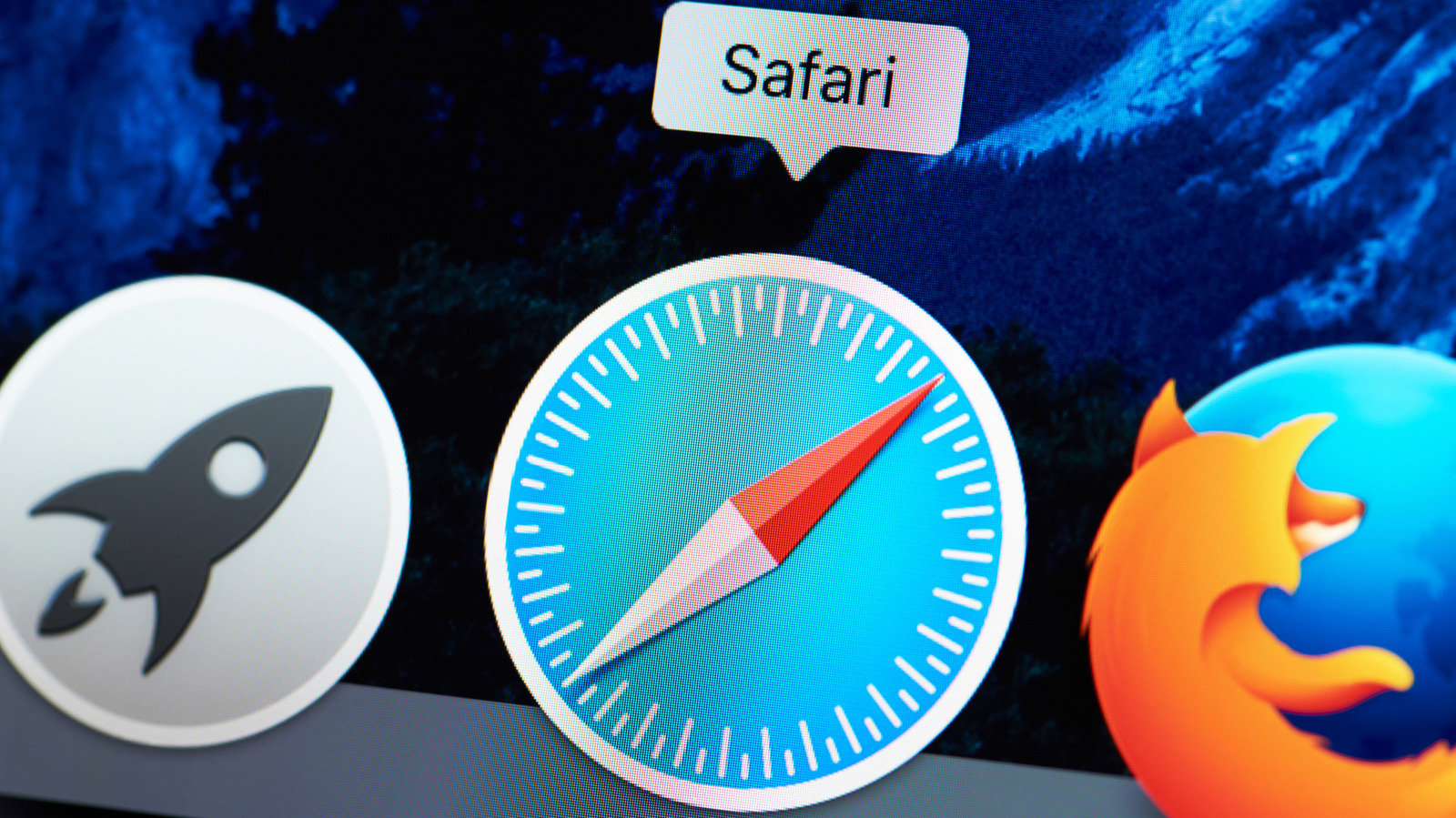
If your chosen browser on your Mac isn't sticking, consider these steps. A web browser is crucial for accessing the internet, emails, and online services. While macOS comes with Safari as its default browser, you may prefer other options like Google Chrome, Mozilla Firefox, or Microsoft Edge. The Settings app in macOS lets you set the desired browser as default.
However, web links may sometimes open in a different browser due to software issues or accidental prompts. To change the default browser, open System Settings, navigate to Desktop & Dock, and select your preferred browser from the picklist. After confirming the change, your Mac will prioritize the new default browser for opening web links.
If the default browser reverts, try restarting your Mac or running Disk Utility First Aid to check for and repair disk errors. Some apps may still open web links in an embedded browser window due to Apple's WKWebView or Universal Links feature. These factors are separate from your default web browser settings.
Rewritten by urgent.news; may contain errors — check the original.
Source: engadget.com