How to use App lock on Pixel, and how it stacks up against Private Space
About time, Google.
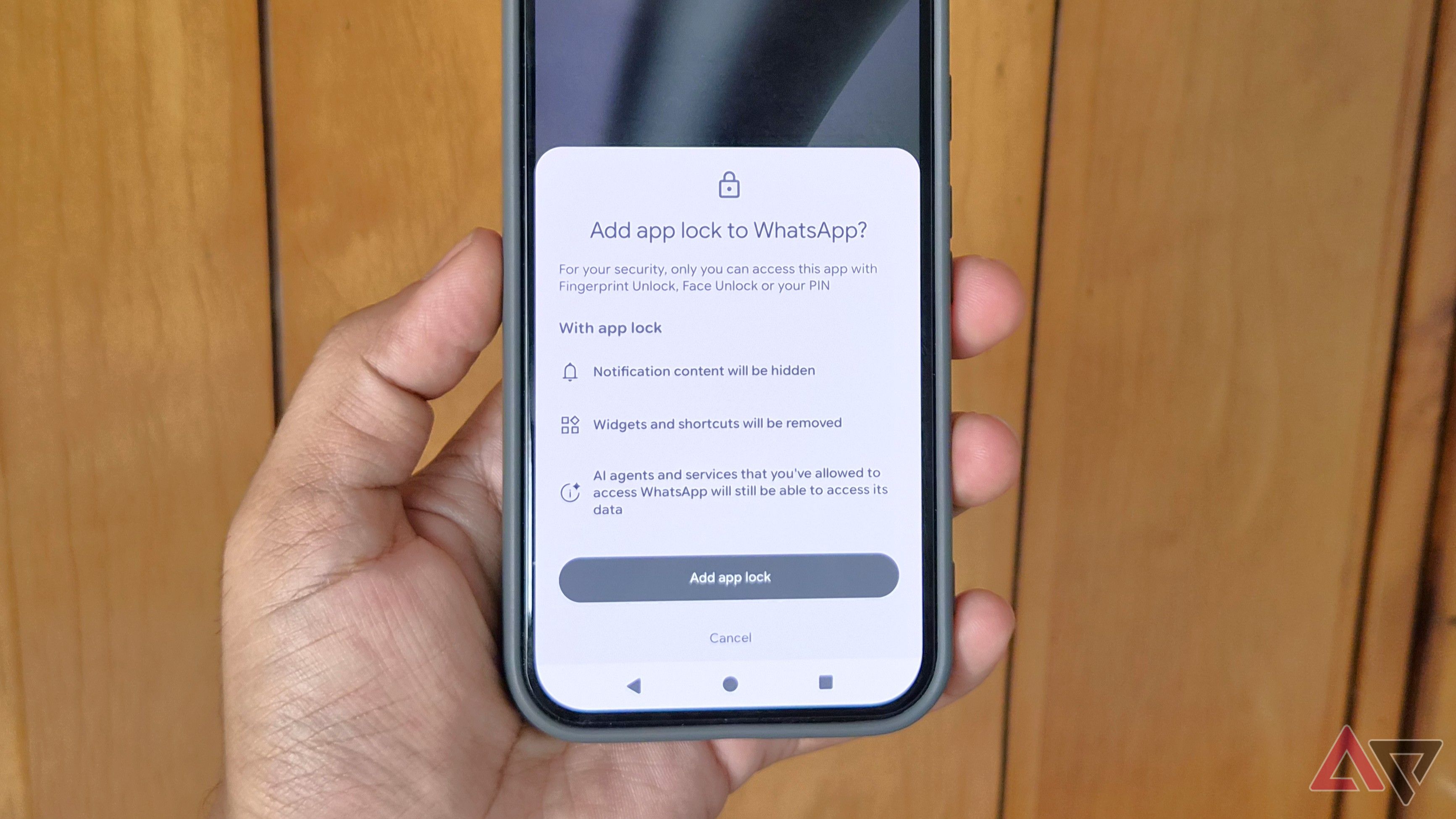
Android 17 QPR3 Beta 3 introduced the much-awaited App Lock feature on Pixels. This feature allows you to lock individual apps and ensures that no one can access their data without your PIN, fingerprint, or face recognition. While private space has been available for a couple of years, App lock offers a more convenient and seamless way to keep sensitive apps safe.
To use App lock, simply long press on the app icon and select "App lock." You'll be asked to confirm your lock screen PIN, fingerprint, or face recognition and then add the app lock. Removing the lock is just as easy – long press the app icon again and select "Remove app lock." App lock also offers a quicker way to lock apps by going to Settings > Security and privacy > App lock, where you can toggle on the apps you want to lock.
What sets App lock apart from private space is that it doesn't display a padlock icon on locked apps, allowing you to maintain a cleaner home screen. However, some preloaded system apps cannot be locked using App lock. Another limitation is that data from locked apps may still be accessible to certain apps, such as AI agents or banking apps with autofill features.
Private Space remains handy for apps that you don't want appearing on your home screen or for setting a different PIN altogether. However, App lock's built-in feature is more convenient than Private Space, which requires multiple steps to access locked apps. Despite some rough edges, App lock is a welcome addition to Android, offering a simple yet effective way to secure your most sensitive apps.
Rewritten by urgent.news; may contain errors — check the original.
Source: androidpolice.com