Change these PlayStation 5 settings before GTA 6 comes out
For the best experience playing the new Grand Theft Auto 6, you're going to want to make some adjustments.
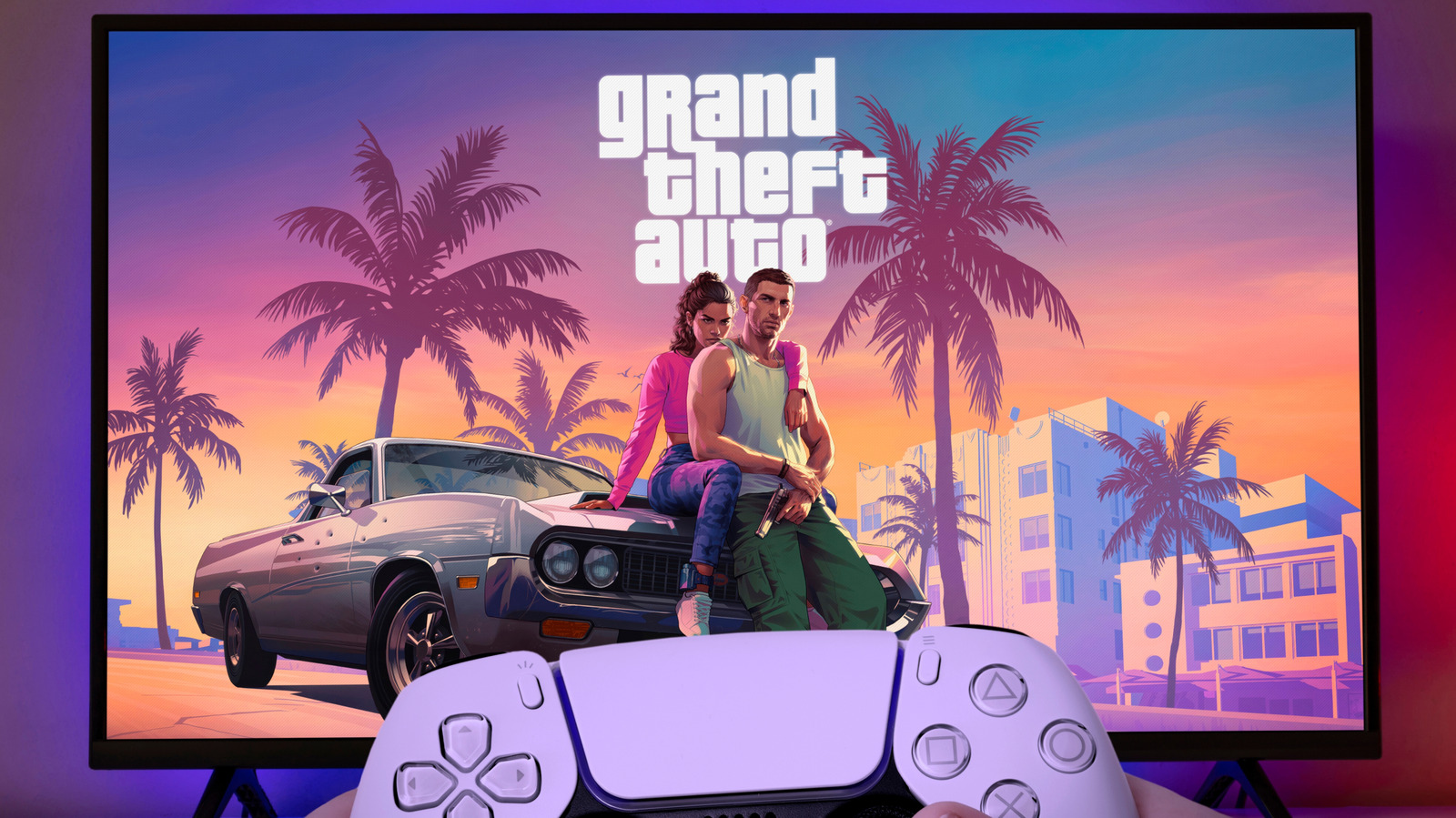
Prepare for GTA 6 on PlayStation 5 by adjusting a few settings before the game's release. The upcoming installment is expected to be a demanding game that pushes the console's capabilities to their limits. To ensure optimal performance and visuals, consider tweaking a few system settings on your PlayStation 5.
First, enable Variable Refresh Rate (VRR) to match your TV's refresh rate with the game's frame rate, resulting in smoother motion and reduced stutter during intense scenes. To do this, navigate to Settings > Screen and Video > Video Output > VRR.
Next, activate Apply to Unsupported Games to maintain a stable frame rate in games that don't support VRR natively. You can turn this option off if needed.
Another useful setting is Auto Low Latency Mode (ALLM), which automatically switches your TV into its low-latency game mode when using VRR. This ensures reduced input lag for a more responsive experience. You can disable ALLM if desired.
Enabling 120Hz output will send a 120Hz signal to your TV, even on ports that support lower refresh rates. This setting maintains a steady frame rate and provides a consistent pacing throughout the game. To activate this setting, go to Settings > Screen and Video > Video Output > 120 Hz Output.
High Dynamic Range (HDR) is essential for GTA 6's vibrant visuals, enhancing both dark and bright scenes with improved detail and color accuracy. To enable HDR, first ensure your TV has HDR enabled for the HDMI input your PS5 uses. Then, in Settings > Screen and Video > Video Output > HDR, choose between Always On or On When Supported, depending on your preference.
Calibration is crucial for achieving the best HDR performance. Follow the prompts in Settings > Screen and Video > Video Output > Adjust HDR and complete the calibration in your typical play environment. Disabling the TV's tone mapping through the HGIG mode will provide the most accurate results.
Lastly, enable 3D Audio to immerse yourself in GTA 6's expansive audio landscape. Plug in a pair of headphones, navigate to Settings > Sound > 3D Audio (Headphones), and follow the prompts to create a personalized 3D Audio profile. Alternatively, you can use one of the provided presets. Ensure Enable 3D Audio for Headphones is also enabled to switch from stereo to 3D Audio.
After making these system adjustments, you can fine-tune GTA 6's settings for an optimal visual and audio experience. With your PlayStation 5 configured properly, you'll be ready to dive into the thrilling world of Grand Theft Auto VI upon its release.
Written by urgent.news from Engadget's reporting — not their text. Machine-written — may contain errors; check the original before relying on it.