How I fine-tuned my Android Chrome settings for smoother web navigation
Hidden Chrome flags make browsing breezy
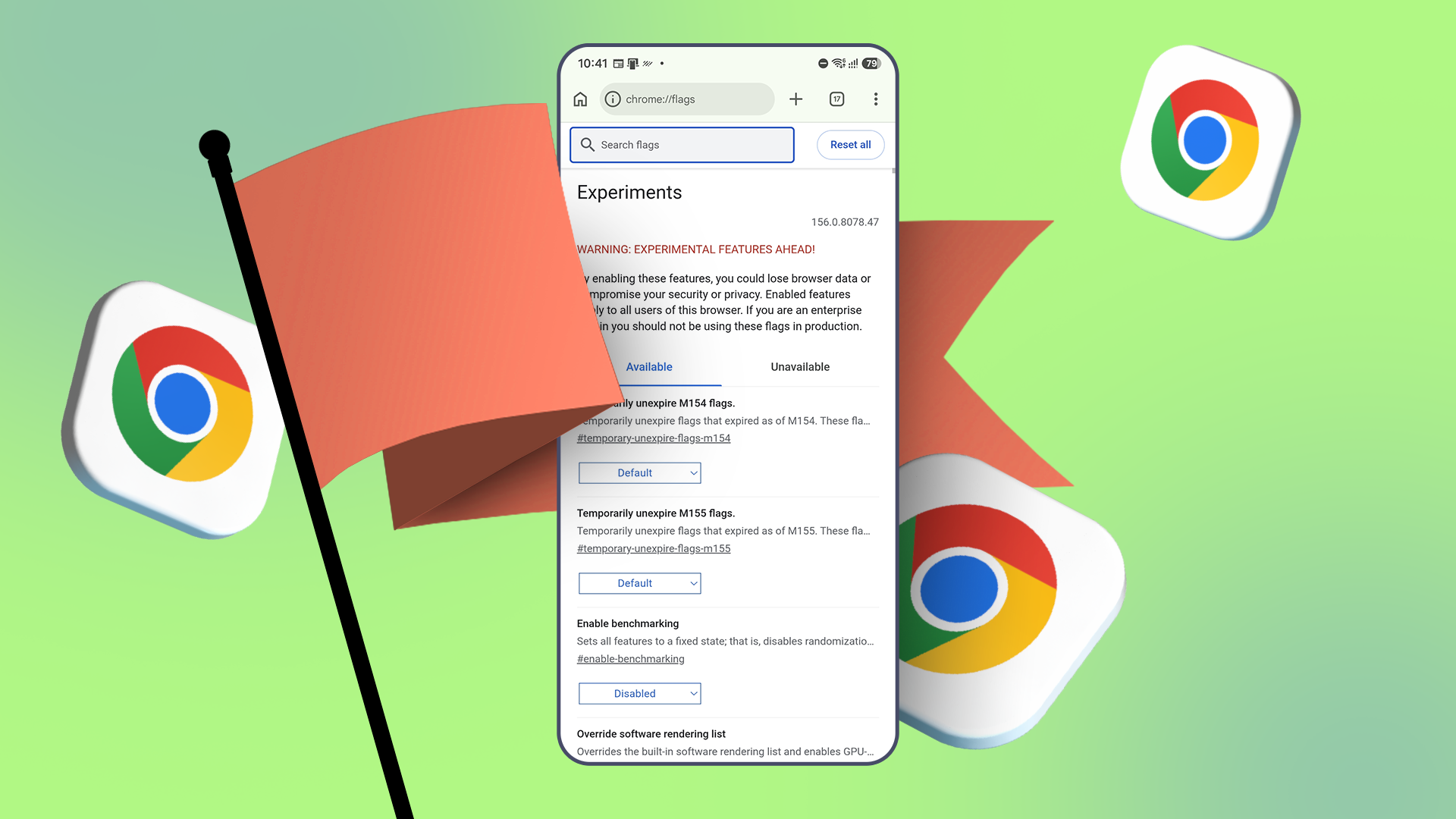
Once a Google Chrome user, this reporter settled for the browser due to the convenience of bookmarks and other data stored within. However, Chrome's performance fell short of faster alternatives like Brave. To optimize the browsing experience on Android, the reporter tinkered with Chrome's settings. Chrome's flags, once known among desktop power users, are also applicable to Android since the Android version operates on the same Chromium engine as the desktop browser.
The reporter began by opening chrome://flags in the address bar to access hidden settings. Among the options, the Override software rendering list proved effective. Phones typically possess two chips for rendering pages—graphics processing unit (GPU) for images, animations, and scrolling, and central processing unit (CPU) for slower tasks.
Chrome usually relies on the GPU, but certain GPUs may have bugs causing crashes or incorrect page display. Google pre-emptively disables certain features to prevent such issues, which is where the override flag comes into play. By enabling the flag, Chrome disregards the blocklist and utilizes the GPU, resulting in smoother scrolling and animations.
If issues persist, reverting the flag to its default setting and restarting Chrome can resolve any flickering or crashing.
Another useful flag is Smooth Scrolling, which alters the way Chrome transitions between two points during scrolling. Without it, scrolling can appear disjointed, making it difficult to locate specific sections within lengthy articles. Activating Smooth Scrolling ensures a more seamless scrolling experience by animating the page's movement, providing a clearer understanding of the scrolled distance.
For slow downloads, particularly from servers limiting data over a single connection, enabling the Parallel downloading flag can be beneficial. This flag splits files into multiple chunks, downloading them simultaneously over separate connections, and reassembling them afterward. However, not all files may benefit from this feature, as some servers may not allow simultaneous downloads. Despite this limitation, the flag is valuable for sites that support it.
To enhance user experience during late-night browsing sessions, activating the Auto Dark Mode for Web Contents flag darkens every page loaded within Chrome, including sites without built-in dark modes. This feature adjusts page brightness by flipping light tones to dark and vice versa, reducing eye strain. Additionally, dark mode on OLED screens, like those found on Pixel phones, conserves battery life since dark pixels consume less power.
Changing one flag at a time and recording the modifications allows for easy reversal should any issues arise. Google may alter or remove these experimental flags with updates, so it's essential to exercise caution and monitor their impact on the browsing experience.
Written by urgent.news from Android Police's reporting — not their text. Machine-written — may contain errors; check the original before relying on it.