Steam Remote Play feels laggy by default, but 3 hidden settings can fix it
Steam Remote Play lets you play games anywhere in the home, but if you don't check these settings, you're bound to have problems.
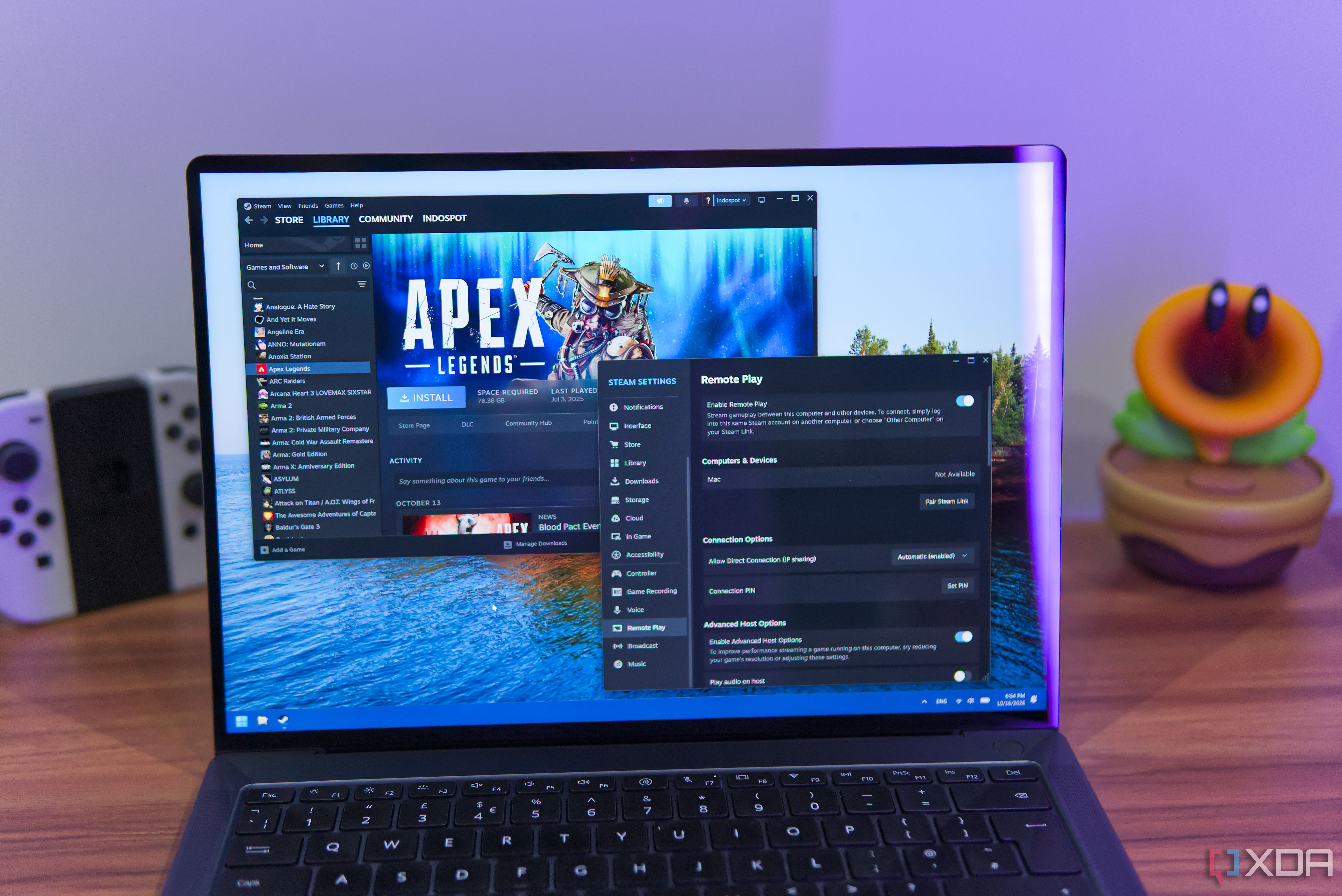
Steam Remote Play is a highly regarded feature, especially when used with gaming handhelds such as the Steam Deck. It enables playing games at higher graphics and improved performance over home networks, resulting in a superior experience compared to the devices themselves. However, certain default settings within Steam Remote Play can negatively impact the streaming experience, rendering it unpleasant or even unbearable.
Before dismissing the streaming capabilities of Steam Remote Play, consider adjusting these hidden settings. One such setting is hardware-accelerated decoding and encoding, which generally improves performance and smoothness by utilizing the GPU for specific tasks. Unfortunately, hardware decoding has been reported to cause stutters or flickers in Steam Remote Play for years, affecting many users.
A possible solution is to disable hardware encoding on the host machine (where the games are running) to potentially enhance the experience. Another setting to consider is Prioritize network traffic, which ensures that game streams take precedence over other network activities, thereby reducing latency and enhancing the overall streaming quality.
To enable this feature, navigate to Advanced Host Options in the Steam Remote Play settings. Additionally, increasing the bandwidth limit and adjusting the frame rate limit may result in a smoother or more stable gaming experience, depending on your hardware capabilities. For Apple device users, such as MacBook or Mac Mini owners, a potential issue can arise from the AWDL0 setting, which causes latency spikes when switching wireless radios to AirPlay mode.
Although there is no direct setting in Steam or macOS to disable AWDL0, a terminal command can be used to prevent it from interfering with the streaming process. By creating a script that runs the command and launching Steam with this script, users can ensure AWDL0 remains disabled while using Steam Remote Play. Moreover, for those with exceptional network connections, exploring the PyroWave codec may provide further improvements in video quality.
Written by urgent.news from XDA Developers's reporting — not their text. Machine-written — may contain errors; check the original before relying on it.