Give Xfce a Mac or Unity-style makeover
The existing layouts are fun, but there's much more we can do
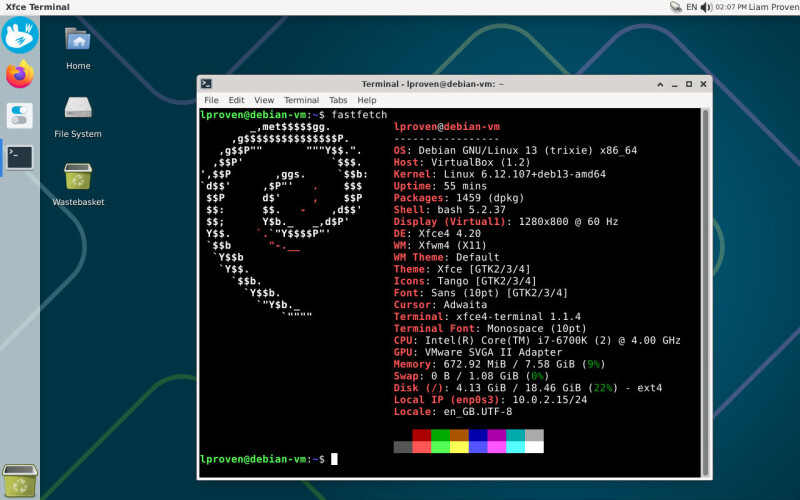
The Xfce Panel Profiles app allows users to rearrange their desktop and switch between different panel layouts, such as macOS, Unity, MATE, and GNOME 2. However, the built-in layouts are not perfect. The Unity layout, for example, has the global menu and status icons too close together. The macOS-style layout also has the menu bar overlapping with the status icons.
To improve the Unity layout, users can add a separator at the top of the panel, adjust the separator's settings, and disable the expand option for the AppMenu plugin. This moves the status icons to the right side of the panel. For the macOS-style layout, users can simply hide the label on the Whisker menu, which makes it look more like a Mac.
To create a better Dock-like taskbar, users need to install the Docklike Taskbar plugin, which combines pinned launchers and running-app indicators. The plugin can be installed using the command "sudo apt install -y xfce4-docklike-plugin." After adding the plugin to the panel, users can pin app icons, set colored bars for running windows, and configure preview thumbnails for windows.
Apps can be pinned to the dock by right-clicking the icon and checking "Pinned to dock." To reorder icons, hold Ctrl and left-click and drag an icon. While there are alternatives like Plank and Cairo dock, the Docklike Taskbar plugin is a lightweight, native Xfce tool that integrates seamlessly with the desktop. Additionally, some applications do not use the global menu, which wastes screen space.
Users can configure applications to use the global menu by running a few commands in a terminal window.
Written by urgent.news from The Register Science's reporting — not their text. Machine-written — may contain errors; check the original before relying on it.
Also reported by 1 other outlet
- Give Xfce a Mac or Unity-style makeover theregister.com