How to use Gemini on Apple's CarPlay
Since iOS 27, Apple has been more willing to let other AI assistants in, both on devices and services like CarPlay.
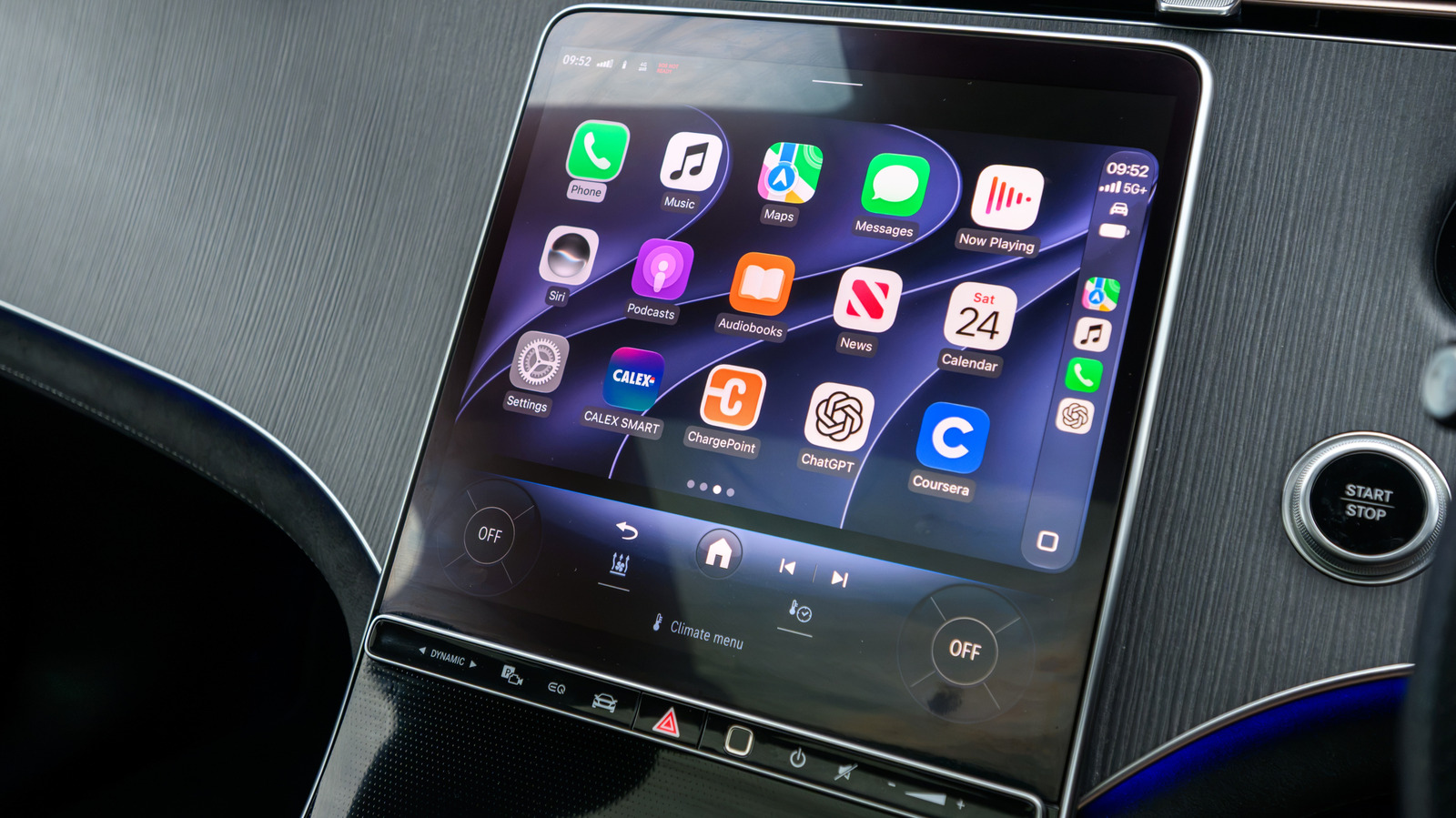
Gemini is now available on Apple's CarPlay, providing third-party AI assistance for users who are not deeply invested in Apple's ecosystem. To use Gemini, ensure that CarPlay is set up in your car and that the Gemini app is downloaded on your iPhone. The Gemini app will be automatically added to your CarPlay home screen once connected.
Before using the dedicated Gemini app, you must have previously used Gemini Live on your iPhone, the real-time voice version of the chatbot. Google requires permission to access your iPhone's microphone for Gemini Live, so activating it may trigger this permission request. Even if you do not use Gemini Live, you can still access Gemini through Google Maps in select countries.
Upon launching the Gemini app, you have two options: start a new conversation or continue an existing one. To load a prior chat, simply select it from your list. If you prefer not to use a separate app for your conversation, note that Google is gradually integrating a Gemini button into Google Maps. This feature, initially launched in the US, is now being rolled out to over 30 European countries.
With Gemini, you can ask a variety of questions and receive context-aware responses. For example, you can ask for directions to a specific location, such as the park where the Austin City Limits festival is held, and Gemini will figure out the answer. You can also inquire about the weather forecast for the weekend or avoid toll roads on your route. Additionally, you can use Gemini to report traffic incidents while driving.
Rewritten by urgent.news; may contain errors — check the original.
Source: engadget.com