How to upgrade the graphics card in your PC
Assess your existing hardware to avoid potential bottlenecks.
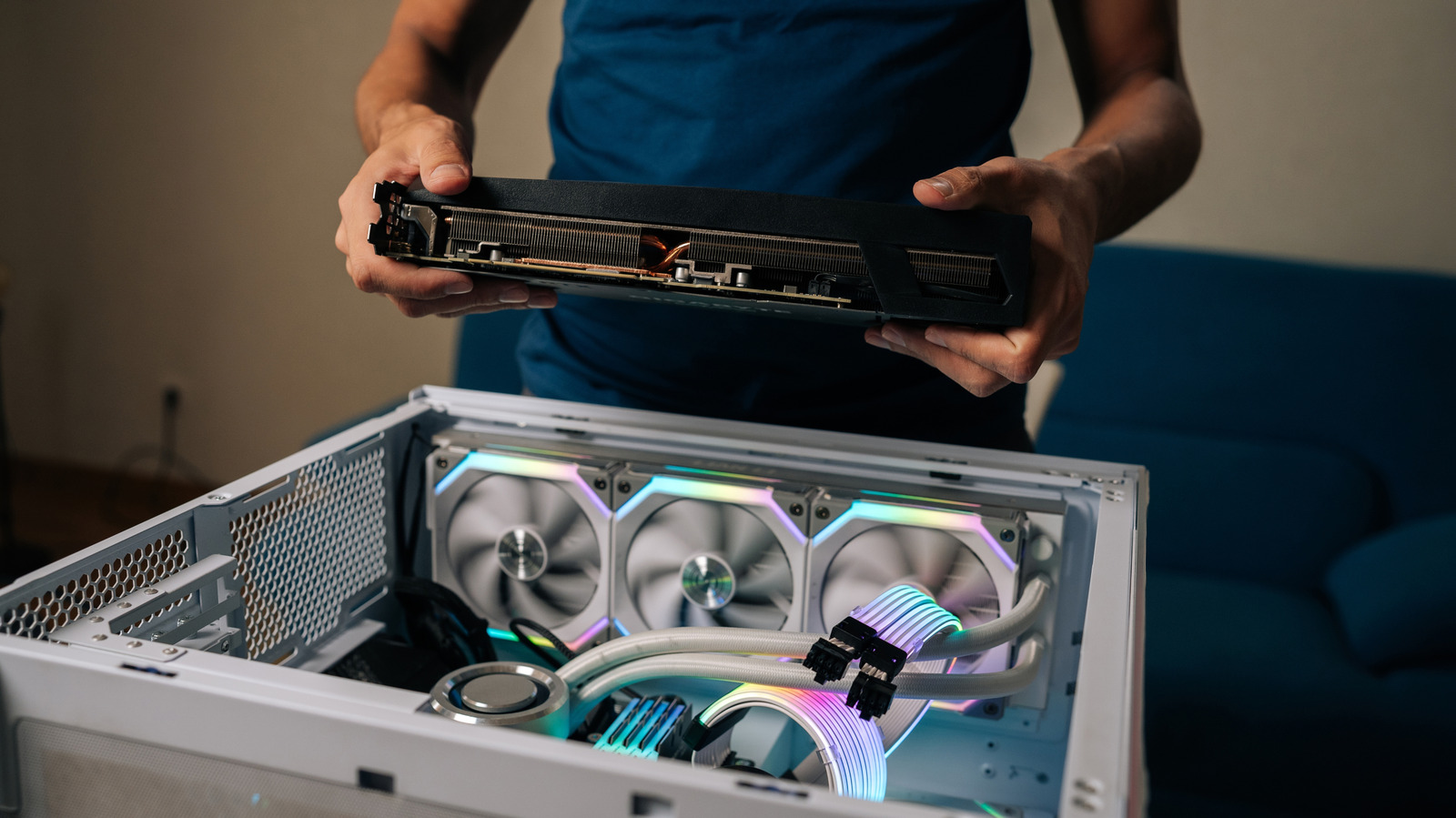
Before beginning the process of upgrading your PC's graphics card, it is crucial to evaluate your current hardware to prevent any possible bottlenecks. A superior graphics card can significantly enhance your PC's performance, enabling it to run games at higher resolutions, achieve more frames per second, and leverage cutting-edge technologies such as ray tracing and upscaling.
Although installing a new graphics card is relatively simple, requiring the removal of the existing card and insertion of the new one into the motherboard's PCIe slot, upgrading a GPU typically involves additional considerations that impact its performance and compatibility.
Factors to consider include whether you need to acquire a new power supply unit to meet the graphics card's power demands, replace your current PC case if it lacks sufficient space for the new card, and possibly upgrade your processor if it becomes a bottleneck for the GPU. Thus, a successful graphics card upgrade starts with a thorough assessment of your existing components and their compatibility.
One of the most critical factors is the power supply unit (PSU). Two seemingly identical graphics cards might have varying power requirements due to board partners releasing variants with higher performance at the expense of increased power consumption. Therefore, it's essential to inspect the power requirements of the specific model you intend to purchase, focusing on the recommended PSU wattage and the number of PCIe power connectors the model needs.
If your existing PSU doesn't meet the recommended wattage, you'll need to purchase a new one. Additionally, verify that your PC case has ample room for the new GPU, ensuring there's enough clearance for the card and its power connectors without obstructing the side panel or interfering with any front-mounted radiators or fans.
The CPU is another component to consider, as an underperforming processor may limit the graphics card's performance. If you intend to play games at higher frame rates, you may require a faster CPU to keep pace with the graphics card. However, a CPU upgrade is less critical than upgrading the PSU or selecting an appropriate case. Lastly, while your display is not a critical consideration, a high refresh rate panel is recommended to capitalize on the frames your new graphics card can deliver.
To begin the installation process, power down your PC and disconnect the power cord and display cables. Lay your PC case on a flat surface with the motherboard facing up. Remove the side panel and unplug the PCIe power connectors from your current GPU. Then, remove the screws securing the GPU to the rear of the case. Before pulling the card out, release the PCIe slot latch. Gently pull the GPU from the slot and set it aside.
To install the new graphics card, first, decide which PCIe slot on your motherboard to use. Preferably, choose the one closest to the CPU for optimal speed and bandwidth. Align the new card with the PCIe slot, ensuring the mounting bracket matches the openings and the screw holes at the rear of the case. Secure the card in place by firmly pushing it into the slot and screwing the mounting bracket to the rear of the case. Connect the PCIe power connectors to the GPU, then close the PC case.
Finally, connect your PC to the power cord and the appropriate display cable to the GPU. Power on your PC to test the new graphics card. To finalize the setup, download the drivers directly from the GPU manufacturer's official website (Nvidia, AMD, or Intel) to ensure optimal performance and compatibility.
Rewritten by urgent.news; may contain errors — check the original.
Source: engadget.com