These Galaxy Z Fold 8 Tweaks Will Help You Take Full Advantage of Its 2 Screens
Samsung’s Galaxy Z Fold 8 has a refreshing new design for a foldable phone, but you need to change these settings to make the most of it.
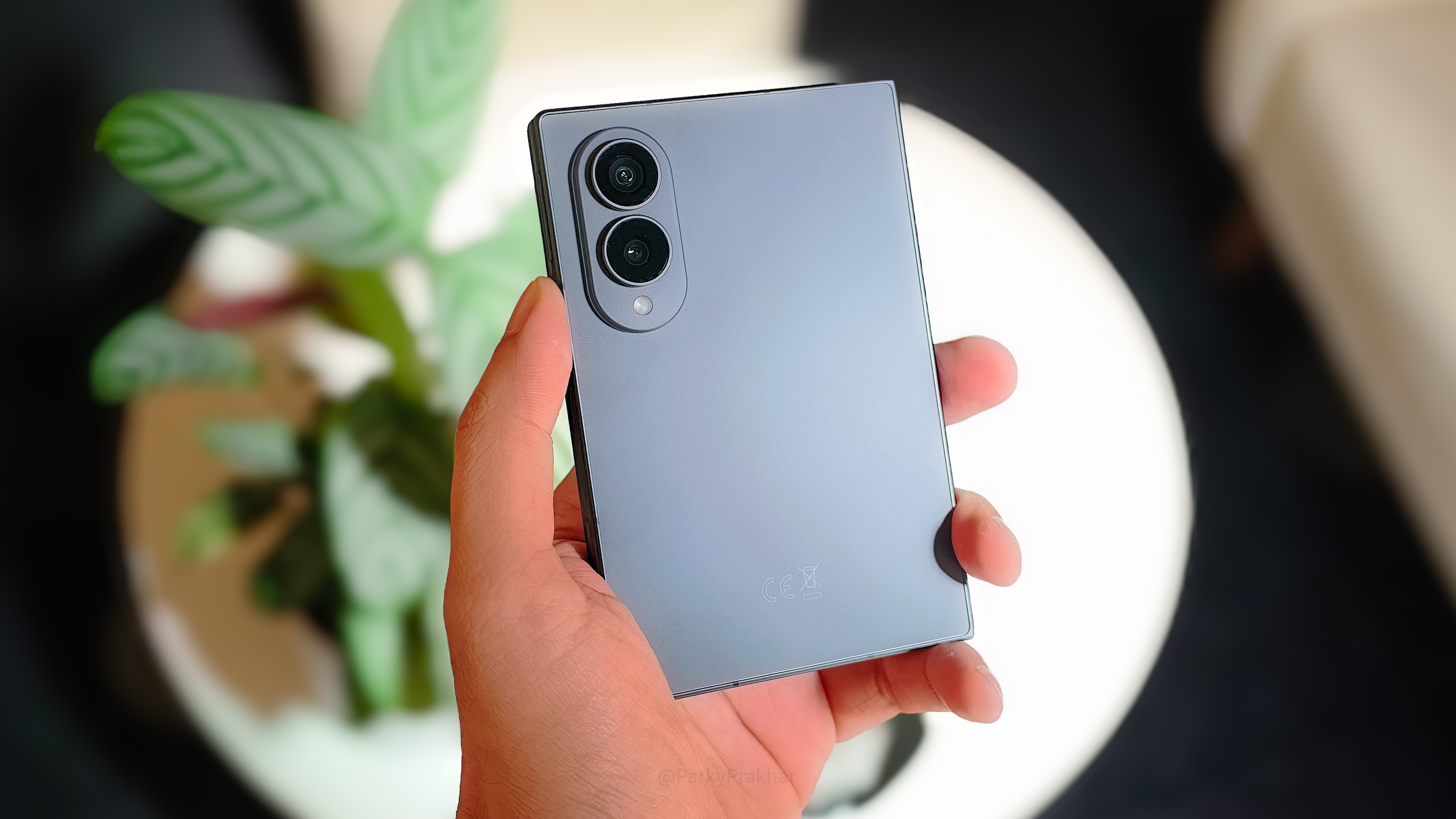
If you've purchased a Galaxy Z Fold 8 or have owned it for some time, there are several tweaks you can make to improve your overall experience with this innovative device. One of the standout features of the Galaxy Z Fold 8 is its customizable software experience. Out of the box, the phone runs on a rigid software that may not maximize its full potential. However, with a few simple changes, you can enhance its functionality and tailor it to your preferences.
One of the main aspects you may want to customize is the home screen layout on the cover display. By default, it is locked to a four-column grid, which can be limiting and inefficient in terms of space utilization. To overcome this, I recommend installing the Home Up plugin from the Good Lock app. Available through the Galaxy Store, this plugin allows you to change the layout and place icons anywhere on the screen.
With Home Up, you can arrange up to seven apps in a row or column, creating a 7-by-7 layout for a more efficient and organized home screen.
Another important aspect to consider is the one-handed operation. The Galaxy Z Fold 8's wide design can make it challenging to access certain system UI elements, especially when using the phone with one hand. To address this issue, I recommend installing the One Hand Operation Plus plugin from the Good Lock app. This plugin enables you to add gesture handles to the left and right sides of the screen, making it easier to navigate and access key features without readjusting your grip.
Additionally, you can reprogram the default swipe back gesture and assign shortcuts to various swipes, such as opening the Quick Settings panel or the Calculator app.
When it comes to photography, the Galaxy Z Fold 8's camera system may not offer the same versatility as higher-end models like the Galaxy S26 Ultra or the Galaxy Z Fold 8 Ultra. While it lacks a telephoto lens for optical zoom, you can still capture high-quality images by adjusting a few settings. First and foremost, I recommend changing the camera resolution from the default 12 megapixels to 24 megapixels.
This adjustment will provide you with more detailed shots and improved results in both 2x and 4x zoom modes. To do this, navigate to the Camera app, tap the four-dot menu, and go to Settings > Camera Assistant > Install. From there, change the resolution to 24 megapixels for better-quality photos without consuming excessive storage space.
Lastly, it's worth noting that Samsung has made some improvements to the multitasking experience on the Galaxy Z Fold 8 series. Unlike previous models, the Fold 8 allows you to use the split-screen feature more effectively. You can now run two apps side by side, making multitasking more seamless and convenient. This feature can be particularly useful when you need to reference information from one app while using another, enhancing your overall productivity with the device.
Rewritten by urgent.news; may contain errors — check the original.
Source: cnet.com