How to get warnings about speed cameras in Android Auto
These are the settings to look for in Google Maps and Waze.
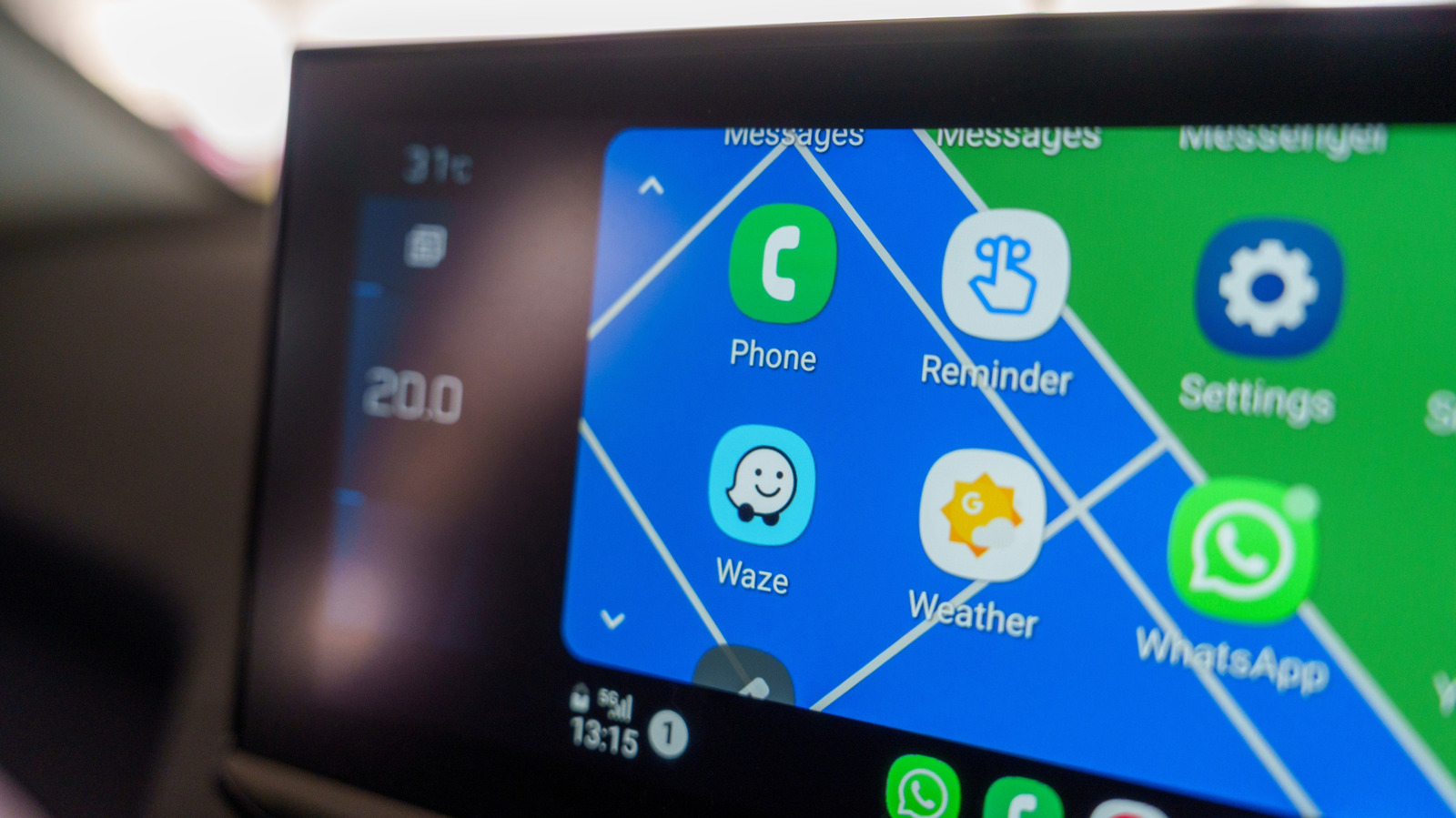
To receive warnings about speed cameras while using Android Auto, several steps must be taken within popular navigation apps like Google Maps and Waze. Both apps gather reports from other drivers who voluntarily share information about speed cameras and other enforcement measures. While these apps cannot detect every camera on the road, they provide an excellent early warning system.
Firstly, within Google Maps, open the app and tap on your profile photo at the top-right. Then navigate to Settings > Navigation. Enable the "Get alerts for reported incidents and other conditions that may impact your drive" setting.
Waze offers more granular control over speed camera alerts. Open Waze, go to Settings > Alerts and reports > Reports > Cameras. Here, you can configure alerts for various camera types including speeding, red light, and mobile police cameras.
Both apps also display the posted speed limit for any roads you drive on. You can enable the speedometer feature within the apps using your phone's GPS data to display your car's current speed in real-time. This is especially helpful for older cars with potentially inaccurate speedometers.
To enable these features, navigate to the settings menu within the respective apps and adjust the relevant toggles. Once enabled, Android Auto will automatically use the last-used navigation app, so you won't have to manually switch. With these setup, Waze on Android Auto should make sure you never receive a speeding ticket.
Rewritten by urgent.news; may contain errors — check the original.
Source: engadget.com