Improve your Starlink Wi-Fi speed with this app setting
See how a single setting in the Starlink app can improve your home internet speed, and figure out whether switching it on makes sense for your setup.
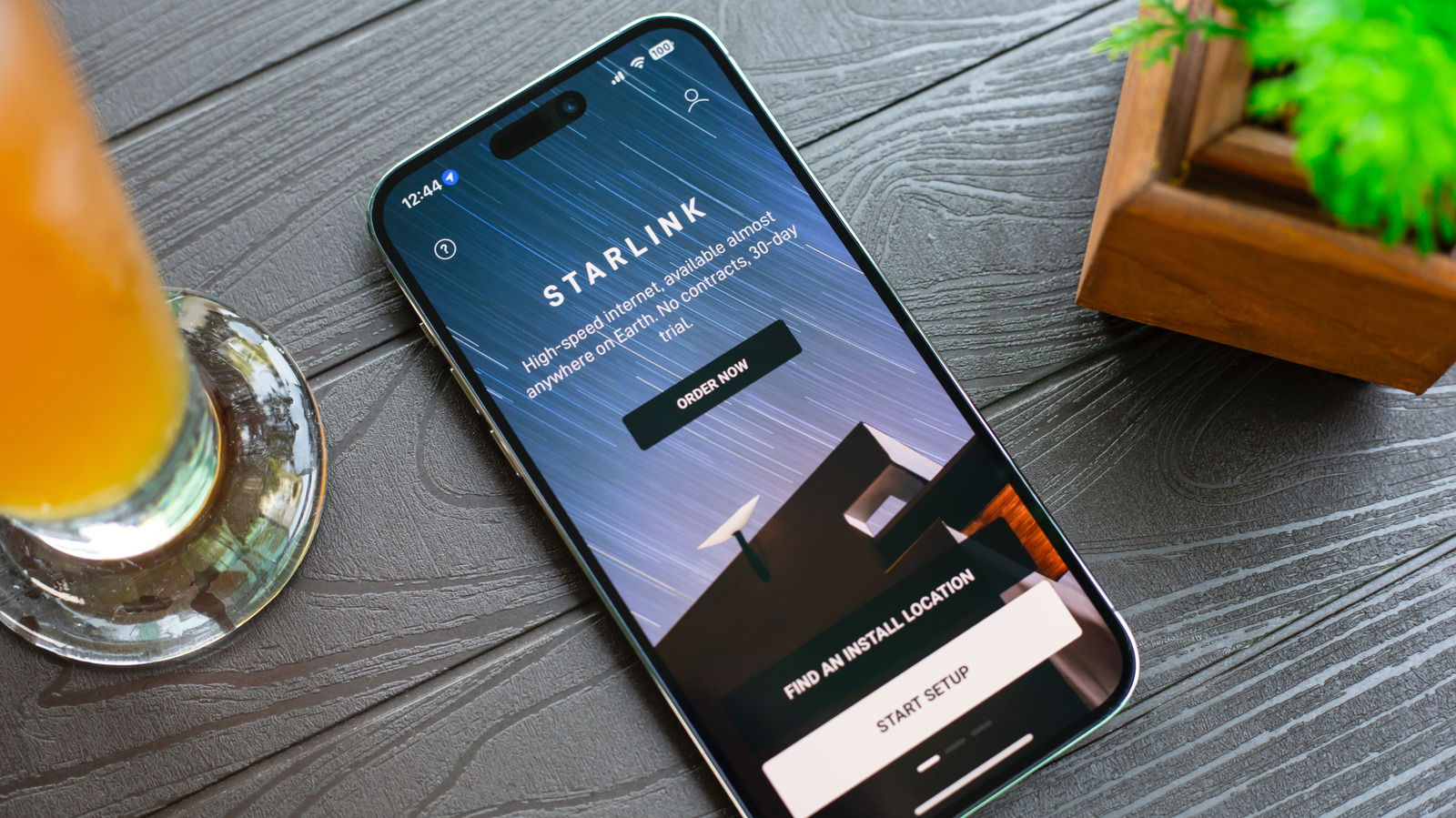
If your Starlink internet connection is slower than expected, a simple adjustment in the app may improve the situation. While Starlink has faced criticism due to reported slowdowns and its association with Elon Musk and SpaceX, it remains an important internet option in many areas due to its wide global coverage.
Optimizing your Starlink system can include adjusting the dish placement and managing how your system broadcasts Wi-Fi. While most people use a unified setting, splitting your Wi-Fi into separate 2.4 and 5GHz networks can be beneficial.
This can be done by finding and selecting the 'Add Network' option in the Starlink app, then toggling 'Split Network'. You'll be asked to name the two new networks, typically "2.4" and "5" for easy identification.
The reason for splitting may be that the 5GHz band offers faster speeds and more non-overlapping channels compared to the 2.4GHz band. However, this comes with trade-offs. Devices that only support 2.4GHz may experience slower speeds due to congestion on the 5GHz band.
A split network can also improve performance in larger areas where the 5GHz band's shorter range can be an issue. However, it may cause connectivity issues for devices on one network ID that need to communicate with those on the other.
Additionally, reassigning devices to new networks can be a hassle, and some mobile devices may need to be switched manually every time they enter a particular room. If your setup is already working fine, it might be best to leave it as is.
Rewritten by urgent.news; may contain errors — check the original.
Source: engadget.com