6 Android Auto settings Google hides but are actually worth turning on
Developer Options aren't just for developers.
Google's Android Auto system has undergone significant improvements with the latest Coolwalk update, offering users a more visually appealing and personalized experience. However, the platform also provides several hidden settings that can enhance system stability, convenience, and overall quality of life while connected to your vehicle. These settings are tucked away under a Developer Options menu, which is separate from the standard device settings.
To access these hidden options, you must first enable Developer Mode by opening Android Auto's menu under Settings, Connected Devices, Connection Preferences, and Android Auto. Scroll down to the Version Number and quickly tap it seven times to confirm that Developer Mode is enabled. Once enabled, you can find the Developer settings by tapping the three-dot icon in the upper-right corner and selecting Developer settings.
One of the most useful features in Developer settings is the ability to toggle wireless connection. Previously, users could enable or disable wireless connection on the main settings page. However, with the current update, this option has been moved to the Developer settings section. You should turn on this toggle if you've been experiencing unstable wireless connections, and turning it off is a good choice if you prefer wired connections.
Disabling wireless connection can also prevent issues related to adapters in vehicles that only support wired connections.
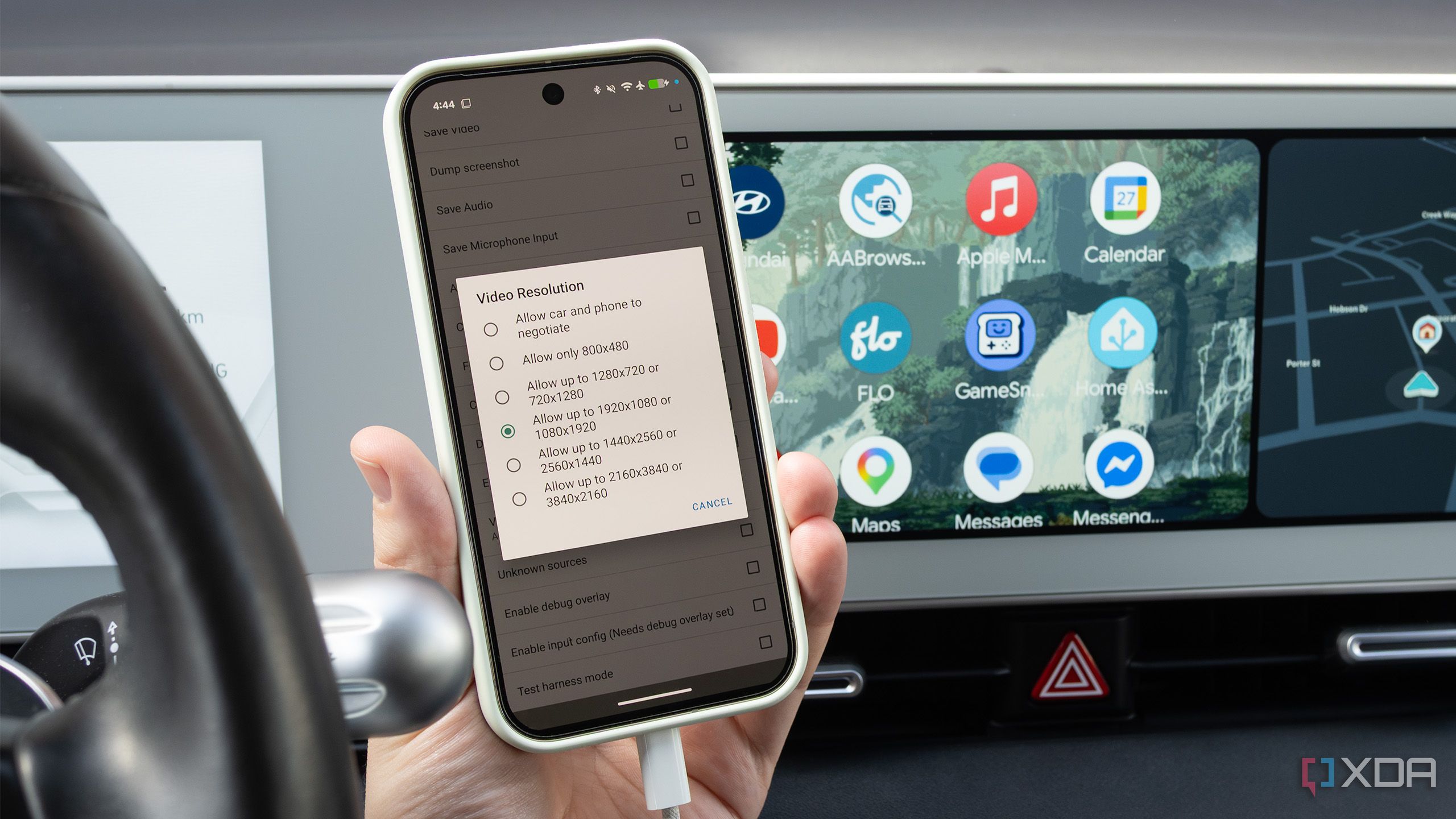
Another valuable setting in Developer options is Video Resolution, which allows you to force a specific resolution for the display. By default, Android Auto negotiates the resolution between the car's display controller and the phone. However, you can manually select a higher resolution to force supersampling or force a suitable resolution when experiencing instability. Matching the resolution ensures accurate scaling of displays and prevents occlusion of important details like your vehicle's position in navigation views.
Audio quality is another aspect that can be improved using Developer settings. Android Auto defaults to compressed audio codecs when using wireless connections, such as AAC, SBC, or aptX. However, you can manually select a preferred audio codec, such as PCM, AAC-LC, or AAC-LC with ADTS headers, to ensure the best possible audio quality. This setting works for both wired and wireless connections.
Android Auto's Developer settings also include an option to disable ANR (App Not Responding) monitoring. By default, the system displays error messages every time an app crashes or becomes unresponsive. Disabling this monitoring can be helpful when unresponsiveness is distracting or inconsequential, allowing developers to debug the app more effectively without interruptions.
Lastly, there is a hidden toggle in Developer settings that allows you to install apps from unknown sources. This feature is reserved for developers, enabling you to sideload beta builds or unsigned apps from alternative app stores. Enabling the Unknown Sources checkbox in Developer settings grants you access to a wider range of apps for Android Auto, expanding the functionality and customization options available to users.
Written by urgent.news from XDA Developers's reporting — not their text. Machine-written — may contain errors; check the original before relying on it.
This story
This is one outlet's version. Read the fullest account.
- Google will force Android developers to make their apps work properly on foldables techspot.com
- Google Will Launch Android App Verification Requirement Globally In January 2027 tech.slashdot.org
- Google will launch Android app verification requirement globally in January 2027 arstechnica.com
- Google’s 3D emoji has wild Android spec requirements: 10GB of free space, 6GB RAM 9to5google.com
- Google Fi gives its Android app a fresh look and smarter customer support androidauthority.com