Common reasons your PC's camera and microphone aren't working
There's nothing worse than having camera or mic problems right before a video call or meeting. Luckily, the fixes are usually pretty straightforward.
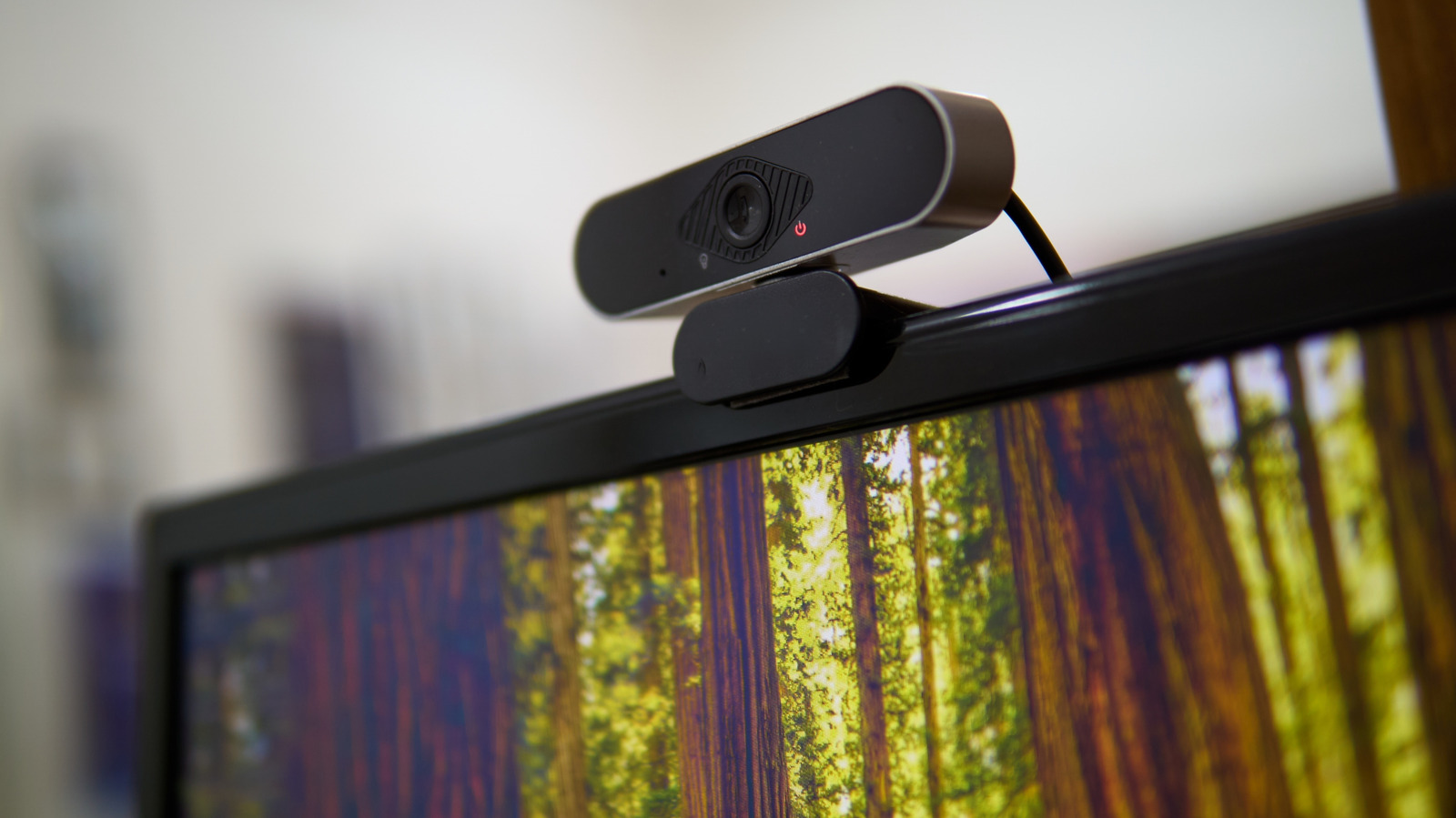
Having issues with your PC's camera or microphone not functioning can be frustrating, but the problem is often easy to resolve. Computers frequently come equipped with cameras, which are used for video calls and virtual meetings, as well as by broadcast journalists who prefer conducting interviews remotely. Despite the improvement in camera quality, users still encounter problems. The good news is that many of these issues have straightforward solutions.
Firstly, ensure that the physical components of your camera are not obstructed. Some laptops have lens covers or mute buttons that can be accidentally activated. Check for these features if you suspect the camera isn't working. If you are using external devices, inspect their cables, switches, and buttons as well.
Next, verify that your operating system, whether it's Windows or macOS, has the correct input selected. On Windows 11, go to Settings > Bluetooth & devices > Camera to check the camera settings, and Settings > System > Sound to adjust the microphone volume. Ideally, the microphone volume should be set to 80 to 100 percent to ensure clear audio. On Macs, camera controls are app-based, but you can modify the microphone input through Apple menu > System Settings > Sound > Input.
It's crucial to grant apps the necessary permissions to access your camera and microphone. On Windows 11, navigate to Settings > Privacy & security > Camera or Microphone to adjust these settings. Similarly, on Macs, go to Apple menu > System Settings > Security & Privacy to manage app permissions. If you've already granted permission and are still experiencing issues, try relaunching the app.
Lastly, ensure that the correct input and volume settings are selected within the app you're using. Some meeting applications may default to disabling certain inputs, so double-check Zoom or other platforms before joining a meeting. If the problem persists, consider checking for software updates by going to Settings > Windows Update on Windows or Apple menu > System Settings > General > Software Update on Macs.
These updates often include driver releases, which can resolve compatibility issues. Additionally, updating relevant communication apps and features to their latest versions can help maintain optimal performance. As a last resort, open Device Manager on Windows, expand the Cameras or Audio inputs and outputs sections, right-click on your device, select Properties, and choose the Driver tab to uninstall and reinstall the drivers.
Remember, if the issue remains unresolved after these steps, a driver update from the hardware manufacturer's website may be necessary.
Written by urgent.news from Engadget's reporting — not their text. Machine-written — may contain errors; check the original before relying on it.