5 essential iPhone security settings that protect you from thieves, spoof callers, and scammers
From blocking spoof calls to foiling pickpockets, these 5 native iPhone security settings give you real protection. Turn them on now.
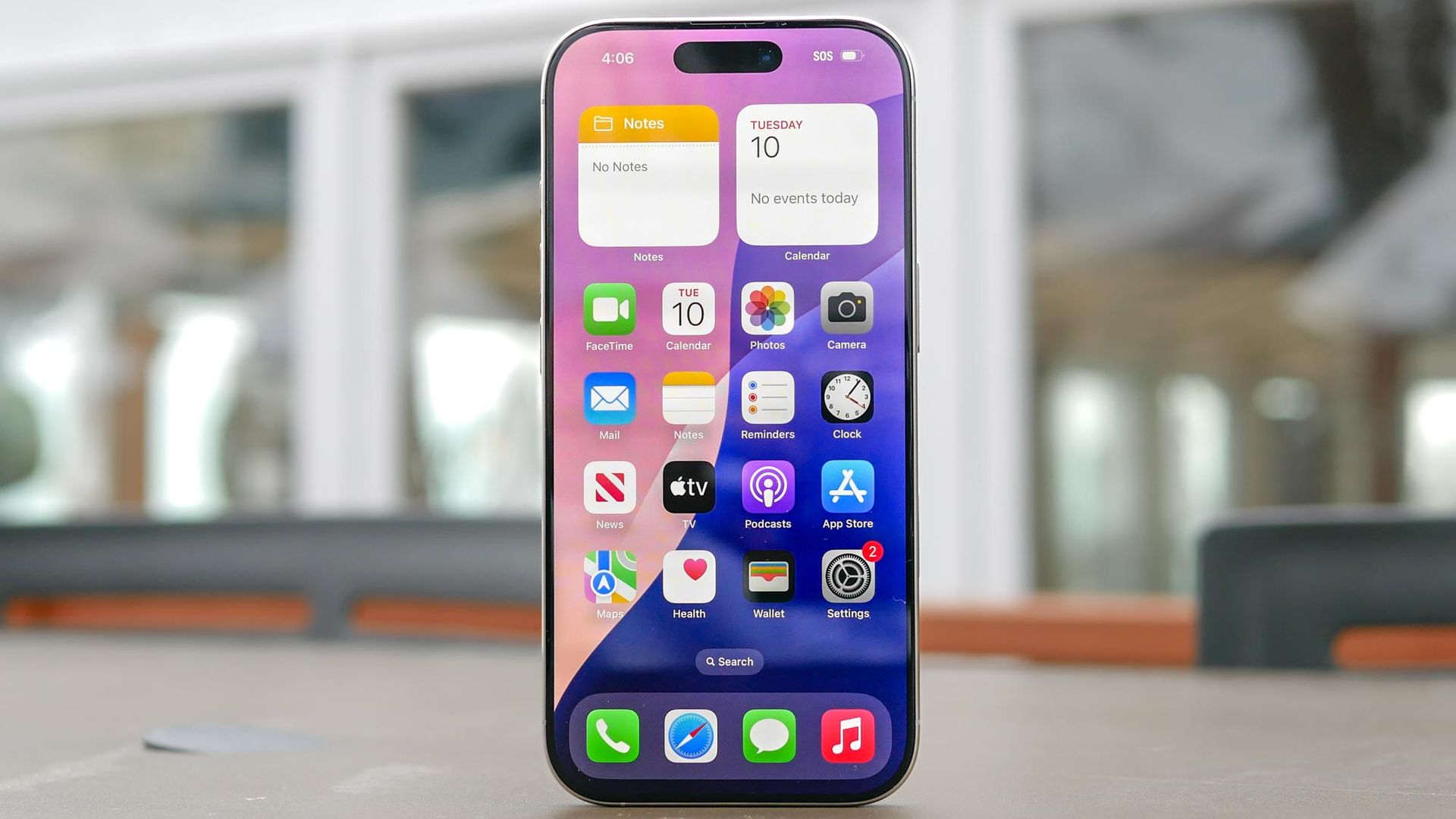
Securing your iPhone from thieves, spoof callers, and scammers doesn't require a degree in computer science. Your device already has built-in features designed to keep your information safe. Here are five crucial settings to activate right away:
1. Make a stolen passcode useless: If a thief knows your passcode before stealing your phone, they could reset your master Apple account password and lock you out. Stolen Device Protection prevents this by requiring Face ID or Touch ID for sensitive actions when you're away from familiar places like home or work. It also adds a one-hour delay before anyone can change account credentials outside those trusted zones. To enable Stolen Device Protection, go to Settings > Face ID & Passcode and turn it on.
2. Catch scammers in the act: Scammers often use high-pressure calls and spoofed texts to trick people into sending money or giving out credentials. iOS 27 introduced Impersonation Risk Detection, which detects signs of coercion during high-stakes actions. It monitors your interaction patterns on your device and flags suspicious events, like large transfers or sensitive account changes, to require secondary verification before funds can be moved.
To activate it, go to Settings > Privacy & Security > Impersonation Risk Detection and toggle it on.
3. Kill spam calls before they ring: Many financial scams start with unwanted calls pretending to be bank representatives or other authorities. Silence Unknown Callers stops these intrusions before they even ring. To set it up, go to Settings > Phone and enable Silence Unknown Callers. You can also filter messages from unknown senders in Messages settings.
4. Find your phone even when it’s switched off: Standard location tracking fails if your phone is turned off or the battery dies. Enabling the Find My network keeps your device trackable. To turn on the Find My network and Send Last Location, go to Settings > your name > Find My > Find My iPhone and toggle both options.
5. Stop your lock screen from leaking data: Leaving your lock screen visible can reveal private texts, calendar alerts, and one-time bank codes to anyone nearby. Tighten what shows up and what can be accessed while your phone is locked. To hide alerts, go to Settings > Notifications > Show Previews and select When Unlocked. Then, in Face ID & Passcode, turn off Allow Access When Locked for Control Center, Wallet, and USB Accessories.
Written by urgent.news from Tom's Guide's reporting — not their text. Machine-written — may contain errors; check the original before relying on it.