I cleaned up Google Messages with these simple settings
Here's how I fixed my cluttered inbox
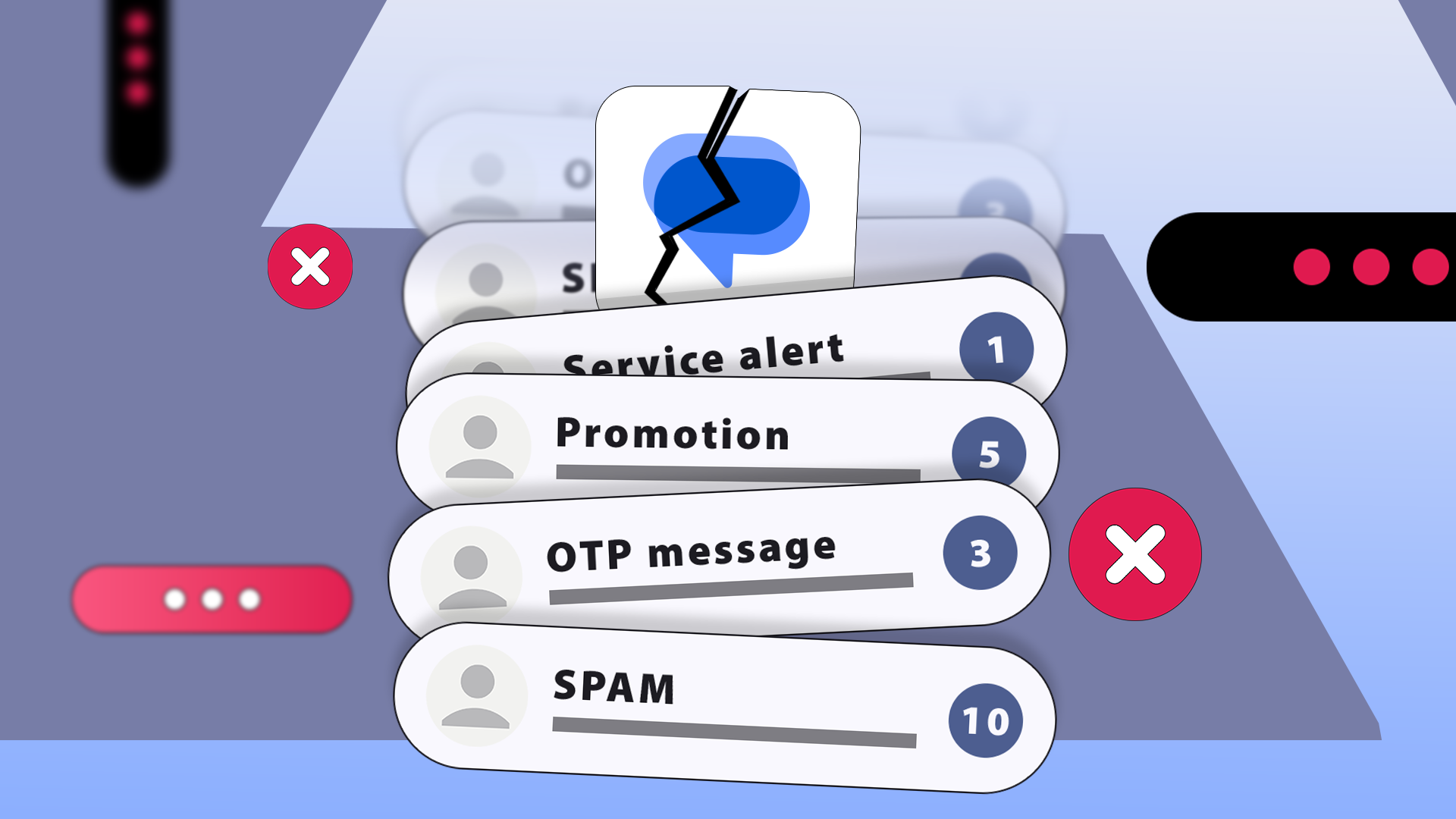
Google Messages is the app I rely on for texting, but its inbox can become disorganized quickly. Promotional texts, verification codes, delivery updates, and ongoing conversations clutter my messages. To make managing my inbox easier, I adjusted a few settings and turned off unnecessary features. One of the main reasons my Google Messages inbox gets messy is unwanted texts from unknown numbers promoting products or suspicious offers.
Instead of deleting these messages one by one, I enabled Google Messages' built-in spam protection. After opening the app, I selected the profile picture, went to Messages settings, and chose Protection & Safety. Enabling Enhanced protection allowed Google Messages to use machine learning to identify suspicious messages and move them into the Spam & blocked folder.
It also warned me about potentially harmful links and scams, helping me avoid interacting with untrustworthy messages. Another annoyance was one-time passwords (OTPs) that appeared when I signed in to accounts, confirmed purchases, or completed online transactions. Keeping these messages in my inbox added to the clutter. To address this, I turned on Auto-delete OTP messages after 24 hours in the Messages settings.
Google Messages would then automatically remove these temporary verification codes after 24 hours, keeping my inbox cleaner. I also found the Gemini shortcut distracting, taking up space on the main conversation screen. To hide it, I opened Google Messages, tapped my profile picture, went to Messages settings, and selected Gemini in Messages.
I turned off the Show Gemini button option, resulting in a cleaner interface without the Gemini shortcut. Chat bubbles, while useful for replying without leaving the app, were distracting for me. I preferred to open Google Messages when I wanted to respond rather than have conversations hover over my screen. To turn off chat bubbles, I opened Google Messages, tapped my profile picture, selected Messages settings, and tapped Bubbles.
I chose Nothing can bubble, stopping conversations from appearing as floating icons while still receiving regular message notifications in the notification shade. Finally, I turned off outgoing and incoming message sounds in the Messages settings. The audible confirmation every time I sent a message was unnecessary, especially when I was already looking at the conversation.
Removing this sound kept my attention focused on the message rather than the auditory feedback. These adjustments made Google Messages easier to manage, reduced clutter, and minimized distractions, allowing me to focus on my important conversations.
Written by urgent.news from Android Police's reporting — not their text. Machine-written — may contain errors; check the original before relying on it.
This story
This is one outlet's version. Read the fullest account.
- 5 Google Messages settings you might want to disable engadget.com