How to use your laptop as a second monitor
If you have an extra laptop lying around, you can connect it to your primary laptop with a wireless or wired connection for a free dual monitor set up.
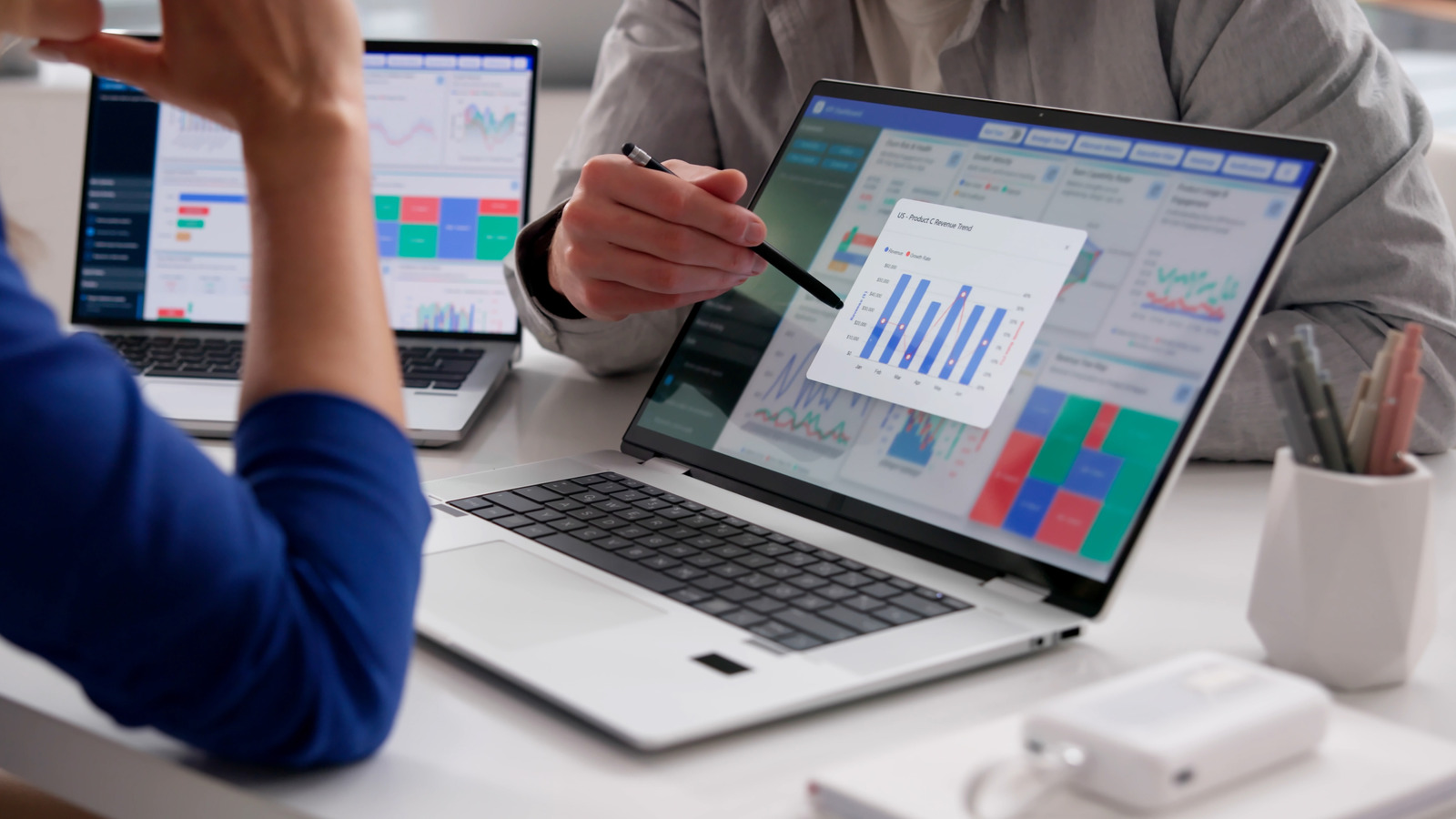
Transforming your laptop into a secondary monitor is a practical solution for enhancing your computing experience, whether you're working, gaming, or browsing the web. This process doesn't require expensive equipment; a spare laptop can suffice. The method involves several steps that vary depending on your operating system and whether you choose a wired or wireless connection.
For Windows users, the process is streamlined with built-in wireless casting tools that utilize Miracast technology. To set this up, access your spare laptop's settings, navigate to the system and projection options, and enable the Wireless Display feature. This allows your main computer to mirror or extend its display to the spare laptop via Wi-Fi.
On the main computer, press the Windows key + K to access the projection options, connect to the spare laptop, and choose to duplicate or extend the display. Note that this method requires both devices to be connected to Wi-Fi, which may introduce some latency, making it less ideal for gaming but excellent for presentations and multitasking.
Mac users with devices from 2018 onwards can use AirPlay to connect their laptops. This requires both computers to be signed into the same Apple ID and connected to the same Wi-Fi network. Once AirPlay is enabled on both devices, you can mirror or extend your display through the system settings. While this method is straightforward, it also introduces minor delays, similar to Miracast on Windows.
For users with different operating systems, such as a Windows PC and a MacBook, or a Windows PC and a Linux machine, third-party software like Deskreen can be used. Deskreen operates over Wi-Fi and connects the two devices through a QR code or URL. The main device will display a QR code and URL that need to be accessed via the spare laptop's browser.
Deskreen mirrors the display by default, and for extending the display, a virtual display adaptor or a dummy plug may be necessary in the main computer's HDMI port. Despite the ease of setup, all Wi-Fi-based connections can introduce slight delays, which might be noticeable in gaming or other time-sensitive applications. For a more stable connection, especially for gaming, a wired option like an HDMI-to-USB video capture card is recommended.
This card connects to both laptops via HDMI, allowing the spare laptop to view the main computer's display through its camera app or a video capture tool like OBS Studio. This method, while requiring an additional hardware purchase, offers a lag-free experience suitable for gaming and other activities.
In summary, converting your laptop into a second monitor is a versatile solution that can be tailored to your specific needs and device compatibility. Whether you choose wireless Miracast or AirPlay for easy setup, or opt for a wired HDMI-to-USB capture card for the most stable connection, there are multiple pathways to enhance your workflow.
Each method has its advantages and potential drawbacks, primarily revolving around compatibility and potential latency issues with Wi-Fi connections. By following the outlined steps, you can effectively utilize your spare laptop to extend your desktop space and improve your overall computing experience.
Written by urgent.news from Engadget's reporting — not their text. Machine-written — may contain errors; check the original before relying on it.