My Windows 11 PC can run containers without Docker Desktop, and the entire setup took one command
Summoning the penguin has never been easier
Since September, Windows Subsystem for Linux (WSL) 3.0.1 has been available, offering a streamlined way to run Linux containers on Windows 11. Initially, Microsoft recommended Docker Desktop for this purpose, but has since updated its guidance to promote the new wslc command. This command allows users to pull images, run containers, map ports, and build images directly from PowerShell or Command Prompt.
Setting up WSL 3.0.1 is remarkably simple. After verifying that the system has the latest WSL version, users can run a single command, wsl --update, to install the update. Post-installation verification involves checking the wslc version and running a quick test with wslc run --rm hello-world. The entire process takes under a minute, even with image download included.
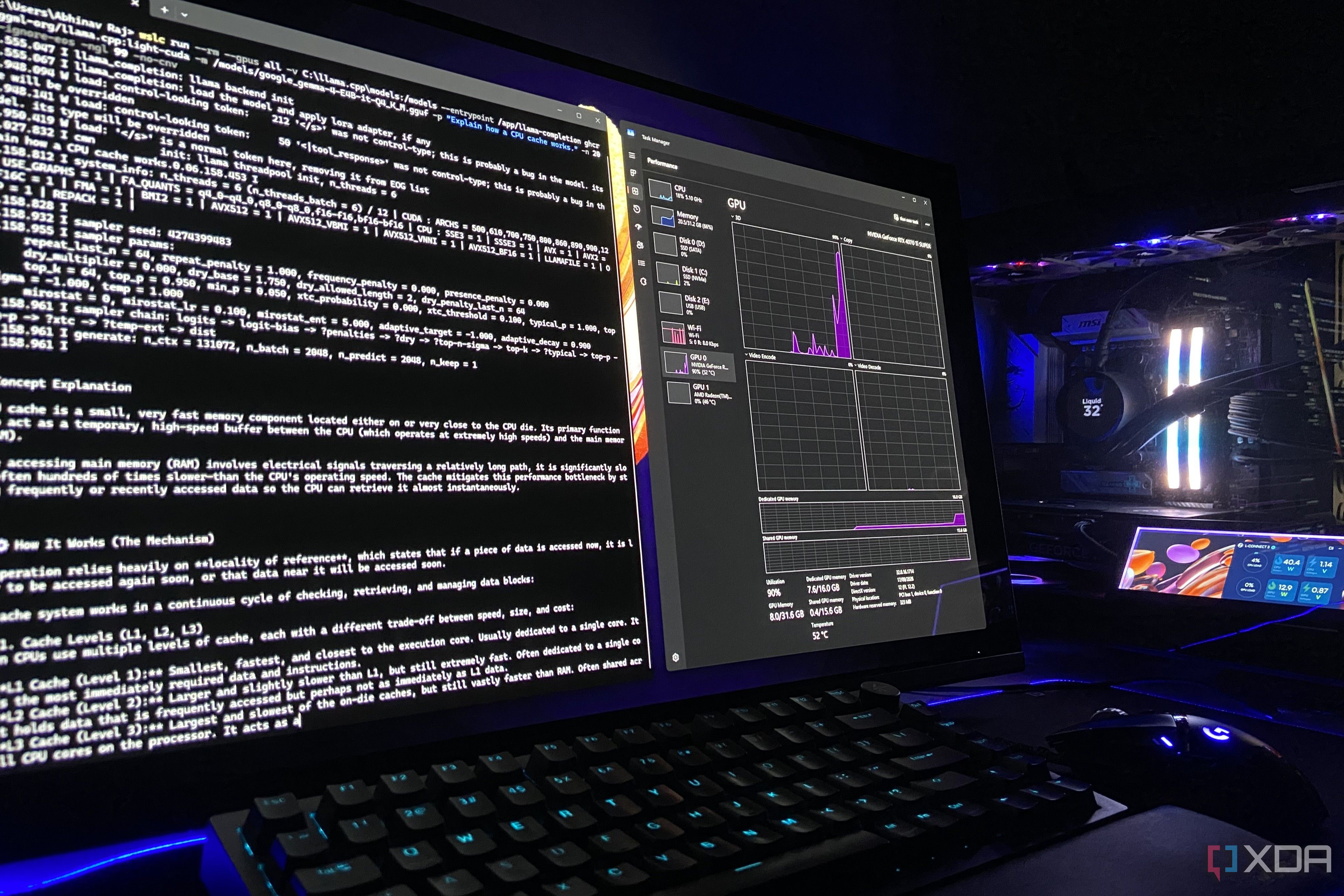
WSL has been supporting Nvidia GPUs on Linux for years, eliminating the need for additional drivers. Docker users familiar with the --gpus all flag will find wslc's setup straightforward. After confirming the GPU connection, users can test their setup by running a container with Nvidia's CUDA base image. In tests, llama.cpp's container produced similar performance to running locally, with a slight 4% difference in token per second speed.
While wslc currently lacks built-in support for Docker Compose, Microsoft has acknowledged this as a top requested feature. Compose support is in development, aiming for compatibility with existing Compose files. Despite this, wslc remains a compelling option for running Linux containers on Windows 11, especially for those not relying on Compose. The setup process is quick, frictionless, and doesn't require signing in, rebooting, or accepting licenses.
Written by urgent.news from XDA Developers's reporting — not their text. Machine-written — may contain errors; check the original before relying on it.