How I use Google Maps in Android Auto to beat traffic and save time
Let Maps handle the rest
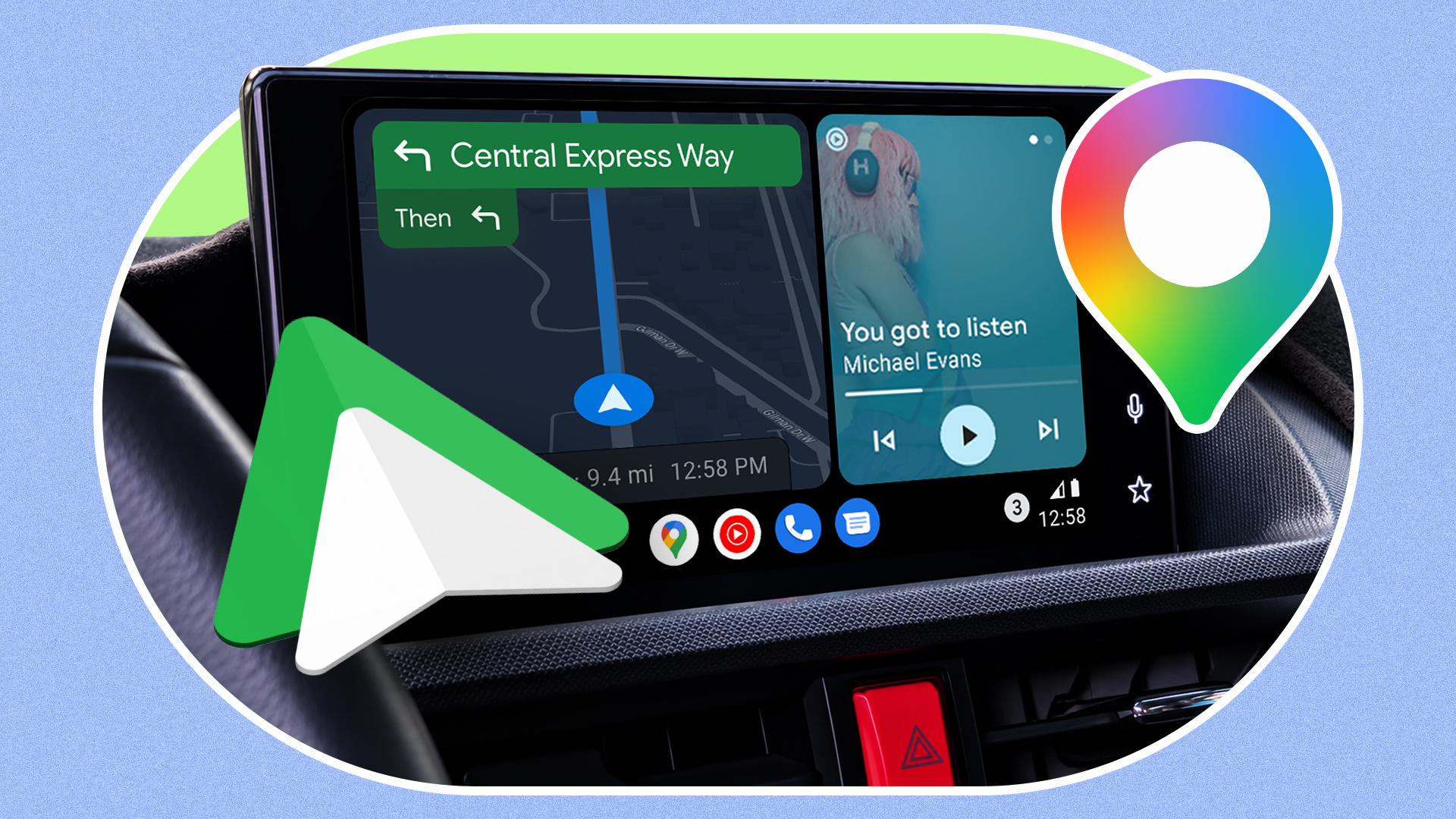
Using Google Maps in Android Auto can significantly streamline your commute and save valuable time. By utilizing various features, you can make driving a more pleasant and efficient experience. One key method is to save frequently visited places, such as home, work, and favorite destinations. This allows you to quickly access these locations without remembering exact names or addresses.
To set up saved places, search for a location on Google Maps, tap its name or address, select Save, and choose a list. When you connect your phone to Android Auto, open Google Maps on the car's display and tap the search bar. Select Saved to view your saved places. Another useful feature is live traffic information. By toggling on the traffic layer in Android Auto, you can view color-coded roads indicating traffic conditions.
Green represents smooth traffic, orange indicates slower traffic, and red signifies heavy congestion. This provides a quick glance at potential bottlenecks and helps you choose smarter routes. To check traffic, tap the cog icon (Settings) in Google Maps and enable Traffic. Before leaving, consider comparing available routes and their estimated travel times.
Google Maps color-codes roads, making it easier to spot potential traffic issues. You can also set a destination and use voice commands to make adjustments along the way, such as asking for directions, checking estimated arrival time, or finding specific places along your route. Voice commands eliminate the need to fumble with the touchscreen while driving.
Additionally, Google Maps in Android Auto allows you to find essential places along your route, such as gas stations, parking garages, or coffee shops. To do this, start navigation to your destination, tap the search icon, select Categories, and choose a category like gas stations, parking garages, or coffee shops. Browse the results, choose a location, and tap Add stop to include it in your route.
Voice search can also be used to find specific places. For example, you can say "Hey Google, find gas stations along my route." Finally, it's essential to set up your route and settings before leaving, rather than relying on last-minute adjustments. By doing so, you can minimize disruptions and focus on driving, making your commute faster, smoother, and less stressful.
Rewritten by urgent.news; may contain errors — check the original.
Sources: androidpolice.com · techradar.com · androidauthority.com
Also reported by 2 other outlets
- Google sparks privacy outrage with new Android phone number default techradar.com
- Here’s when Android’s Heads Up safety tool will join Google’s graveyard androidauthority.com