Pixel 11 signal problems? Try these 7 fixes before returning it
Don't give up on your Pixel 11 before trying these simple fixes.
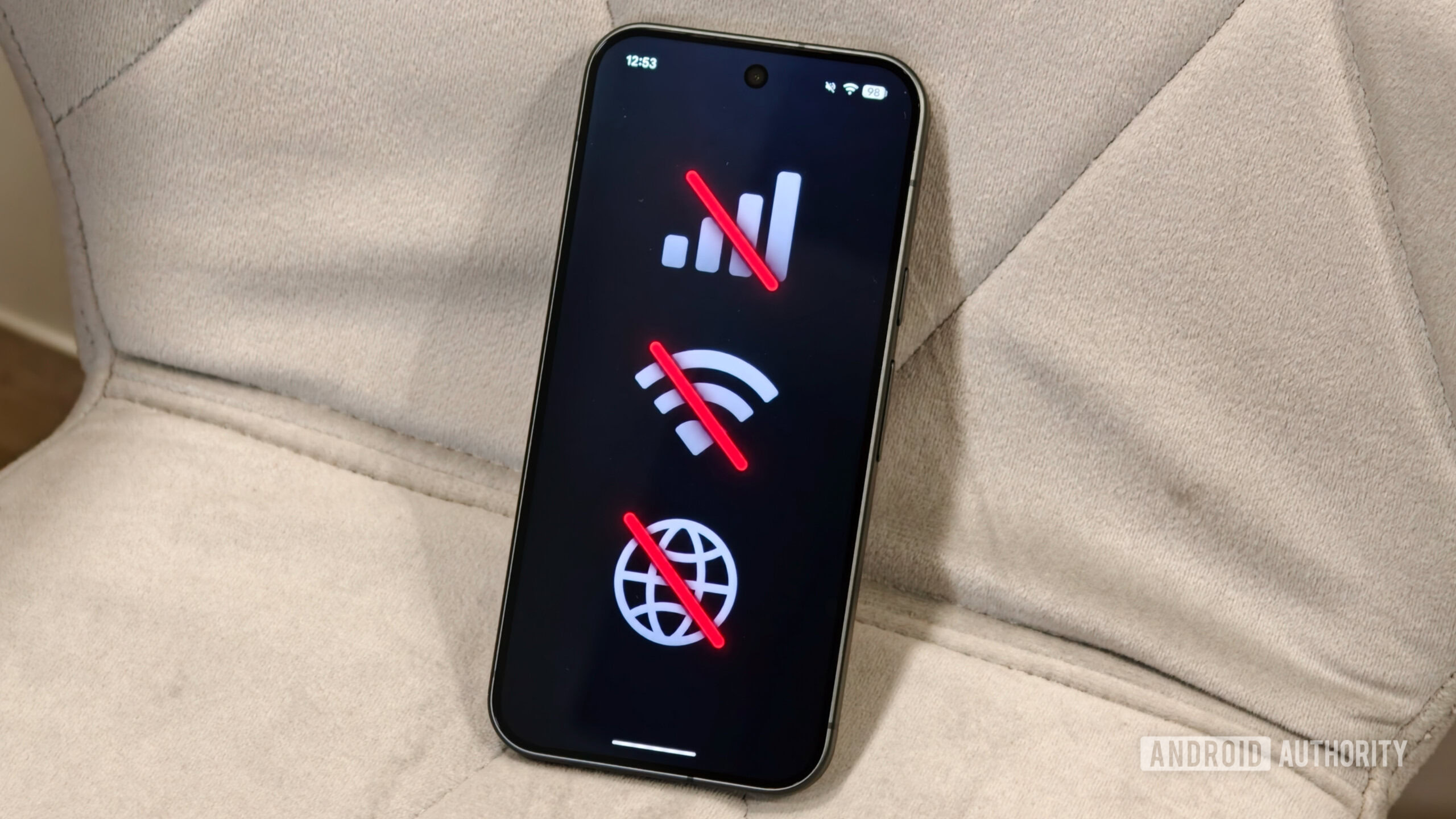
Google's latest Pixel 11 smartphones have introduced a new MediaTek modem, which has significantly improved connectivity over previous models. However, some Pixel 11 users have encountered issues with mobile data and Wi-Fi connectivity. Before resorting to returning the device, here are seven troubleshooting steps to attempt.
The first and simplest step is to restart the phone's wireless connections by enabling Airplane mode for a few seconds and then disabling it again. This can be done by toggling the Airplane mode icon in Quick Settings or through Settings - Network & internet - Airplane mode.
Another basic step is to remove and reinsert the SIM card, checking for any damage or wear that may be affecting the connection. If an eSIM is being used, it can be temporarily disabled and re-enabled in Settings - Network & internet - SIMs.
Adaptive Connectivity is a Google feature that dynamically switches between Wi-Fi and cellular data based on network performance and battery optimization. Temporarily disabling this feature may resolve connectivity issues. To do this, navigate to Settings - Network & internet - Adaptive Connectivity and turn off both Auto switch to mobile network and Optimize network for battery life.
Checking basic mobile data settings such as data roaming and data limits can also help. Enable data roaming in Settings - Network & internet - SIMs and review any data limits set in Settings - Network & internet - SIMs - Data warning & limit.
Private DNS settings can sometimes cause internet connectivity problems. Temporarily disabling Private DNS in Settings - Network & internet - Private DNS may resolve the issue if the problem was related to a problematic DNS server.
If none of the above steps work, resetting the mobile network settings can provide a fresh start. This can be done in Settings - System - Reset options - Reset mobile network settings, which will reset cellular network settings without deleting eSIMs or affecting Wi-Fi and Bluetooth settings.
If the problem persists after trying these steps, it may be necessary to check for software updates, carrier or SIM issues, or potential hardware problems.
Written by urgent.news from Android Authority's reporting — not their text. Machine-written — may contain errors; check the original before relying on it.