Star Wars Zero Company PC Settings Guide
I’ve been an XCom fan for years, and while we haven’t got a new one in a while, Star Wars Zero Company seems like the perfect substitute. It’s in the Star Wars universe, which is awesome, and putting it in the middle of the Clone Wars makes it the perfect setting for a tactical game like this. And while I’ve been having a blast with it so far, it’s plagued with a lot of the same performance…
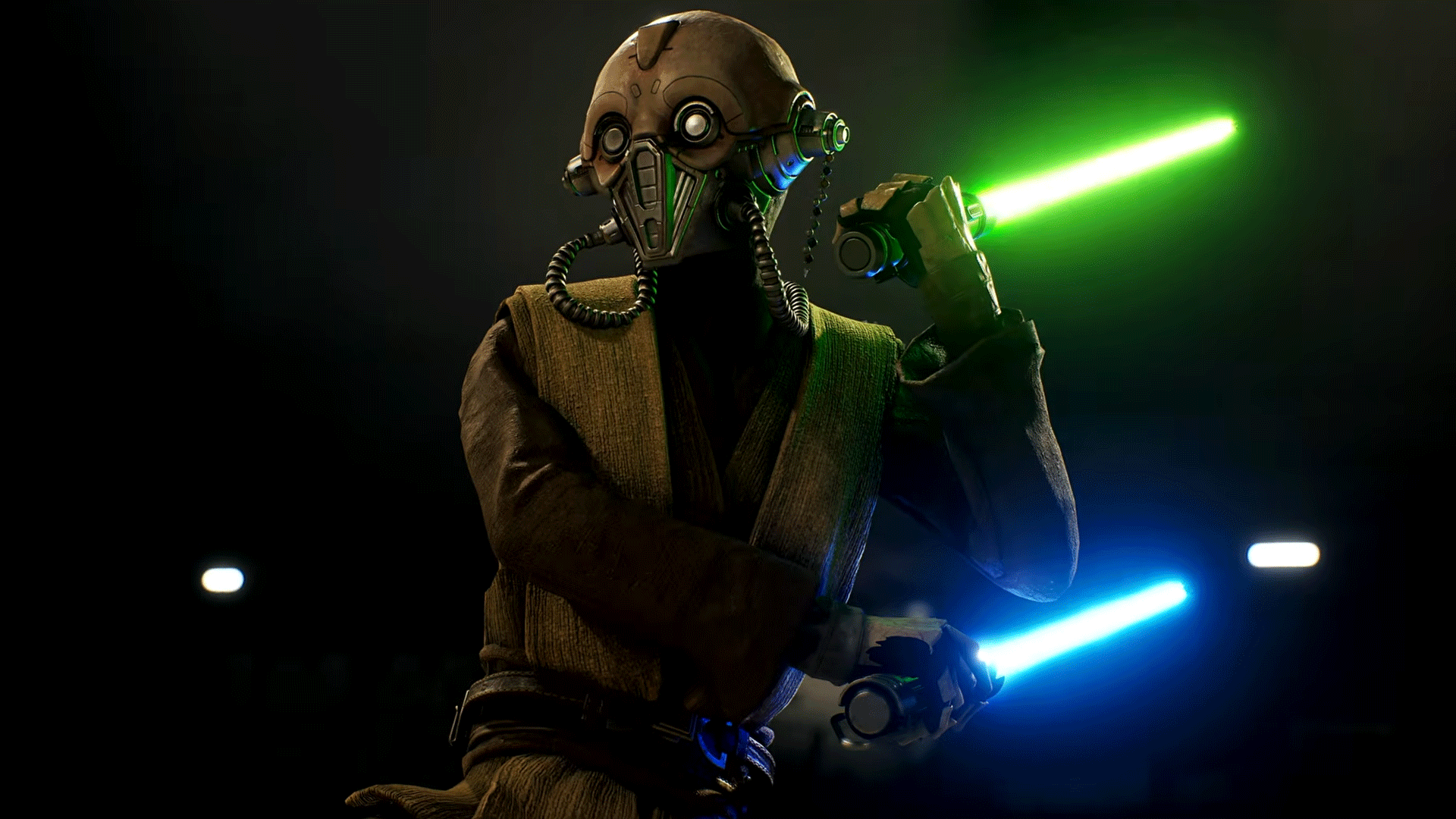
Star Wars Zero Company, a tactical game set in the Star Wars universe, has been plagued by performance issues since its release. The game runs poorly on low-to-mid-range hardware, causing crashes and frame drops. The performance problems are mainly due to the CPU usage, which can spike to 50% or higher at the beginning of a mission. The game uses Unreal Engine 5, which makes it difficult to tune for performance. However, there are several settings that players can adjust to improve their gaming experience.
First, players should choose the appropriate windowing mode. Fullscreen mode is recommended for single-monitor setups, while Borderless Window mode is ideal for those with multiple monitors or frequent alt-tabbing. Windowed mode is the least preferred option.
Next, players should consider enabling anti-aliasing and upscaling. AMD users should use FSR, Nvidia users should use DLSS, and XeSS for Intel GPUs. Upscaling quality should be adjusted based on the native resolution, with Performance for 4K, Balanced for 1440p, and Quality for 1080p.
Frame generation is another useful setting that can increase the frame rate, although it comes at the cost of latency. This should be turned on for a smoother image in a turn-based game like Star Wars Zero Company.
For players with weak CPUs, lowering hidden objects and effect quality can help improve performance. Windowing mode should be chosen based on the number of monitors and alt-tabbing frequency. Anti-aliasing and upscaling should be enabled using the appropriate setting for the graphics card. Frame generation can be turned on for a smoother image, but latency may increase.
Shadow quality can be lowered if the GPU is struggling to maintain frames. Global illumination and reflections should be adjusted based on GPU utilization, with Mid-Range PC settings being medium and Handheld settings being low. Post-processing effects can be adjusted based on personal preference, but they may not significantly impact performance.
Textures should be set to the appropriate resolution based on available VRAM, with Ultra being recommended for those with 10GB or more of VRAM. Finally, effect quality should be adjusted to change the detail of visual effects, such as explosions, debris, and laser effects.
Written by urgent.news from IGN's reporting — not their text. Machine-written — may contain errors; check the original before relying on it.