Docker for Beginners: Images, Containers, Ports, and Volumes Explained
Docker for Beginners: Images, Containers, Ports, and Volumes Explained If you've ever followed a programming tutorial and seen something like: docker run ... you've probably wondered: What exactly is Docker doing? I had the same question when I started learning Docker. At first, I thought Docker was simply a way to "run applications in containers." But there is much more to it. Once I understood…
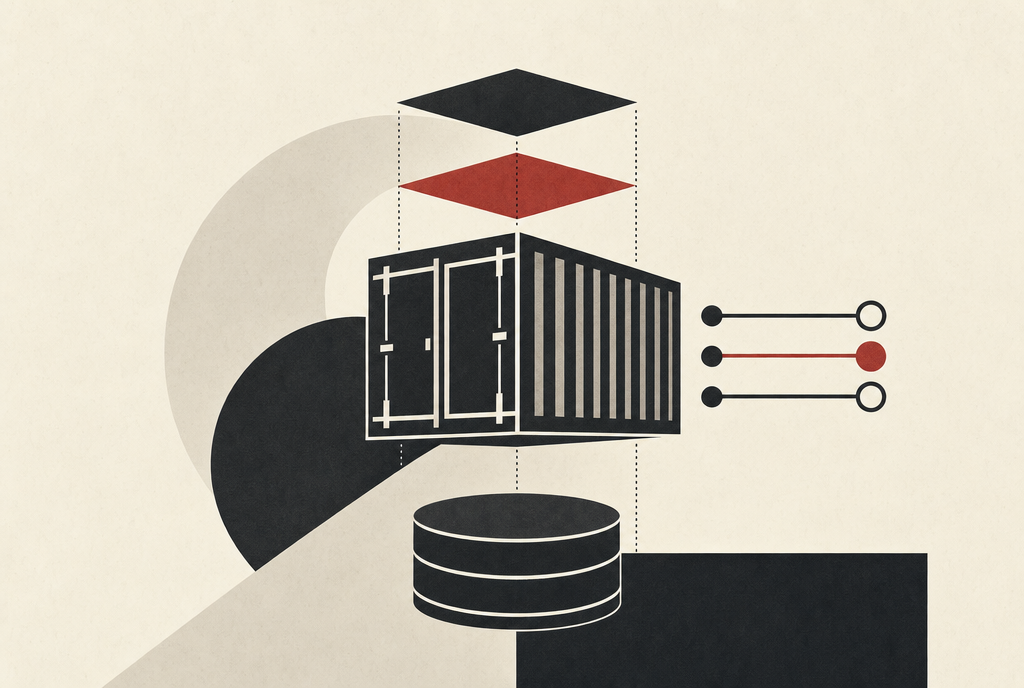
Docker is a platform designed for building, packaging, and running applications within isolated environments known as containers. This platform simplifies the process by allowing developers to define the necessary environment for their applications to run in, thereby reducing the "it works on my machine" issue. Before diving into Docker commands, it is crucial to grasp four fundamental concepts: images, containers, ports, and volumes.
A Docker image is a read-only template utilized for creating containers. It functions similarly to a blueprint, containing all the essential instructions and filesystem components required to establish a container. Users can obtain these images from container registries, such as Docker Hub, using commands like "docker pull nginx." Once downloaded, the available images can be viewed with the command "docker images."
A container represents a running instance of an image, akin to a running blueprint created from the blueprint. For instance, running "docker run nginx" generates a container from the Nginx image. To view both active and stopped containers, users can utilize the command "docker ps -a," which might display a list of containers with their respective statuses and images.
Docker ports introduce a layer of complexity. Web applications typically operate on specific ports, such as port 8000. However, these ports belong to the container's network environment, necessitating a method for browsers to access them from the user's computer. Port mapping addresses this issue; for example, "docker run -p 8080:80 nginx" forwards traffic from localhost:8080 to port 80 within the container. The syntax for port mapping is -p HOST_PORT:CONTAINER_PORT.
Volumes offer a solution for managing persistent data within containers. Containers are designed to be replaceable; thus, if a container is terminated, the data it holds may be lost. Volumes store persistent data outside the container's writable layer, ensuring that data remains intact even if the container is removed. Users can create a volume with the command "docker volume create mydata" and then attach it to a container using "docker run -v mydata:/data some-image." This setup ensures that data remains persistent despite container removal.
To illustrate these concepts, let's set up a running container with Nginx. The command "docker run -d -p 8080:80 --name my-nginx nginx" creates and starts a container named "my-nginx," mapping port 8080 on the user's computer to port 80 within the container and using the Nginx image. By visiting "http://localhost:8080," users can view the Nginx welcome page.
Managing the container involves commands such as "docker ps" to view running containers, "docker stop my-nginx" to stop the container, "docker start my-nginx" to restart it, "docker rm my-nginx" to remove the container, "docker logs my-nginx" to view the container's logs, and "docker inspect my-nginx" to obtain detailed information about the container.
The Nginx image, when executed with "docker run nginx," is either pulled from a container registry or used locally if available.
Written by urgent.news from Dev.to's reporting — not their text. Machine-written — may contain errors; check the original before relying on it.