Apple CarPlay isn't working in your car? Here's what to check first
Apple's CarPlay is a convenient way to listen to music or safely use navigation, but it can be a finnicky system that requires the occasional troubleshooting.
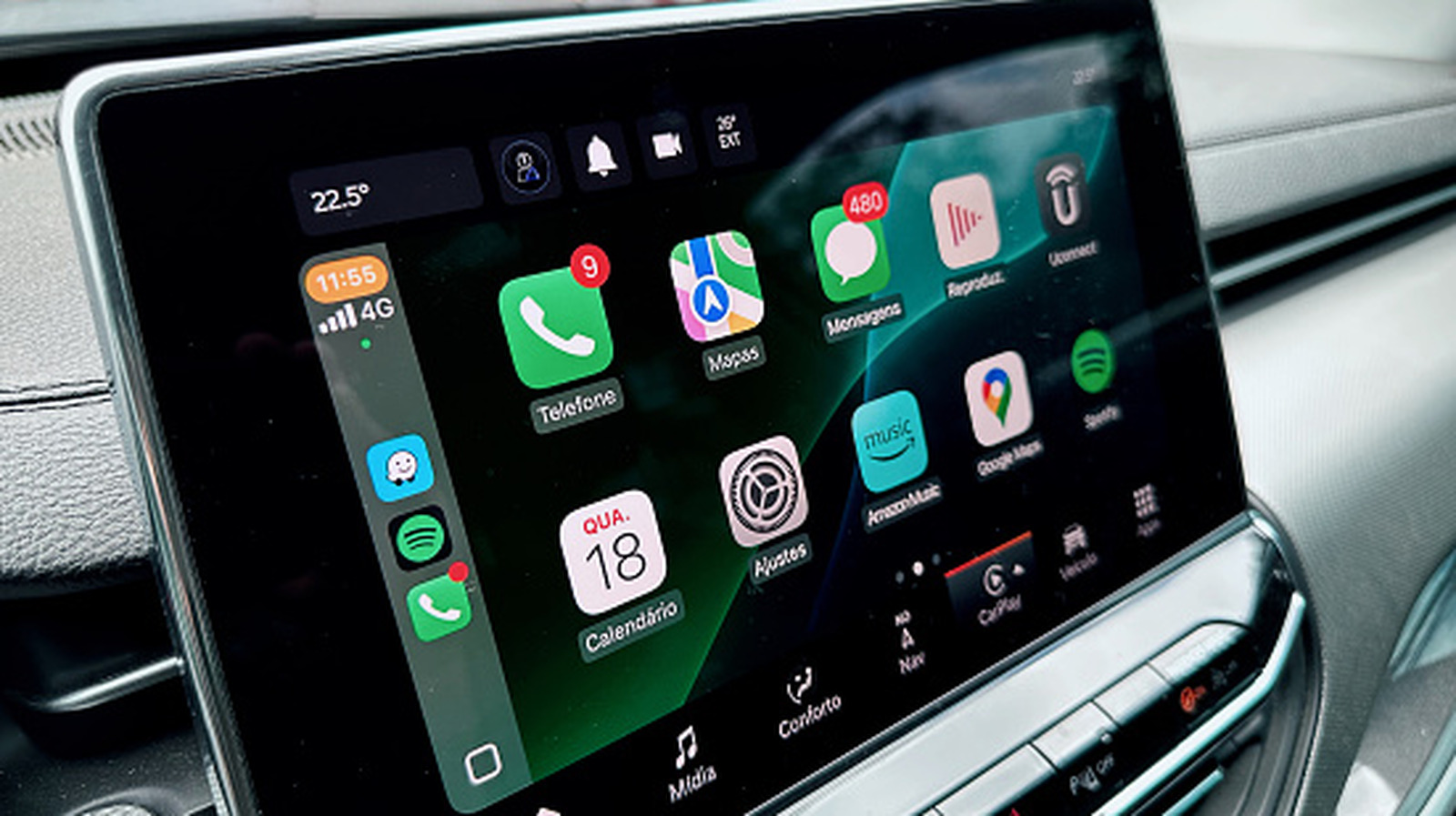
Experiencing issues with Apple CarPlay in your vehicle? This guide outlines how to troubleshoot the most frequent connection problems. Much like other iPhone features, CarPlay is typically simple to use once set up. However, as with all technology, complications can arise that disrupt its functionality. After getting accustomed to the benefits of Apple s in-car software, it can be frustrating to revert to using your phone s screen for music and navigation, especially considering safety concerns.
You may struggle to get CarPlay working for the first time, it may have stopped working after normal usage, or it might intermittently disconnect. The root causes of these issues are often similar, so following some troubleshooting steps should resolve them. Unless the problem stems from the CarPlay cable itself, you won't need to spend any money.
There's no need for automotive expertise or iPhone knowledge to implement these solutions, so even beginners should be able to enjoy their favorite music and navigation through the car s display shortly.
To begin, restart your phone and then shut down your car, followed by restarting it. This ensures no temporary glitches are hindering a stable connection. Note that some cars may not automatically open CarPlay when you connect your iPhone. Search for it on your car s default infotainment screen and tap to activate it. If this is your first time using CarPlay, verify that your car is compatible with the feature by checking Apple's CarPlay vehicle list.
All iPhones from the iPhone 5 onwards are compatible, so unless you're using an iPhone 4s or older, device compatibility shouldn't be the issue. Apple also maintains a list of countries where CarPlay works, but as long as your car (or aftermarket stereo) supports it, your location shouldn't matter. Ensure Siri is enabled on your iPhone, as this is necessary for CarPlay to function.
To do this, go to Settings Apple Intelligence & Siri (or simply Siri if your phone lacks Apple Intelligence). Enable Talk to Siri (or Talk & Type to Siri with Apple Intelligence enabled) and, if disabled, tap the Press Side Button for Siri slider. Next, update your iPhone to the most recent iOS version. While CarPlay doesn't require the latest iOS to operate, software updates can address temporary glitches that might be causing your problem.
When you first connect your iPhone to your car, you must unlock your phone once per drive for the two devices to communicate. This can be inconvenient, and if the icon doesn't appear on your car's display, you might mistakenly believe CarPlay isn't working. To avoid this repetition, enable the Allow CarPlay While Locked slider in Settings on your iPhone (General CarPlay), allowing CarPlay to connect even when your phone is locked.
While this setting is generally fine for your own vehicle, consider disabling it when driving someone else's car. If you use CarPlay via a USB cable, alternate connecting it to different USB ports in your car (if available). Consult your car manual to determine which ports are designated for CarPlay/Android Auto usage. If you're using a USB cable, try a fresh one from another port.
Over time, USB cables can degrade due to temperature fluctuations and strain, so replacing it may solve the issue. Ensure you use a data transfer-compatible cable, not just a charging cable. Avoid using adapters with CarPlay, as a direct connection is more likely to work. When replacing the cable, clean any dust in the USB ports of both your phone and car, and gently clear any buildup you find.
If you connect to CarPlay wirelessly (using a third-party adapter, for example), ensure Bluetooth and Wi-Fi are enabled on your phone. In the Wi-Fi menu, tap the i icon next to your car's name and enable Auto-join so you don't have to manually reconnect every time. Parental controls on your phone can block certain CarPlay features entirely.
If CarPlay still doesn't work at this point, return to Settings, find Screen Time Content & Privacy Restrictions, and ensure the slider for CarPlay is enabled. If the slider was previously off, this is not your issue. Similarly, in your car's settings, look for a Connections or Devices section to check if CarPlay is disabled or your phone is disconnected.
This varies by car, so refer to your vehicle's manual for specific instructions. Finally, try removing and re-establishing the CarPlay connection between the two devices. On your iPhone, go to Settings General CarPlay, select your vehicle, and tap Reset. Before resetting, take a screenshot of your app layout and widgets so you can easily reconfigure them afterward.
Written by urgent.news from Engadget's reporting — not their text. Machine-written — may contain errors; check the original before relying on it.