5 Nvidia Profile Inspector settings I change that the Nvidia App doesn't show
The Nvidia App hides some settings for good reason, but some of them have great utility depending on the application
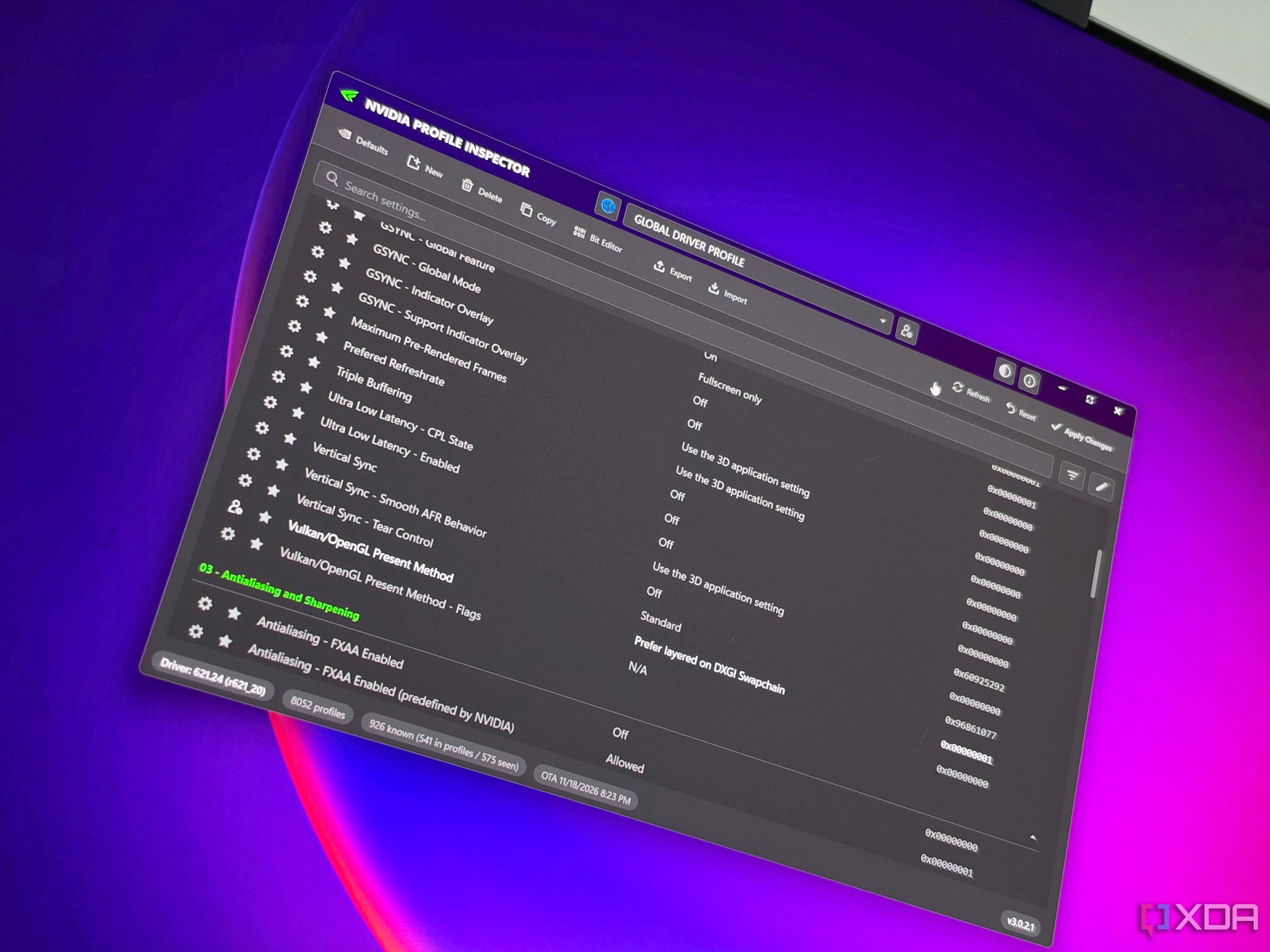
Nvidia GPUs in gaming PCs utilize profiles to store specific settings for games and applications. The Nvidia App displays only a few of these settings, while the Nvidia Profile Inspector offers access to all of them. This utility is a free, open-source Windows tool that can read and edit every profile and setting the driver knows about, including those Nvidia doesn't document. Here are five settings I change in the Profile Inspector that the Nvidia App doesn't show:
1. DLSS overrides: The Nvidia App only covers DLSS overrides for many titles, explicitly approved by Nvidia. Profile Inspector can apply overrides to games not on Nvidia's list, unlocking inaccessible DLSS profiles. Users must enable DLL overrides and choose forced preset letters for games lacking DLSS support.
2. Texture filtering settings: The Nvidia App's texture filtering settings include a negative LOD bias option, but Profile Inspector exposes the underlying number. This feature becomes crucial as upscalers become prevalent. Games that render below the output resolution should shift their mipmap bias negative for sharper textures. For instance, Cyberpunk 2077 at launch exhibited soft textures due to missing this step.
3. Antialiasing modes: The Nvidia App can force antialiasing modes in most older games, but it requires per-game compatibility values in Profile Inspector to hook into the renderer. With correct bit values and a matching LOD bias, users can force sparse grid supersampling (SGSSAA) into DX9-era games, including Unreal Engine 3 titles that struggle with MSAA.
4. Ambient occlusion compatibility: Some games lack ambient occlusion (AO), a critical factor in rendering realistic objects close to one another. Profile Inspector has a dedicated ambient occlusion compatibility field, and the correct value can add an AO pass to those games. However, results vary, and incorrect settings might cause visual artifacts or no effect at all.
5. CUDA state: When CUDA or OpenCL workloads run, Nvidia's driver defaults to the P2 performance state, slowing down memory access. Profile Inspector's CUDA - Force P2 State setting defaults to on, but disabling it lifts this cap. This setting is primarily useful for local LLMs or productivity tasks relying on CUDA.
Rewritten by urgent.news; may contain errors — check the original.
Source: xda-developers.com