Wireless Android Auto has a phone battery draining problem, but you can fix it
Wireless Android Auto can drain your phone's battery, but a few easy adjustments can help reduce power use and keep your phone cooler while you're driving.
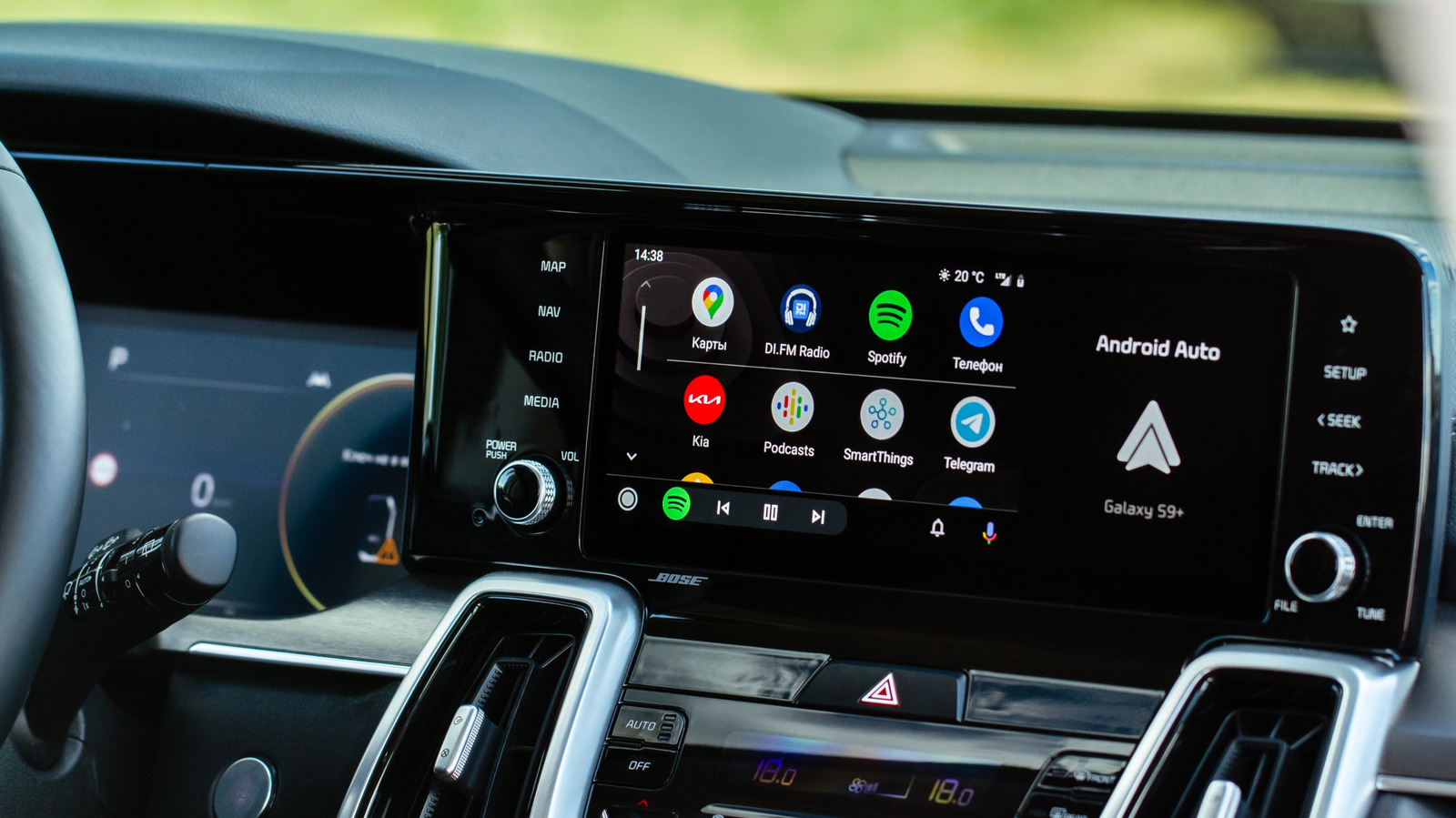
A single phone battery can lose as much as 16% of its power after an hour of wireless Android Auto in use, according to the source. This drain is primarily due to navigation, music, and the dual activation of Bluetooth and Wi-Fi. Charging the phone during this time intensifies the heat, which can cause the device to throttle its own charging process to safeguard the battery.
The combination of Bluetooth, Wi-Fi, and the processor's workload can lead to overheating, forcing the phone to slow down its performance or even cut off mobile data, including 5G. However, there are ways to reduce both the battery drain and the heat buildup. Turning off 5G or opting for offline maps during long drives can help, as can avoiding direct sunlight and keeping the phone near an air-conditioning vent.
Using a vent mount instead of a dashboard cradle can also help, as can plugging the phone in for charging. Google has capped wireless charging at 15W to prevent excessive heat buildup, especially on phones like the Pixel 10 and Pixel 10 Pro. Keeping the phone out of direct sunlight and hot spots, and using a vent mount, can significantly reduce heat.
A wired connection through the USB port may be cooler and more effective for charging, but the speed can vary depending on the vehicle's USB port specifications. For those who prefer a wireless connection, switching from 5G to LTE in the developer settings can make a noticeable difference in battery life, as LTE consumes less power than 5G.
Additionally, turning off 3D buildings in Google Maps can further reduce heat and mobile data usage. On Samsung Galaxy devices, users can switch to LTE as the preferred network mode in the settings. Lastly, turning off Wi-Fi and Bluetooth scanning can also help conserve battery life, although Wi-Fi and Bluetooth remain essential for Android Auto's functionality.
Finally, toggling off the setting that starts Android Auto automatically when the phone is locked can prevent unnecessary launches.
Rewritten by urgent.news; may contain errors — check the original.
Source: engadget.com