How to clear the cache on your Fire TV
Cache keeps software running smoothly, but can lead to problems if it gets too big and your device runs out of storage - which is quite easy with Fire TV.
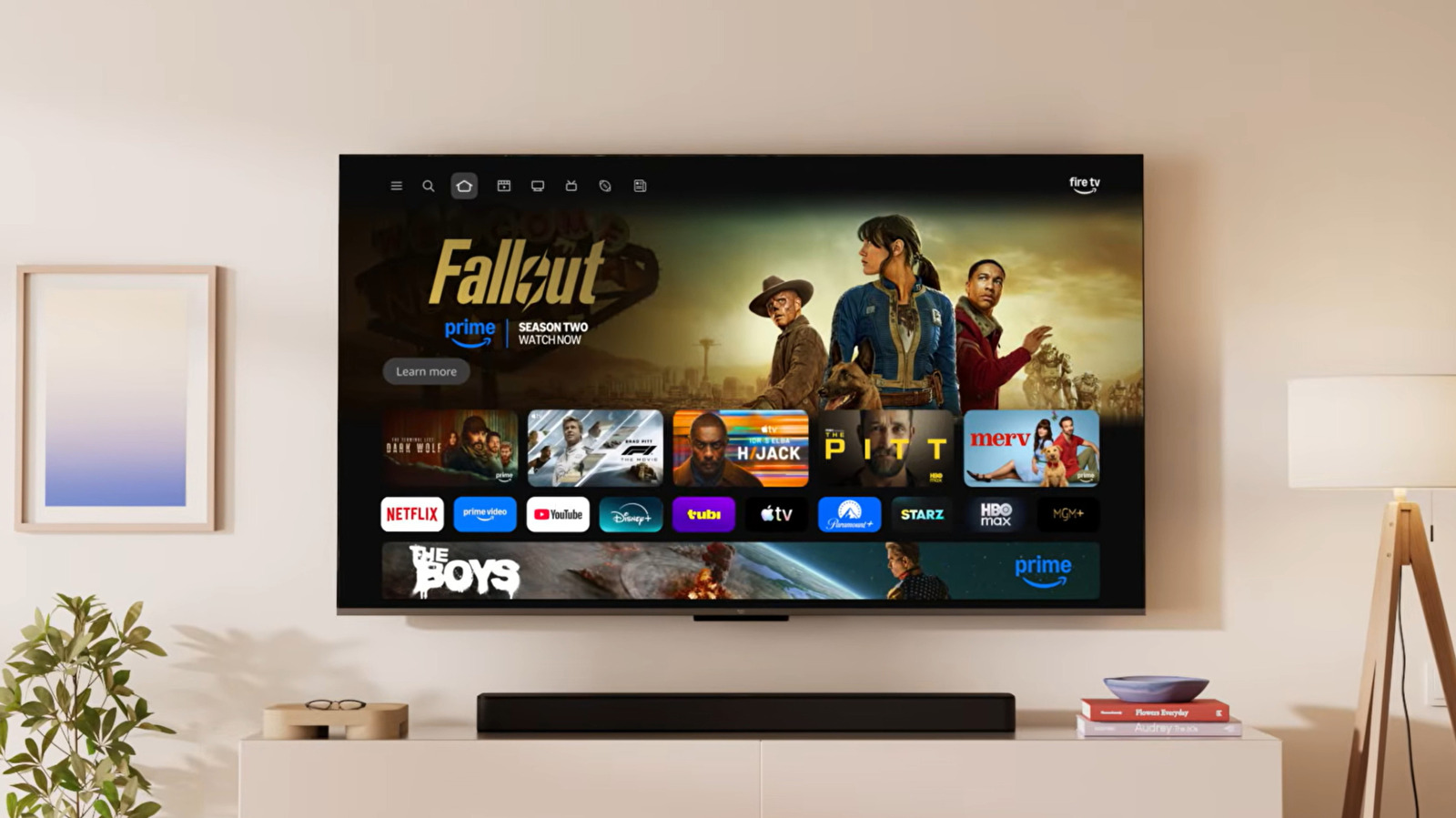
Your Amazon Fire TV is designed to clear the cache automatically on low storage, but manual intervention can be beneficial when experiencing issues. Slow performance may stem from excessive stored information, such as your viewing history and thumbnails, which are kept in temporary files for quicker access. This cache, similar to your computer's web browser cache, aids in quick load times. However, too much cached data may become a hindrance.
To clear the cache, navigate through your Fire TV settings: open the menu, select Settings, then Applications, then Manage Installed Applications. Here, you can clear all application caches with a single action or clear the cache for a specific app. Another method involves visiting Amazon's Manage Your Content and Devices page, logging in, selecting your Fire TV, and choosing Clear Your Fire TV Cache.
While clearing the cache can enhance your Fire TV's speed, it's typically a medium- to long-term solution. Your device will need time to rebuild the shortcuts the cache provides. Regularly updating your Fire TV software and removing unused apps may also contribute to improved performance. Should your device still struggle, switching it off and on again is a useful troubleshooting step. As a last resort, a factory reset can resolve persistent issues.
Rewritten by urgent.news; may contain errors — check the original.
Source: engadget.com