How to hide the new macOS 27.3 menu bar indicator
macOS 27.3 beta 2 adds a blue menu bar indicator for apps using System & App Protection Override. Apple describes it as a transparency indicator that appears when one app is controlling another. If you regularly use trusted automation tools and utilities, that can mean a persistent pill taking up space in your menu bar. Prefer to hide it? There’s a Terminal workaround. more…
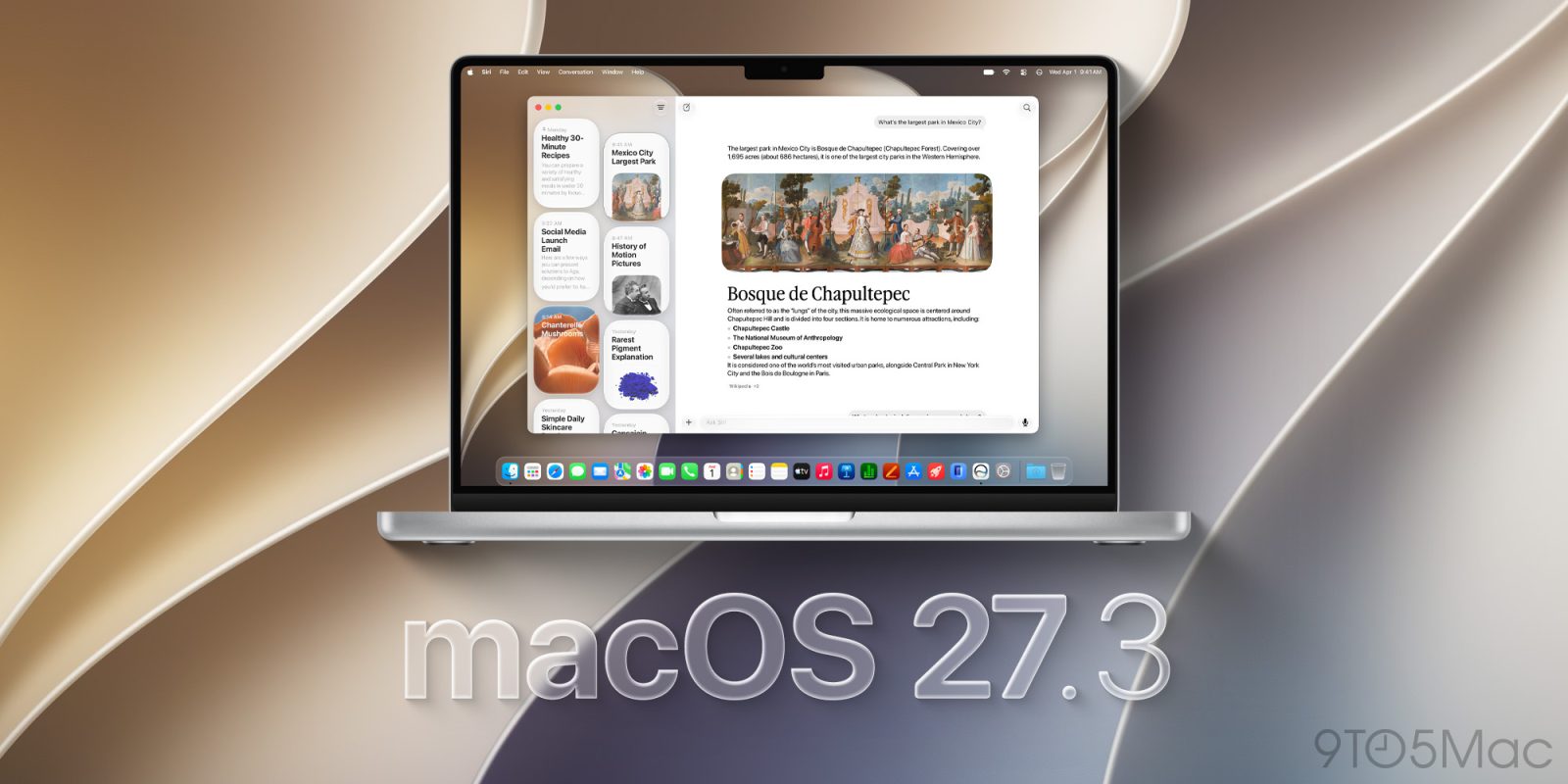
macOS 27.3 beta 2 introduces a blue menu bar indicator for apps utilizing System & App Protection Override. This feature serves as a transparency indicator when one app controls another. Although beneficial for trusted automation tools, it can clutter the menu bar for regular users. If you'd rather hide this indicator, a Terminal workaround is available. Users have confirmed that the indicator disappears after a restart following these steps.
First, open Terminal and execute the command: `sudo mkdir -p /Library/Preferences/FeatureFlags/Domain`. Enter your Mac administrator password when prompted. Next, run `sudo defaults write /Library/Preferences/FeatureFlags/Domain/TCC AX_TRANSPARENCY_INDICATOR -dict Enabled -bool false`. This disables the internal AX_TRANSPARENCY_INDICATOR feature flag. Remember to input your Mac administrator password again.
Finally, restart your Mac to apply the changes. The command disables the feature flag without removing apps from your permissions list. However, you'll no longer see the activity indicator. To reverse the process, run `sudo defaults delete /Library/Preferences/FeatureFlags/Domain/TCC AX_TRANSPARENCY_INDICATOR` and restart your Mac once more. This method removes only the indicator override, leaving any other configured flags intact.
Please note that this is an undocumented workaround tested on the current beta, and Apple might change or remove it in a future update.
Written by urgent.news from 9to5Mac's reporting — not their text. Machine-written — may contain errors; check the original before relying on it.