5 Google Messages tricks that cut down my daily texting friction
Make texting a lot simpler by following these tips and tricks.
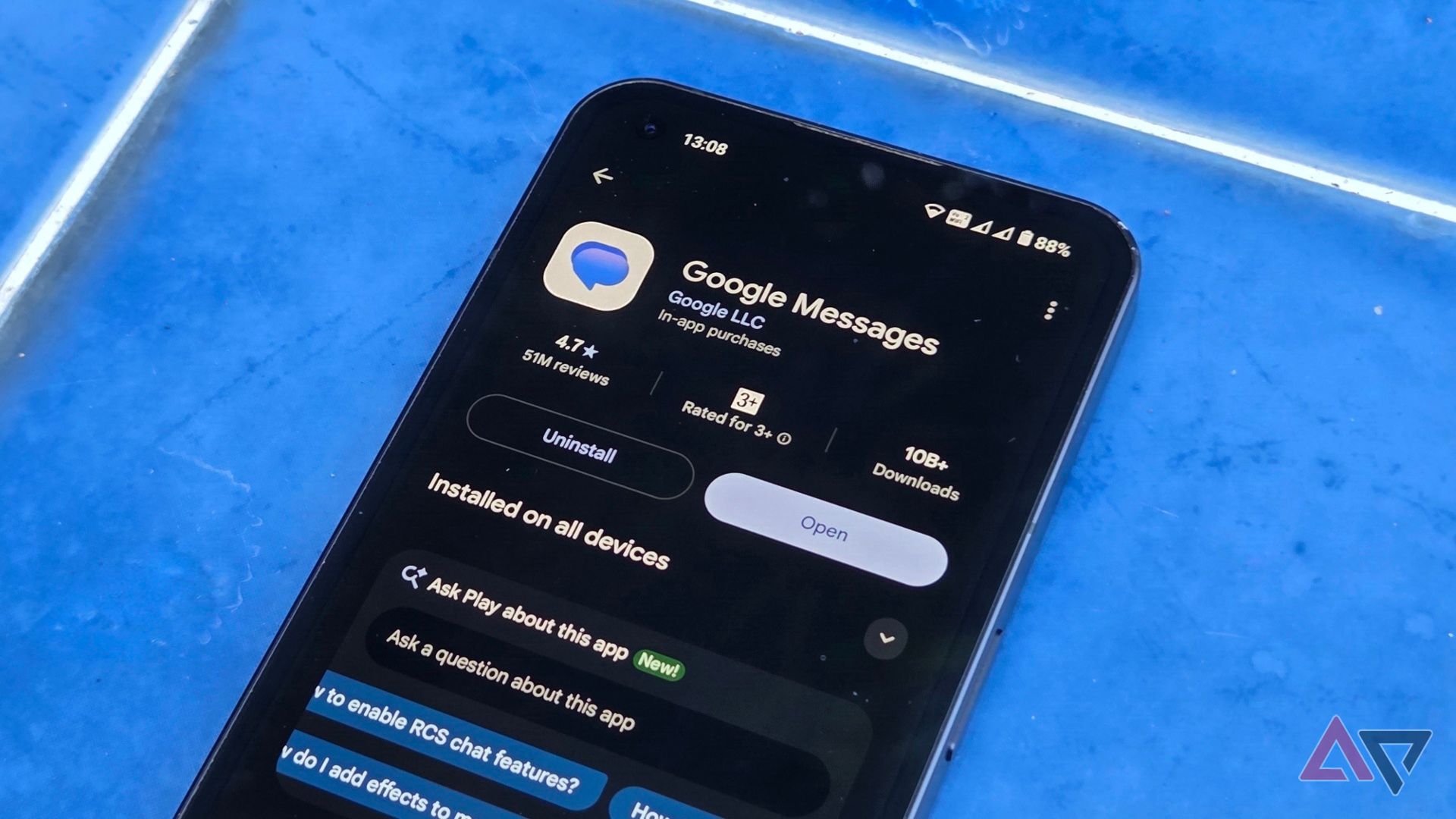
Google Messages, the versatile messaging app, offers numerous features that can simplify your texting experience. Overloading with options can make it cumbersome, but with a few adjustments, it can become a seamless communication tool. Here are five tips to enhance your Google Messages experience.
Firstly, prioritize your conversations by pinning them to the top of the list. This allows for quick access to essential chats, including family, friends, and important contacts. To pin a conversation, long-press it and tap the pin icon at the top. However, note that you cannot manually reorder pinned chats; they are displayed in descending order based on the last received message.
Another useful feature is the ability to mark messages as stars. This doesn't pin them to the inbox, but rather categorizes them in the search bar. To star a message, long-press it and select Star. To unstar a message, simply tap the star icon next to it. The starred messages are easily accessible through the search icon, where you can also find categories such as unread messages, texts from known or unknown contacts, and media files, including any messages you've starred.
A lesser-known feature is the ability to customize swipe actions for chats. By accessing the profile icon in the upper-right corner, heading to Messages settings, and selecting Swipe actions, you can choose between Archive, Trash, and Mark as read or unread. I personally set Trash for right swipes and Mark as read/unread for left swipes, but adjust to your preference. Archived conversations can be found in the Profile section under Archived, and they remain accessible until you choose to unarchive them.
For those who prefer to send messages at a specific time, Google Messages allows scheduling. Draft your message, long-press the Send button, and select one of the pre-made scheduling options (Tomorrow, 8:00; Tomorrow, 13:00; or Tomorrow, 18:00) or customize the time by choosing "Pick date and time". The message will be sent at the scheduled time, provided you have a stable internet connection.
Lastly, to minimize notifications from certain conversations, use the snooze feature. Long-press the conversation and select the snooze icon at the top. You can choose to snooze the conversation for 1 hour, 8 hours, 24 hours, or indefinitely. To ensure you still receive notifications for messages where you're mentioned, check the appropriate option at the bottom of the submenu.
By implementing these tips, Google Messages becomes a more efficient and user-friendly messaging platform, streamlining your daily texting experience.
Written by urgent.news from Android Police's reporting — not their text. Machine-written — may contain errors; check the original before relying on it.
This story
This is one outlet's version. Read the fullest account.