I turned an old PC into a retro console with Batocera, and it boots straight into my game library
Batocera lets me play the classics from the couch without reaching for a keyboard
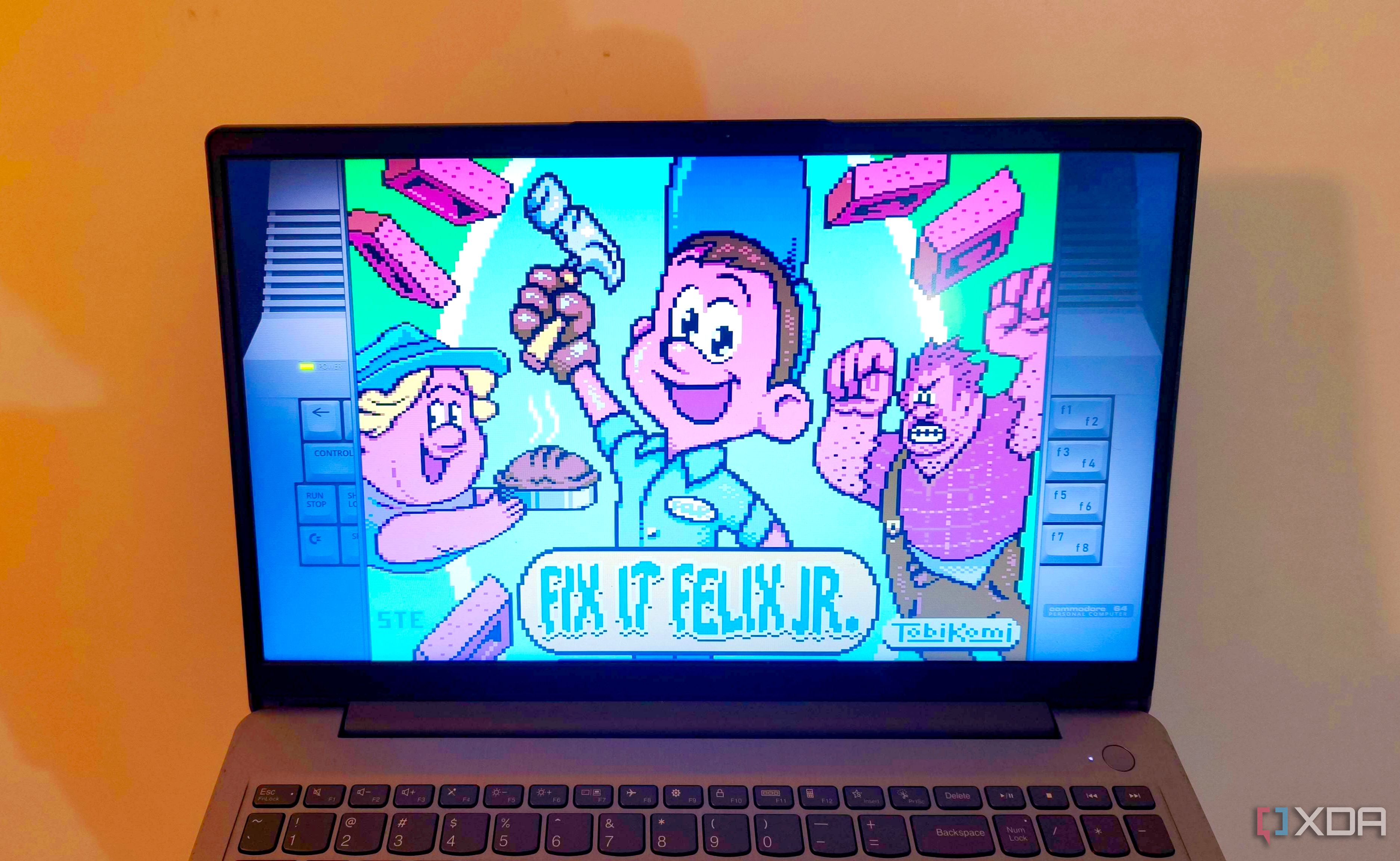
The author shares their experience of converting an old PC into a retro gaming console using Batocera, a platform that simplifies emulation. Batocera functions as an operating system with a focus on providing a seamless experience where you can pick up a controller and start playing your favorite games.
Setting up Batocera involves a few steps. Initially, you'll need a compatible PC, a USB drive for your Batocera and game files, a controller, and a way to connect the system to your TV or monitor. A keyboard is required for the setup and troubleshooting phase. The type of PC matters less than the capability to run the necessary emulators. EmulationStation, Batocera's main interface, allows you to browse and launch games from a unified library.
Batocera handles the configuration for you, which includes mapping your controller to the appropriate buttons across different emulators. The process starts with downloading the appropriate version of Batocera for your PC, and then using Raspberry Pi Imager to load the downloaded image into the USB drive. The author recommends at least 32GB of storage for Batocera and your game collection, depending on the number and size of games you plan to play.
Once the USB drive is set up, you can test the system by booting your old PC and selecting the Batocera drive from the boot menu. This boots up Batocera for the first time, which may take a few minutes to expand its data partition. If you have Secure Boot enabled, you may need to disable it or enroll Batocera's signing key in order to proceed.
After the initial setup, you can install Batocera permanently on your PC's internal drive. This process will overwrite any existing operating system and files, so ensure you have backed up any important data. After installation, you can connect to the internet and run System Settings to Install Batocera on a New Disk. Choose the internal drive and the x86_64 architecture for the installation.
With Batocera installed, you can enjoy your retro gaming experience by connecting a controller and browsing your game library. The interface allows you to browse games by their covers, descriptions, or video previews, ensuring you can choose a game quickly without needing to refer to a manual. Additionally, Batocera includes a save states feature, allowing you to save your progress at any point, which is especially helpful for games that do not provide convenient save points.
Using the PC as a dedicated retro console, you can leave the keyboard behind and manage your games entirely with your controller. Once you've finished playing, you can easily shut down the system through Batocera's menu, minimizing the need for keyboard use. This setup provides a simple and streamlined way to enjoy classic games, making it a worthwhile project for retro gaming enthusiasts.
Written by urgent.news from XDA Developers's reporting — not their text. Machine-written — may contain errors; check the original before relying on it.