How to set up Google Authenticator on a new phone
How to setup Google Authenticator on a new phone without causing a headache.
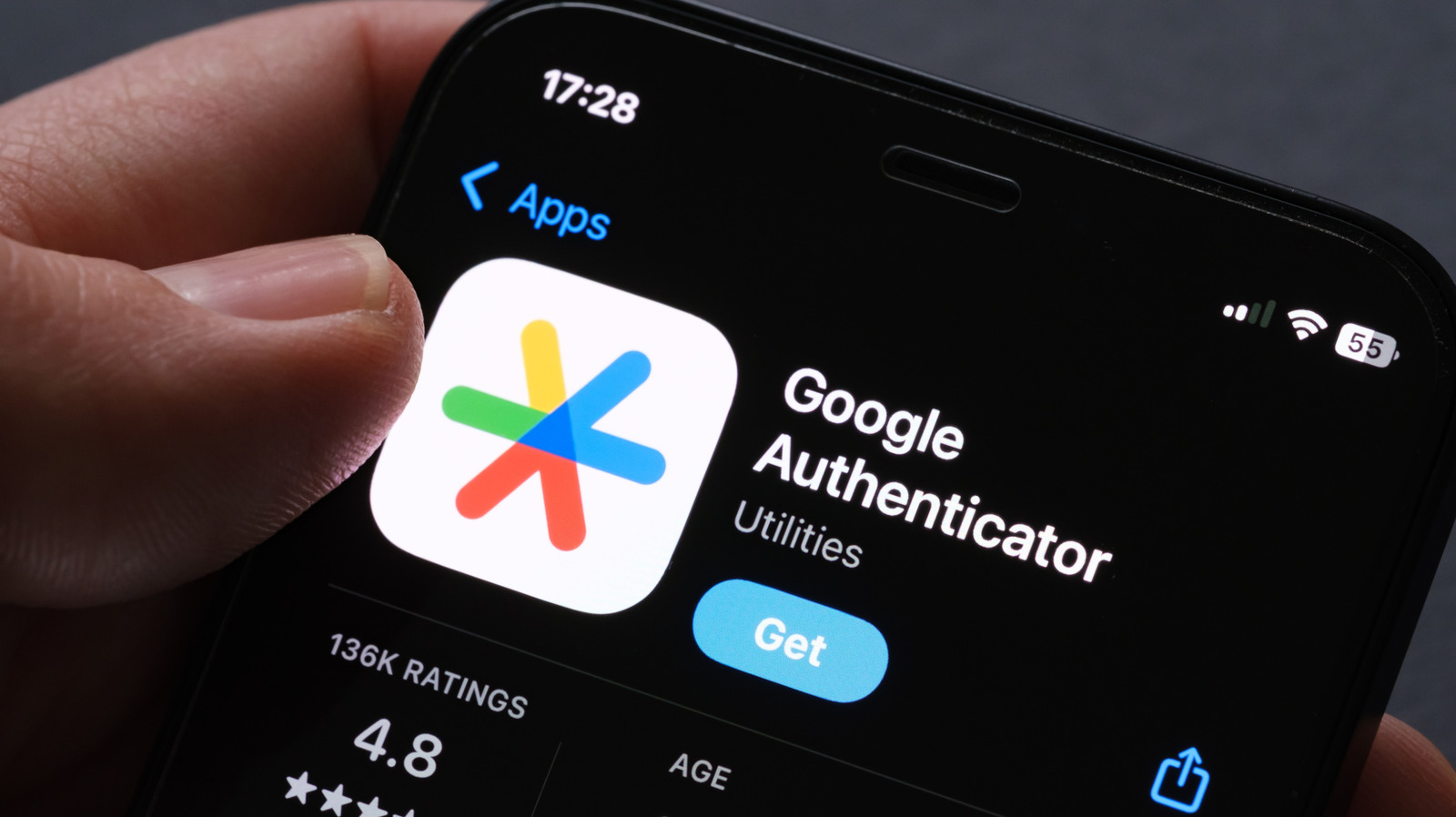
Utilizing Google Authenticator on a new device simplifies the transition when migrating accounts. This two-factor authentication (2FA) app safeguards online security by generating unique, one-time codes for account access. Traditionally, these codes were bound to a single device, but Google Authenticator has been syncing codes to the cloud since 2023.
To smoothly switch to a new phone, ensure you're using version 6.0 or above on Android and 4.0 or above on iOS, as these versions automatically transmit codes to the cloud when connected to a Google account. If your codes are already saved to the cloud, installing the app on a new device allows access to your existing codes, making the transfer seamless.
In the event of using Authenticator without a Google account, you'll need your old device for a manual transfer. Access the app's menu on your current phone and go to Transfer Accounts > Export Accounts. Choose the desired codes to transfer and generate a QR code. Scan this code on your new device within the Transfer Accounts section, where you'll find the Import Accounts option. Nevertheless, if your old phone is unavailable, manual transfers become more challenging.
To mitigate potential issues, maintain cloud backups and create backup codes in advance. When prompted to opt into Authenticator, ensure your codes are saved to the cloud or generate backup codes through your Google account's Security & Sign-in > 2-Step Verification > Backup codes section. These precautions empower users to recover locked accounts, even if it requires contacting the account provider for assistance.
Written by urgent.news from Engadget's reporting — not their text. Machine-written — may contain errors; check the original before relying on it.