I used Gmail wrong for years, here's the setup that actually works
My inbox finally makes sense now
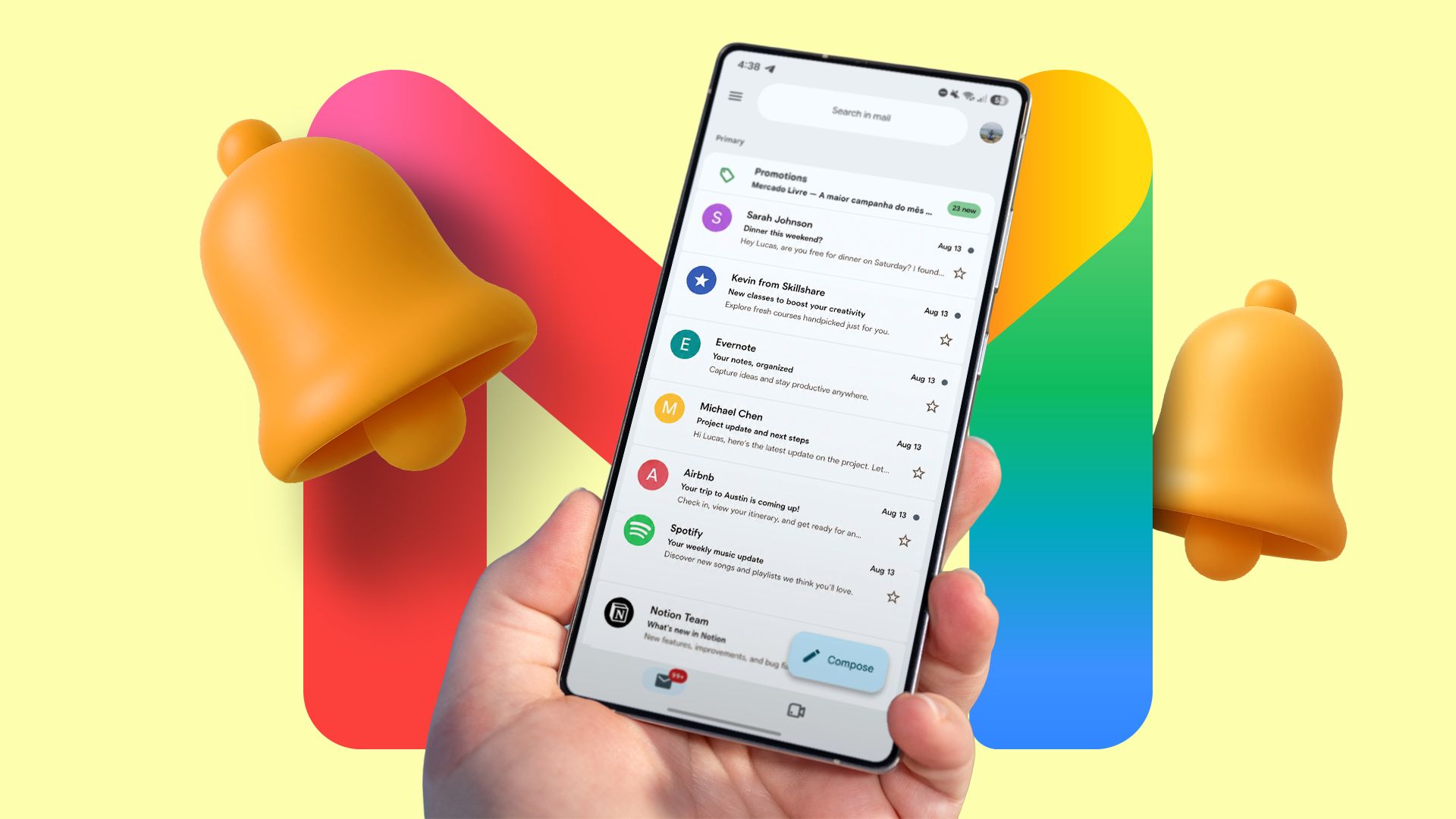
For years, Gmail served as my primary email platform, yet it became apparent that I had only scratched the surface of its capabilities. My usual approach was rather rudimentary; checking my inbox, scrolling through numerous emails, discarding promotional messages, highlighting key conversations, and leaving the rest for later. Recently, I opted to reassess my entire email strategy, and the outcome is a noticeably tidier inbox that effectively manages itself.
I continued to use Gmail's default inbox layout, without much consideration. While it managed to separate promotional emails and social notifications adequately, I still needed to manually sift through my inbox to locate important discussions. This was far from ideal, particularly when managing multiple work projects alongside personal emails.
Eventually, I transitioned to Priority Inbox, and the impact was instantaneous. Gmail now categorizes my critical and unread messages, starred conversations, and all other emails into distinct sections. I can quickly identify conversations that require my attention without wading through a lengthy email list. To implement this change, I accessed Gmail's Settings, navigated to the Inbox type menu, and opted for Priority Inbox.
Previously, I heavily depended on Gmail's search function to retrieve important emails. Although Google's search capabilities are robust, I desired a more structured method for organizing my conversations. This led me to fully utilize labels. I established dedicated labels for Work, Personal, Finance, Receipts, and Newsletters. Under Work, I introduced nested labels for different publications and projects, simplifying the tracking of editorial discussions.
I also assigned distinct colors to frequently utilized labels for quick identification. Subsequently, I configured rules to automate my entire inbox, which leads me to the next point. If a single Gmail feature revolutionized my inbox management, it was filters. I used to dedicate considerable time manually sorting emails, segregating conversations, and deleting superfluous notifications.
After discovering the power of filters, I aimed to automate as much of this process as possible. For instance, emails from Asana or Figma now automatically receive the Work label. Similarly, I crafted specific filters for newsletters, shopping receipts, and subscription notifications. Some messages are automatically archived, while important work discussions remain in my inbox.
I no longer need to sort everything manually. Additional automation pertains to my finances. When I receive bank statements or credit card bills from particular senders, Gmail automatically forwards them to my accountant, eliminating the need to remember sharing those documents monthly. I ensured the filters accurately matched relevant financial emails.
Setting up these rules is uncomplicated. I access Gmail's advanced search options, specify the criteria, click Create filters, and select the desired actions. The potential for customization is vast. After initiating multiple conditions and actions, Gmail evolves into a formidable automation tool that efficiently handles repetitive tasks in the background.
This brings me to another intriguing aspect of my Gmail setup. Instead of opening Gmail every time I need to find something, I connected my account to Gemini. Now, I can ask Google's AI assistant to extract pertinent information from my inbox without the need to search through hundreds of messages. For example, I can request Gemini to summarize my latest email conversation with Carly, and it swiftly provides the essential details.
Moreover, when I need to ascertain the payment due date for my HDFC credit card, I ask Gemini to locate it from the relevant email. I don't have to scroll through bank notifications or open PDF statements. However, the true magic unfolds when I combine multiple actions. I can request Gemini to determine my credit card payment due date and generate a reminder in Google Tasks.
Alternatively, I can ask it to extract vital information from an email and save it as a note in Google Keep. While I still open Gmail to respond to crucial conversations or manage my inbox, for everyday information retrieval and swift productivity tasks, Gemini has significantly diminished the frequency of my visits to Gmail. It has become one of my most cherished components of this entire setup.
I initially believed that maintaining an organized Gmail inbox required constant attention, but my refined approach, incorporating Priority Inbox, custom labels, and automated filters, has demonstrated otherwise. After embracing these Gmail features, everything has fallen into place. Before hastily switching to Outlook, Spark, Thunderbird, or any other email client, I strongly recommend giving Gmail's built-in functionalities a thorough examination.
Written by urgent.news from Android Police's reporting — not their text. Machine-written — may contain errors; check the original before relying on it.