Get a load of Excel’s new multi-value cells
Until now, Microsoft Excel has followed a strict structural rule: each cell on a worksheet can hold only a single scalar value. While you can string together text using commas or write dynamic array formulas to spill values across adjacent rows and columns, the cell itself remains a single-item container. But Excel has evolved. A feature currently in preview lets you store multiple distinct,…
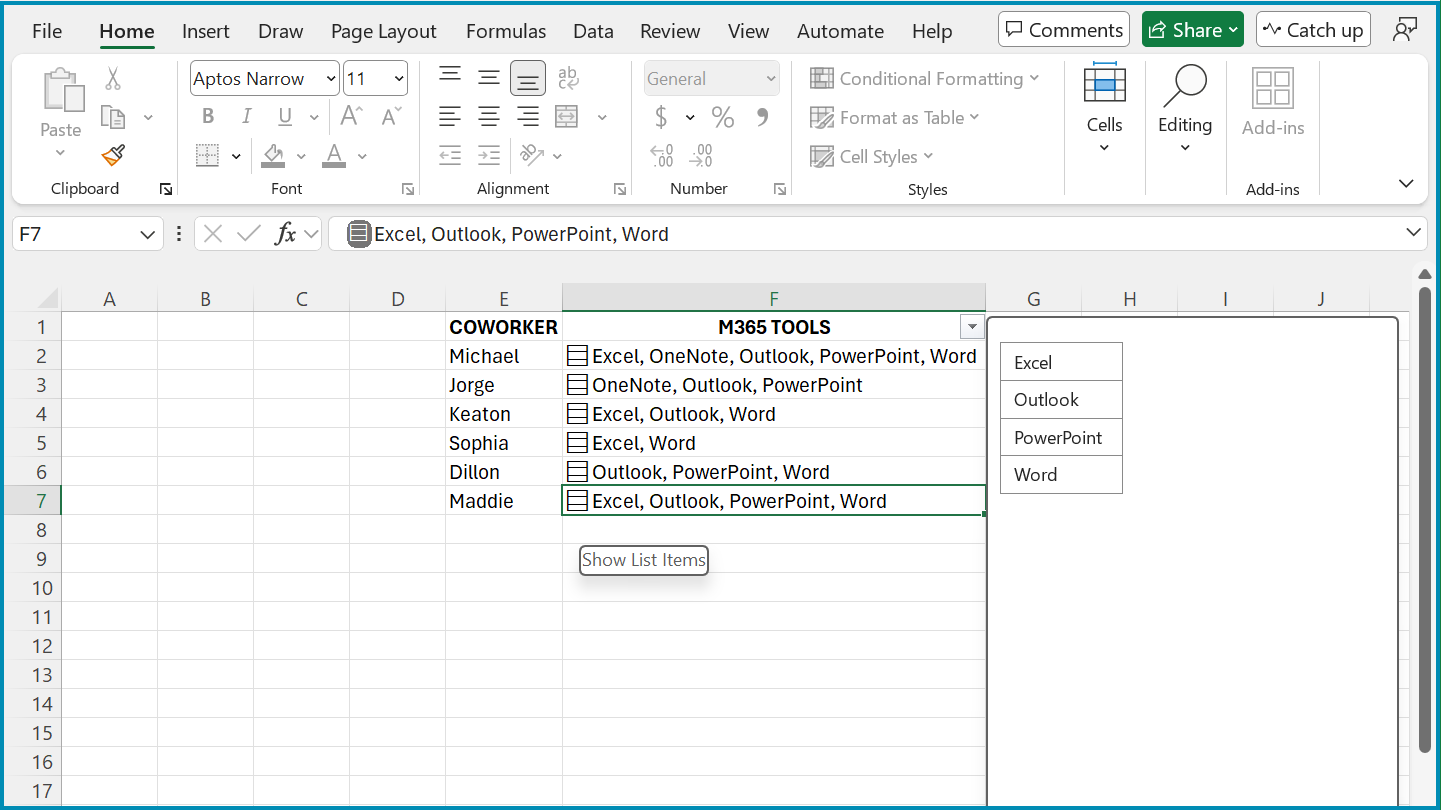
Microsoft Excel has introduced a groundbreaking feature that allows users to store multiple values within a single cell, a drastic departure from the traditional single-scalar value limitation. This new functionality, currently in preview, offers three distinct data structures that can be incorporated into individual cells: lists, arrays, and nested arrays.
Lists maintain a series of independent values arranged in a single column, treating each entry as a separate data element. Unlike plain text strings separated by commas, an in-cell list preserves the native data type of each item, be it text, numbers, dates, or Boolean values. Arrays store a grid of rows and columns within one cell, enabling complex outputs to be confined within individual cells rather than spilling across adjacent worksheet rows and columns.
A nested array allows formulas to generate and return arrays inside other arrays, further enhancing the complexity that can be contained within a single cell.
These in-cell data structures can significantly simplify complex formula processing and reduce clutter on the worksheet. Currently, these features are available in Excel for Windows and Mac to members of the Microsoft 365 Insider program using the Beta Channel. However, Microsoft has not yet announced a rollout to all M365 subscribers, and these features are not supported in perpetual license versions or Excel for the web.
The potential applications of these in-cell structures are vast. For instance, categorizing co-workers' expertise in multiple software tools could be done by designating an in-cell list in a spreadsheet column. This approach eliminates the need for multiple columns, allowing for easier filtering of items by clicking the drop-down arrow at the top of the column.
In survey responses, storing all ratings within a single designated cell per respondent can keep the spreadsheet clean and organized. Lastly, when using array-processing functions like TEXTSPLIT, these in-cell data structures can prevent #SPILL! errors by packing split outputs inside respective row cells as nested arrays, thereby avoiding formula collisions and eliminating unwanted spill across adjacent grid cells.
Written by urgent.news from Computerworld's reporting — not their text. Machine-written — may contain errors; check the original before relying on it.