How to force an app to use the discrete GPU in Windows 11
If your games or apps are running more slowly than you'd expect, you may need to force Windows 11 to run it using the discrete GPU. Here's how.
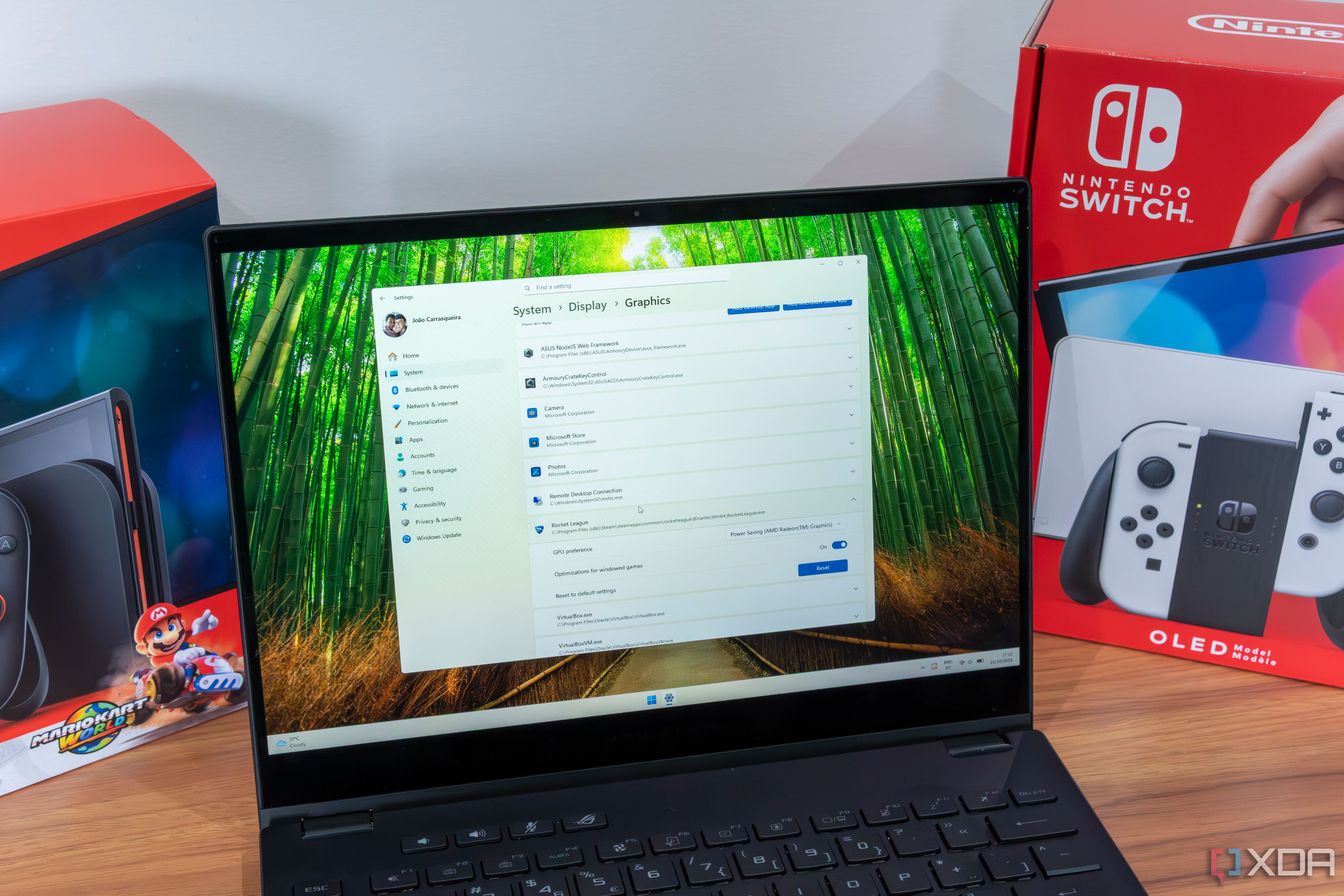
A common issue faced by laptop users with powerful GPUs is poor performance in games or video rendering. This is often because Windows defaults to using the integrated graphics instead of the dedicated GPU. While most gaming and creative laptops come equipped with both iGPUs and discrete GPUs, Windows does not always determine the correct GPU required for specific applications.
I was able to fix this problem by forcing Windows 11 to utilize the dedicated GPU for certain apps, and it only takes approximately two minutes to configure.
To accomplish this, Windows 11's native Graphics settings come in handy. Please note that Windows 11 GPU Preferences override control panels from both NVIDIA and AMD. Even if you have set a global preference in the NVIDIA App or AMD Adrenalin, Windows will still follow the per-app override presented here. The option should work for all modern PCs, but if you're using an older version of Windows, an alternative method using the Nvidia Control Panel is available.
You'll need to have installed the proper GPU drivers from Nvidia's website to proceed with this method.
Before applying these settings, ensure your power settings are optimized. If your laptop is running on battery or Battery Saver mode, Windows may disregard your custom GPU preferences entirely. To prevent this, disable Battery Saver and switch to the Best Performance power plan. This will keep the dedicated GPU engaged. It's worth mentioning that forcing a GPU does not alter the physical port that displays the output.
The display remains routed through the iGPU by default for power efficiency, even if rendering occurs on the dGPU. Windows does not always notify you of this switch.
To verify that the GPU has been correctly assigned, check the desired application's display. Additionally, it's essential to understand that forcing a GPU does not guarantee the physical port displaying the output will change. Windows continues to route the display through the iGPU by default for power efficiency, even if the rendering takes place on the dedicated GPU. Confirming the GPU switch is possible but not always obvious.
While this method is helpful in certain situations where programs may render incorrectly or offer poorer performance due to inadequate integrated GPU capability, most users will not need to force these settings. The majority of applications automatically detect and utilize the appropriate GPU, usually providing satisfactory results.
However, this feature can be useful for specific instances where unexpected rendering issues or suboptimal performance arise. An example is when a game fails to display content due to trying to run on the integrated Intel GPU, resulting in a completely white screen.
Written by urgent.news from XDA Developers's reporting — not their text. Machine-written — may contain errors; check the original before relying on it.