Bought a new tablet for your kids? Here's how to lock it down before handing it over
If you just bought your kids a new tablet, you should learn how to manage the parental controls for their online safety.
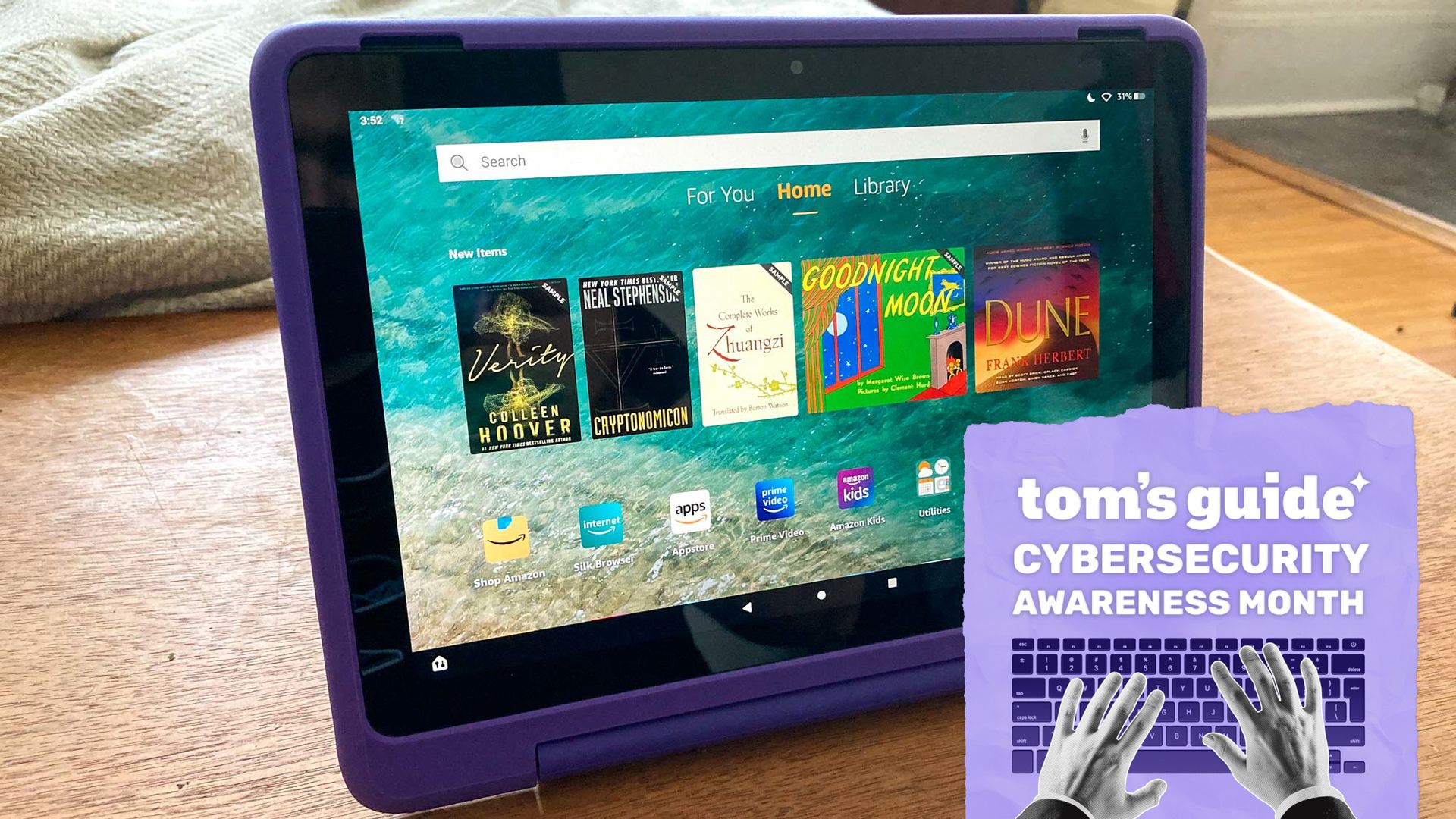
Parents often buy tablets for their children, but it's essential to secure the device before handing it over. Here are some tips for locking down a new tablet.
For Amazon Fire Kids Tablets, setting up a profile is the easiest way to manage the device. After creating your profile, create an Amazon Kids Profile to customize settings that suit your child's needs. The Amazon Parent Dashboard allows you to monitor and adjust settings such as app time limits, content filters, and even add content from an adult library. You can pause or lock the device as needed.
When setting up an Android tablet, use Google Family Link to create a child's account, including an email address. You can tailor the experience with Google Kids Space for younger children under 9, or manage general settings in Family Link. Adjust app approvals, set screen time limits, and establish a bedtime schedule. Lock the device by clicking "Lock now" in the app.
Setting up an iPad involves creating a child account via Family Sharing. Once the account is created, adjust parental controls from your Apple device or the iPad itself. Navigate to Family Sharing, select your child's name, and click on Screen Time to adjust content restrictions, set time limits, and schedules. Guided Access in Accessibility settings allows you to lock the device into a single app.
In conclusion, securing a new tablet for your kids doesn't have to be complicated. Focusing on parental controls will help safeguard your child's device and ensure they have a safe and educational experience.
Written by urgent.news from Tom's Guide's reporting — not their text. Machine-written — may contain errors; check the original before relying on it.