I changed 5 BIOS settings and improved my gaming PC’s performance without touching overclocking
Hardware prices have me avoiding any sort of overclocking
Even if you purchased the most expensive consumer PC available, it would be dishonest to claim that you do not strive to extract every possible frame from it. High-end components do not function optimally unless you invest a few hours in adjusting their settings, and this is before you even begin to consider overclocking. I have dedicated sufficient time to tweaking PCs, and I have come to understand that the default configurations provided by manufacturers are not always the best or most optimized for gaming.
This is only natural, considering that motherboards must be shipped in a stable and compatible state rather than prioritizing performance. Although I would not touch overclocking with a ten-foot pole, given the high cost of parts today, there are numerous BIOS settings that I have modified, resulting in tangible performance improvements for my gaming PC.
When discussing XMP or EXPO, it may seem redundant, as most individuals constructing gaming PCs are already familiar with these features. However, power users constitute only a small fraction of PC gamers, and the general user still purchases the best components available without understanding how to maximize their performance. One of the most overlooked features is XMP/EXPO, which allows RAM to operate at its advertised speed, timings, and voltage.
Enabling this feature typically involves a brief process and is a safe and reliable method of memory overclocking. Another aspect to consider is the default fan curves in your motherboard, which can ramp up aggressively during temperature spikes. By adjusting these curves in the BIOS, you can optimize cooling for both your CPU and case fans, ensuring quieter operation during everyday tasks while providing adequate airflow during gaming sessions.
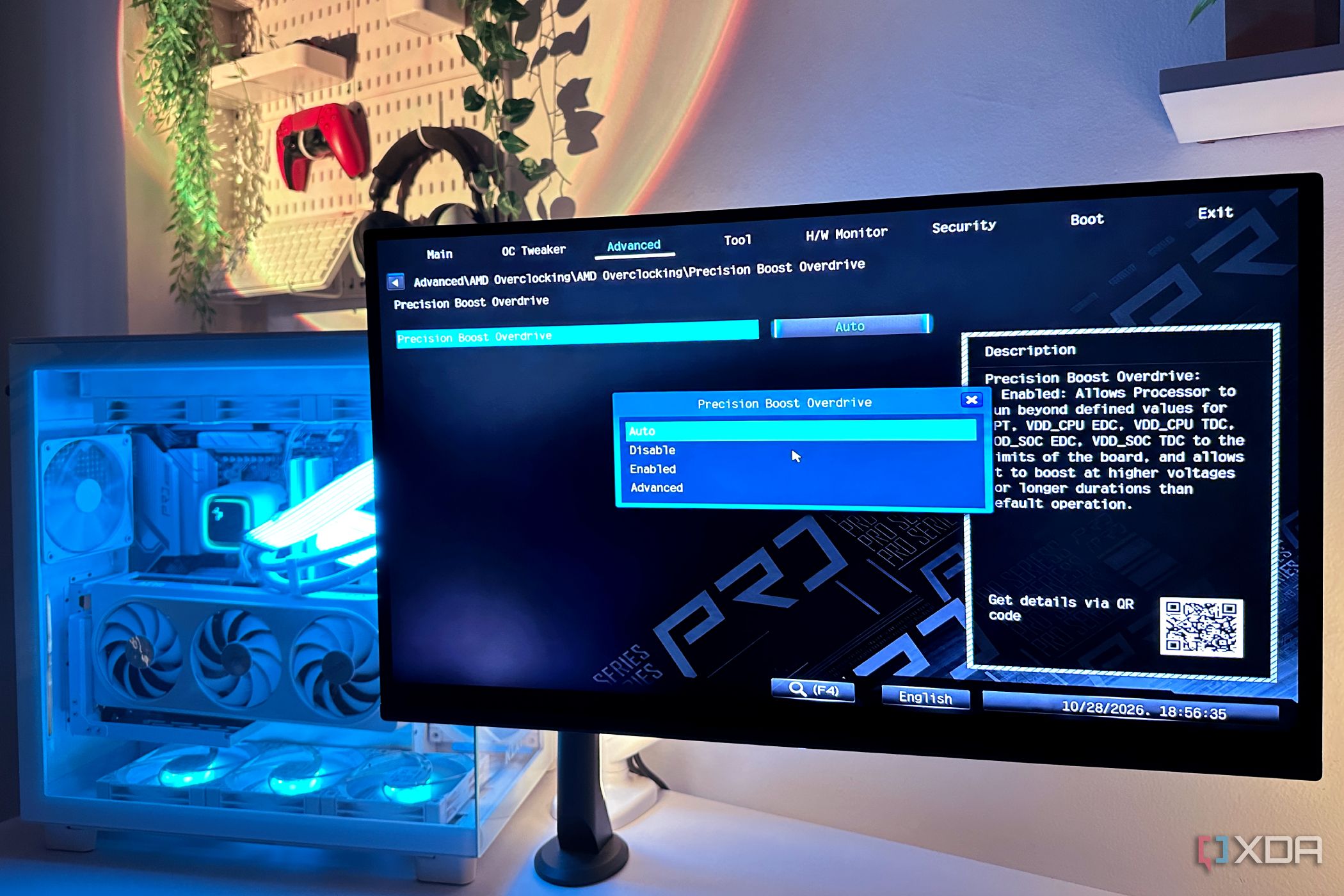
AMD Ryzen processors are renowned for their performance, but their default power and boost limits may leave room for improvement. Precision Boost Overdrive (PBO) can enable the CPU to surpass stock limits, provided temperature, power delivery, and cooling conditions permit it. Located in the BIOS, typically under AMD Overclocking, enabling PBO allows the processor to push beyond its stock limits.
While gains may not be dramatic, they can still provide a noticeable boost in performance. Additionally, Intel processors offer Turbo Boost technologies, which automatically raise CPU clock speeds based on workload, temperature, and power headroom. However, these technologies operate within Intel's predefined power limits. Finally, enabling Resizable BAR in your BIOS can enhance GPU performance by allowing the CPU to access the entire GPU frame buffer.
This setting typically requires compatibility with specific hardware and BIOS configurations, but the benefits can be substantial, particularly for games that require substantial GPU memory access.
Written by urgent.news from XDA Developers's reporting — not their text. Machine-written — may contain errors; check the original before relying on it.