Samsung's Audio Eraser saved my noisy videos, but it fails when sounds overlap
Speak up, it can't hear you over the crash
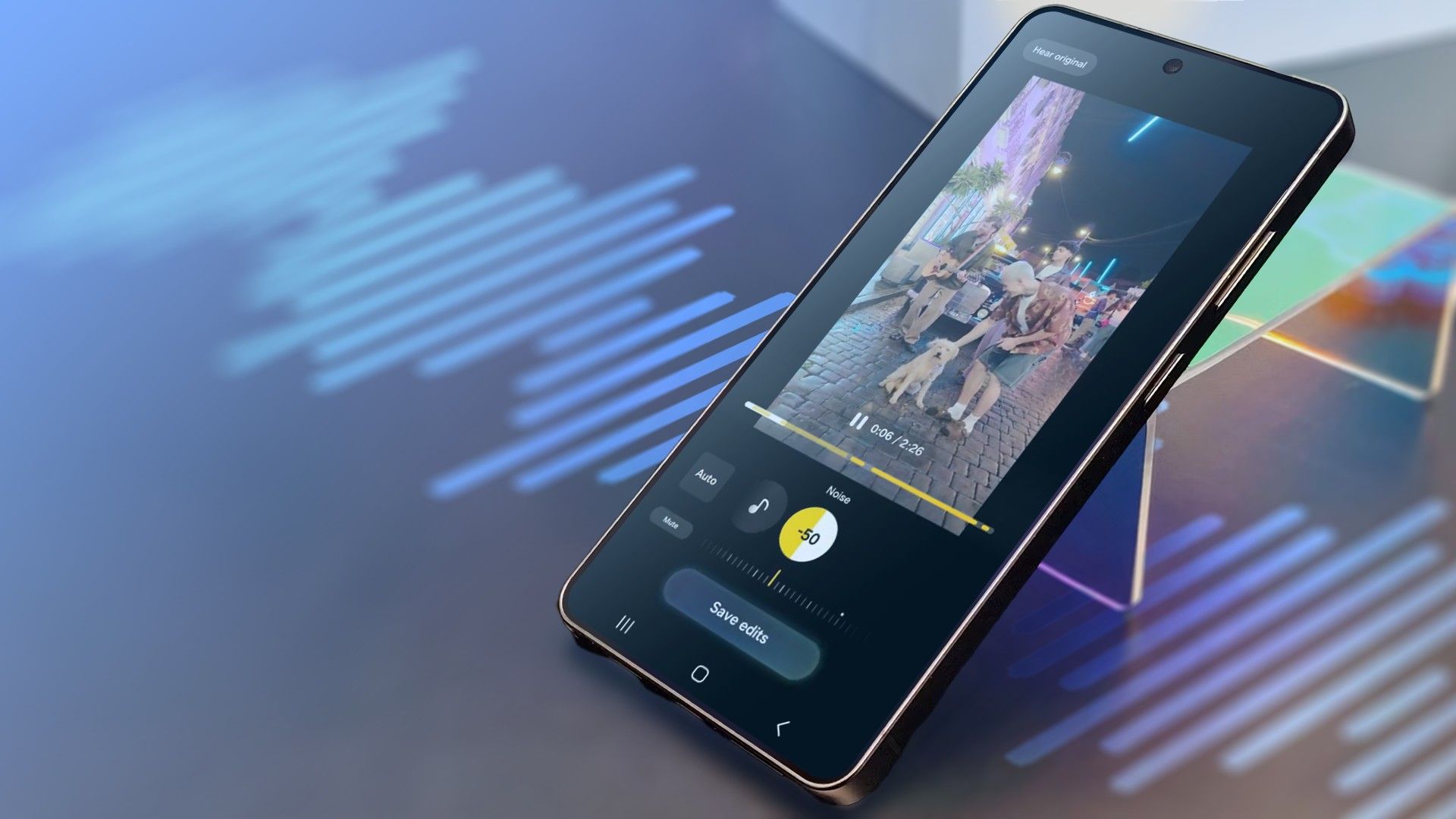
Samsung unveiled the Audio Eraser feature alongside the release of One UI 7. I had the opportunity to test it thoroughly, and here's what I discovered. To begin, I read a scripted passage while a fan hummed in the background. I then activated Audio Eraser, which identified the wind and noise. Selecting the Auto mode, it managed to reduce the wind to -100 and the noise to -90.
My voice was significantly clearer, with no artifacts noticeable. Next, I recorded in a location where a noisy crowd was present. The Audio Eraser detected two background sounds: crowd and noise. After manually adjusting the sliders to -100, my voice remained clear, with every word distinctly audible. When I recorded in traffic, the Audio Eraser identified wind, crowd, and noise.
Eliminating them resulted in clearer speech, although there was a slight sharpness in the "S" and "T" sounds. I wasn't surprised to learn that the fan noise was classified as wind. Samsung cautions that the tool might mistakenly identify one sound as another, but this didn't impact the outcomes, so it's not a concern. For this test, I dropped a plastic chair while reading my script.
Reducing the noise to -100 removed the crash but also erased the words spoken at the moment of impact. The issue was that the chair crash and my voice overlapped, with the impact being loud enough to overpower my voice, causing Audio Eraser to treat them as a single sound. I also had someone speak over my voice. The Audio Eraser successfully eliminated the background noise, keeping both voices distinct and clear.
This is helpful if you wish to retain both voices in the video, but there's no way to keep just one voice and remove the other. In all my tests, I used the Auto mode first, followed by manual adjustments to the sliders. A recurring pattern emerged: Audio Eraser consistently reduced wind to -100 and maintained the other sliders, such as noise and crowd, at -90.
I experimented with -100 a few times and found that while it eliminates more background noise, it doesn't always do so cleanly. Some noise may still seep through, potentially causing syllables that overlap with loud noise to be removed. In such cases, the result may appear choppy. However, at -90, some background noise remains, preserving the natural quality of your voice.
Therefore, the Auto feature's tendency to set wind to -100 may not always be the optimal choice. The full Audio Eraser tool, allowing you to view and adjust the volumes of different sounds, including your voice, is accessible only in the Samsung Gallery. Most other locations only offer the Auto mode, which automatically detects background noise and reduces its volume.
You can enable or disable it, but you can't manually modify what it changes. This version is available in the Voice Recorder, Samsung Notes voice recorder tool, and Samsung's Video Player. After updating to One UI 9, a tile for Audio Eraser appeared in the Quick panel and functioned with YouTube videos. Upon starting playback, you can access a Strength slider to control the level of background noise reduction.
Audio Eraser can handle videos you didn't record yourself, such as those downloaded online. After several tests with Audio Eraser, a clear conclusion emerged: if your voice is easily distinguishable from the noise, the tool likely can too. However, if your voice blends into the noise, it won't perform well, and setting all sliders to their lowest point will trim some of your words. If you frequently edit videos in Gallery, you might find Audio Eraser useful.
Written by urgent.news from Android Police's reporting — not their text. Machine-written — may contain errors; check the original before relying on it.