Not impressed with Google Maps? Make Waze your default on Pixel – here’s how
If you’re tired of Google Maps failing to get you where you need to go, set Waze as the default on your Pixel. I’ve finally figured out how.
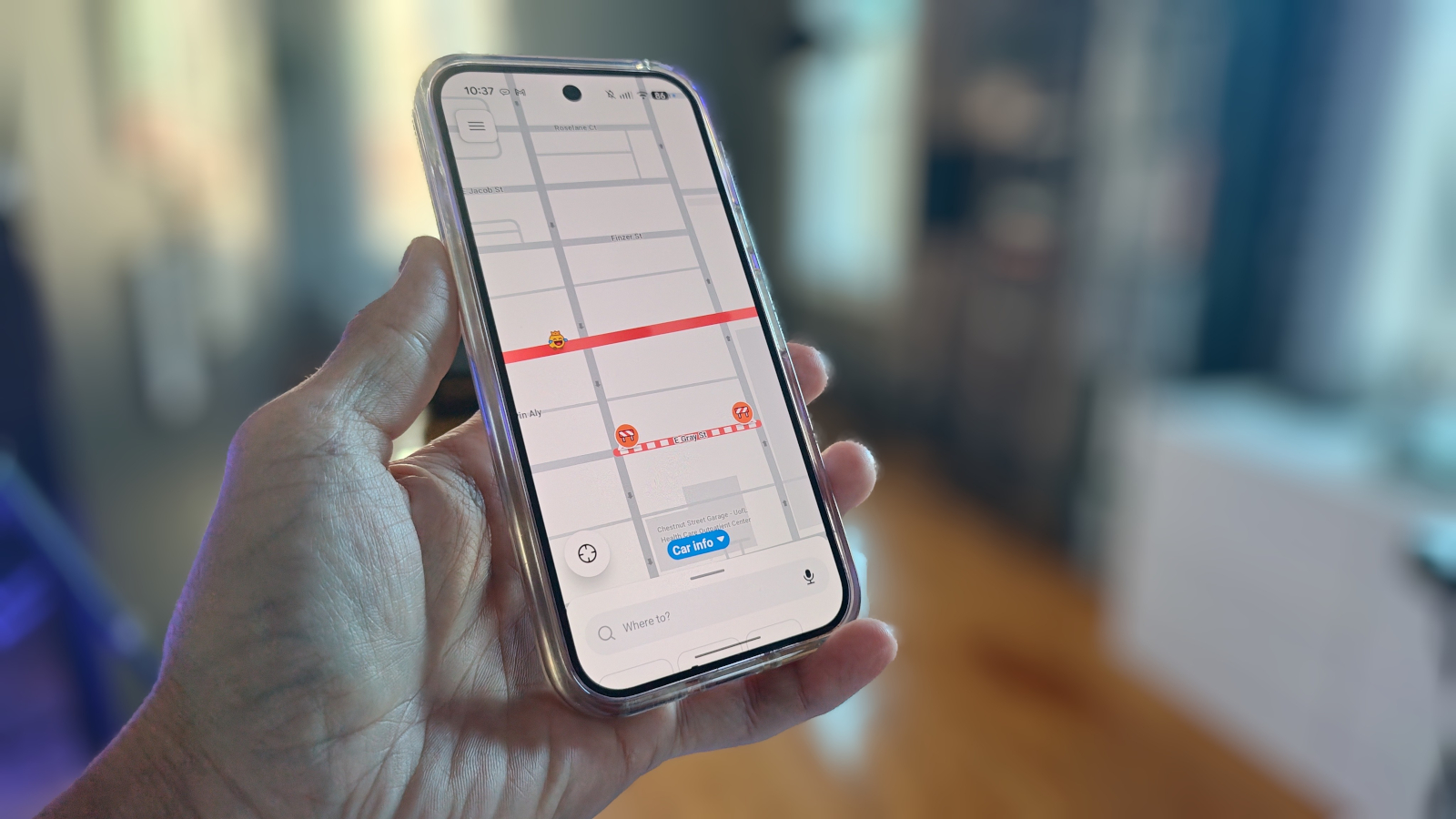
I found myself frustrated with Google Maps, which wasn't working properly and had become increasingly cumbersome. Frustrated, I installed Waze, a mapping app I'd used before on previous Pixel phones, and made it my default mapping tool. However, I soon discovered that Google had made it difficult to set a different app as the default mapping tool on Pixel devices, following an August Android update.
To change the default mapping app, you need to disable Google Maps first. Open the Settings app, tap on Apps, and then tap See all apps to expand the listing. Locate Google Maps and tap on it. There, you'll find a Disable button – tap that to disable Google Maps.
After disabling Google Maps, Waze will automatically become the default mapping app. You can test this by opening an address from a calendar appointment or any other app that requires mapping. Waze should open automatically. Additionally, if prompted to set Waze as the default, go ahead and do so.
For Android Auto, you'll need to add Waze's icon to the launcher. To do this, go to Settings > Connected Devices > Connection Preferences > Android Auto > "Customize launcher," and ensure that Waze is checked. Once added, you can move Waze up in the list for easier access. Now, you can seamlessly use your preferred mapping app, Waze, as your default on your Pixel device.
Written by urgent.news from ZDNet's reporting — not their text. Machine-written — may contain errors; check the original before relying on it.
Also reported by 1 other outlet
- Google confirms Fitbit Air won’t miss out on this Pixel Watch feature androidpolice.com