OpenAI Adds PIN Protection For Sensitive ChatGPT Conversations
OpenAI is introducing a new way to keep sensitive conversations out of sight with its new Locked Chats feature. The feature lets users hide specific ChatGPT conversations behind a custom four-digit PIN. On supported mobile devices, users can also unlock their chats using Face ID, Touch ID, or their device’s authentication method. By default, ChatGPT […] The post OpenAI Adds PIN Protection For…
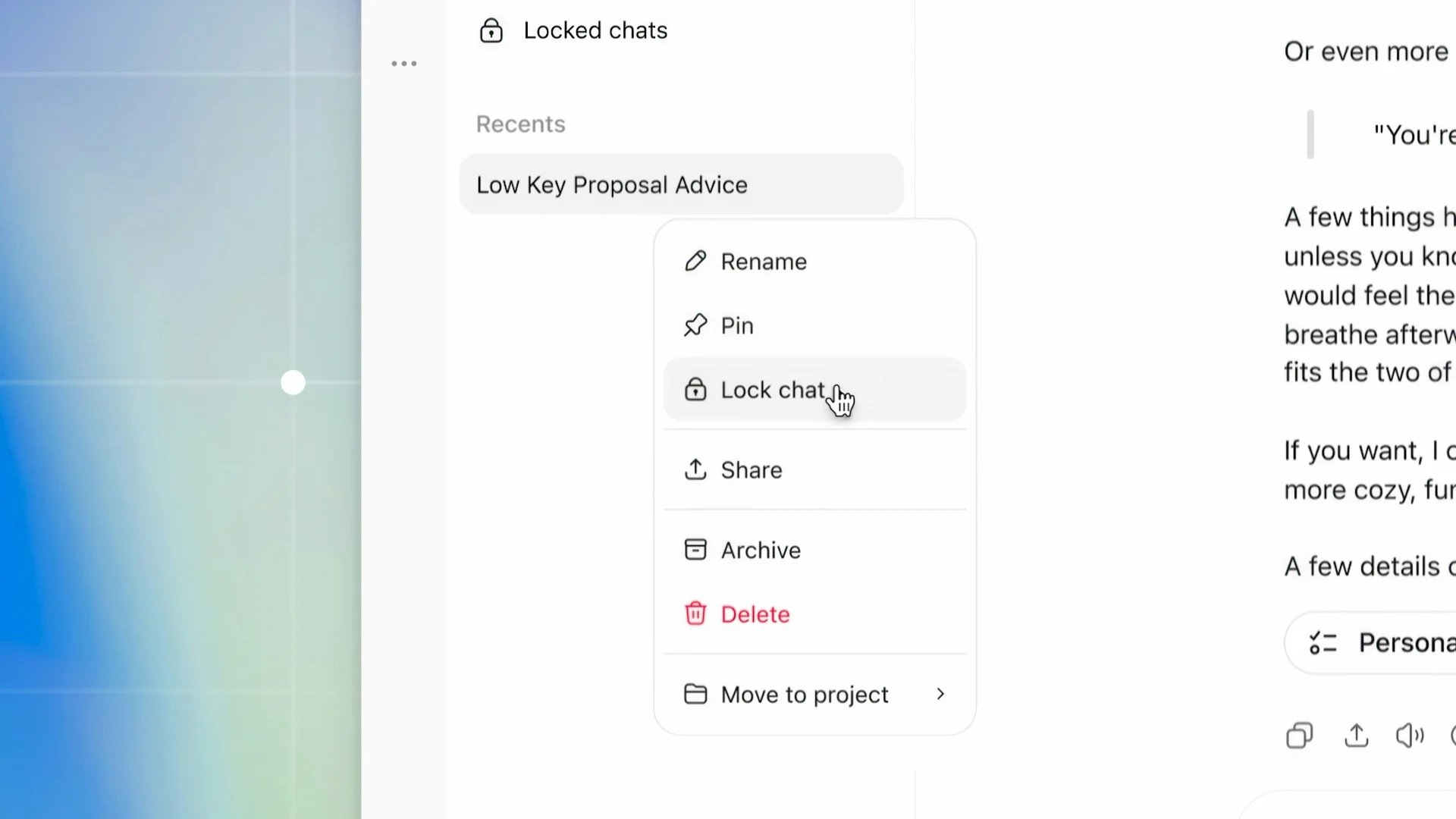
OpenAI has rolled out a new Locked Chats feature to safeguard sensitive conversations within its ChatGPT platform. This feature enables users to shield specific conversations by assigning them a custom four-digit PIN, which can be unlocked via Face ID, Touch ID, or the device's authentication method on supported mobile devices. By default, ChatGPT conversations are visible in the user's chat history, but locking a chat removes it from regular search results, the pinned chats list, and the regular chat history.
Locked Chats also establishes a separate memory space for these conversations. This means that any personal information shared in these chats won't be used to personalize regular chats. However, it's important to note that while this feature enhances privacy, it doesn't offer end-to-end encryption or an encrypted vault. It also does not alter OpenAI's data retention policies or affect the user's "Improve the model for everyone" setting.
To start using Locked Chats, users can either begin a new conversation within the feature or move an existing chat into it. New users must first lock an existing conversation before they can start a new one in Locked Chats. To start a new conversation, users need to select "Projects" followed by "Locked chats," and then authenticate themselves using their PIN or a supported device authentication method.
For existing chats, users can tap the three-dot menu next to the chat and select "Lock chat," then input their four-digit PIN.
Access to a locked conversation is regained by selecting "Projects" and then "Locked chats", then entering the PIN. To permanently remove a conversation from Locked Chats, users can open the chat, tap the three-dot menu, and select "Unlock chat". To end access to Locked Chats, users can select "Lock now," which hides the title of the locked chats from the sidebar.
On web browsers and desktop apps, this lock ends when a regular conversation is opened in the same tab or window. On mobile devices, the lock ends after one minute of inactivity or when ChatGPT is running in the background for one minute. Users must refresh the page or close the tab to end access on the web, and the lock ends automatically when they sign out or switch to another account or workspace.
Written by urgent.news from Lowyat.NET's reporting — not their text. Machine-written — may contain errors; check the original before relying on it.