I uninstalled my GPU's RGB software, and the stutter I'd blamed on drivers went with it
My PC had great frame rates, but something still felt wrong. The culprit wasn't what I expected.
Sometimes, even when high-end PCs run smoothly, the screen will lag from time to time during quick game actions. My initial guess would be driver issues, a bad Windows update, or damaged shader compilation. For me, the cause wasn't my graphics card or its drivers. Instead, it was the heavy, inefficient software that came with it.
The issue wasn't just about tweaking core clock speeds; it was also about clearing out software that wasn't very well done. By removing those unnecessary GPU and motherboard RGB utilities, I was able to end the strange background hitches and get consistent frame times. These gaming lighting and monitoring applications have a lot of hidden overhead, which can slow down frame times.
This is mostly due to continuous Windows Management Instrumentation (WMI) and system management bus (SM bus) polling. These threads interrupt the CPU and overload the system buses every few milliseconds. Also, there are latency spikes in deferred procedural processes. Poorly designed vendor services can cause these delays as they try to update LED colors, which can interrupt high-priority hardware signals and create tiny pauses and audio glitches during games.
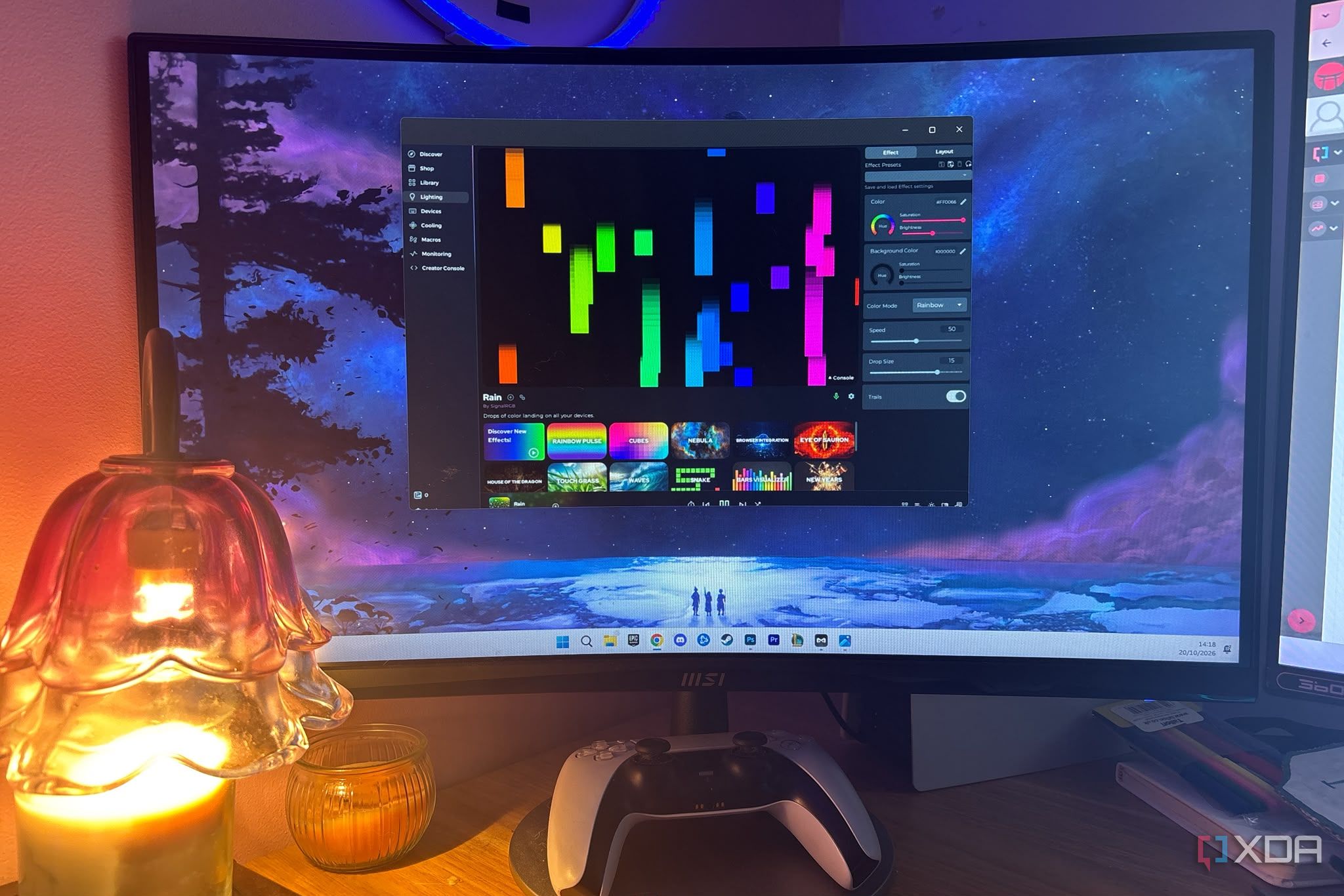
Interestingly, despite consistent average frame rates, I could always sense these micro-stutters, especially during busy screen scenes. If your PC is using a poorly made rendering utility suite like Armory Crate, RGB Fusion, or Dragon Center, there are some easy fixes. You can switch to lightweight, open-source software like OpenRGB or Signal RGB.
These alternatives, that are part of a unified open-source system, talk to your hardware without running heavy background processes and telemetry. One of their best features is set-and-forget hardware profiles that save your hardware settings directly on the device, allowing you to stop the background software when you don't need it.
To remove unnecessary software bloat, first identify the problem. You can do this by checking Task Manager for resource-heavy background services linked to your GPU or motherboard brand. Next, save your profiles and uninstall the software. Set a static color profile via your onboard hardware if that's supported, then fully uninstall the software using a good uninstaller to remove any leftover registry entries.
You can keep fan control and important fan settings in your motherboard BIOS or use lightweight tools like Fan Control, and then use an open-source utility like OpenRGB for basic lighting control without the extra features. If you prefer, you can keep the static color profile you set before uninstalling, so you don't need any software at all.
Finally, benchmark and confirm that the mysterious micro-stutters are gone. It's worth mentioning that you might lose some hardware control features by removing your GPU and motherboard utilities. For example, you might lose custom fan curves or a hardware monitoring dashboard, and you may need to use the BIOS for fan control, which might not save your settings and might not offer as much control as the software.
You might also lose advanced cloud syncing and lighting effects, since Signal RGB and OpenRGB don't provide as many lighting customization options. For me, it felt like my gaming performance and system responsiveness took priority over a flashy desk, but this might not be the case for everyone. We often spend time trying to fix issues in GPU driver settings when the real problem is right in our Windows startup tray.
Getting rid of unnecessary background load is one of the easiest ways to boost your frame rates. Throw away heavy RGB software suites, clean up your background processes, and enjoy gaming with no stutter.
Written by urgent.news from XDA Developers's reporting — not their text. Machine-written — may contain errors; check the original before relying on it.