Why I ditched Chrome for Vivaldi on my Android phone for good
Here’s why I’m sticking with it

For years, Chrome has been my go-to Android browser, with little cause to consider alternatives. However, experimenting with Vivaldi revealed several features that caught my attention and made me rethink my choice. These include the ability to capture full-page screenshots, seamlessly integrate notes with browsing, take advantage of extension support, and personalize the browser's appearance and functionality.
Vivaldi on Android provides a customizable toolbar shortcut, allowing me to replace default buttons with actions like opening a new tab, sharing a page, initiating voice search, translating web content, or adding bookmarks. This customization can be found under Settings > Appearance & Theme > Toolbar Shortcut. The main menu can also be tailored in Settings > General > Menu Settings.
I can further personalize the browser's look by choosing a light or dark theme, setting the accent color to match the current webpage, selecting a preset color, or even replacing the default Speed Dial background with an image from my phone's gallery.
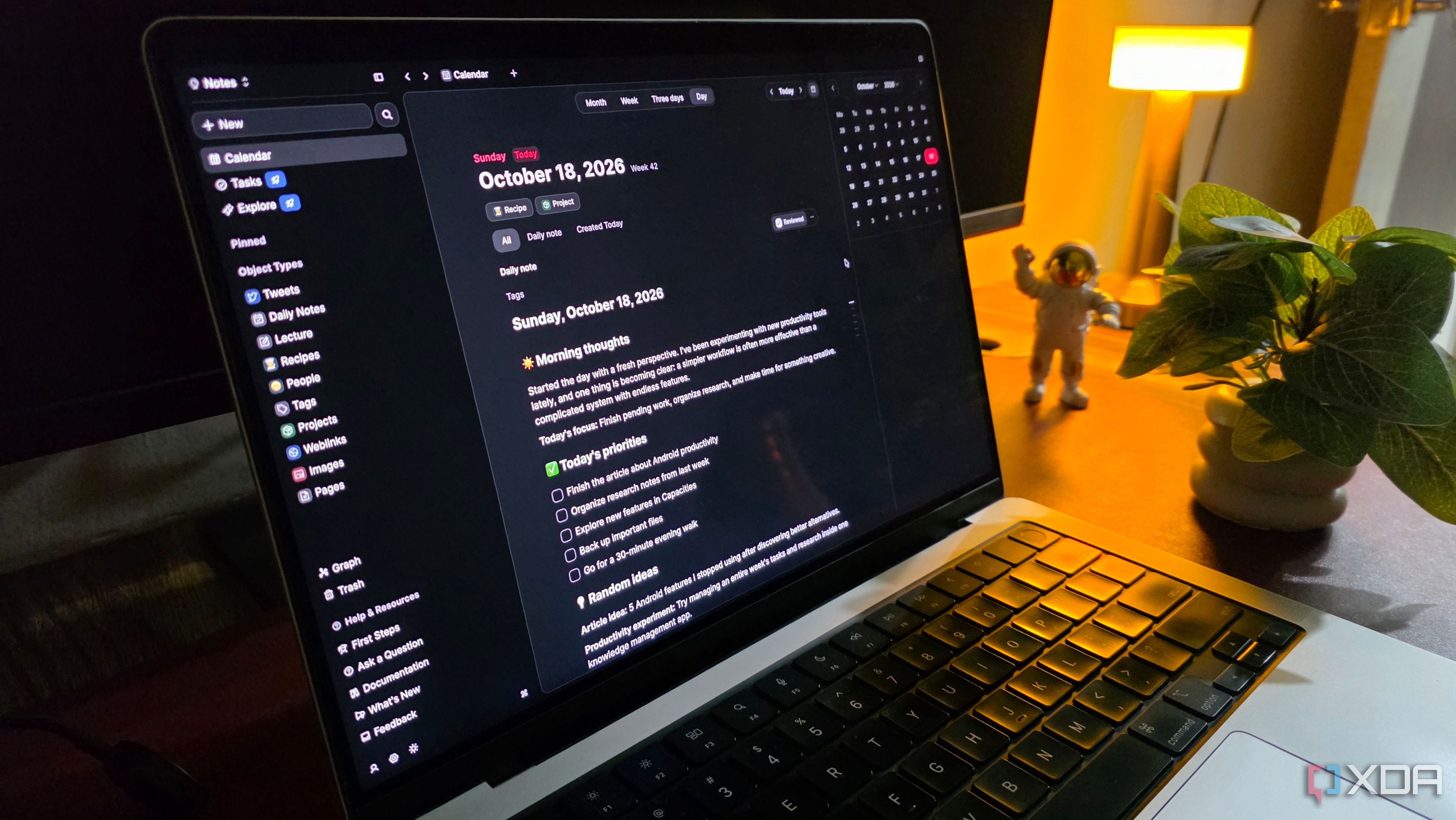
A standout feature for me is the built-in Notes function, accessible via the Panels button on the bottom toolbar. I can quickly jot down ideas or create checklists without leaving my current browsing session. The Notes feature also comes in handy when researching, enabling me to keep notes and checklists alongside my browsing. Text from web pages can be saved to a note by selecting the text, opening the context menu, and adding it to a note. Additionally, selected text can be appended to an existing note.
Organizing tabs is made simpler with Vivaldi's tab stacking feature, which allows me to group related tabs into stacks. To create a stack, I long-press a tab and select "Add tab to new stack," then choose the appropriate group. The stack appears separately from regular tabs, making it easier to distinguish grouped pages. Long-pressing a stack allows me to edit or remove tabs when they're no longer needed. This simple organization method keeps my browsing streamlined without closing tabs I still use.
Vivaldi also offers additional flexibility, such as Page Actions, which enable me to alter a webpage's appearance without modifying the original content. I can apply effects like grayscale or sepia, or adjust the page for easier reading. These options are accessible through the Vivaldi menu while viewing a webpage. Another customizable aspect is the tab stacking behavior, which I can adjust by going to Settings > Tabs > Tab Stacking.
I can choose between Two-Level and Accordion layouts, and I have the option to block trackers alone or both trackers and ads, either for all websites or specific sites. To set the default, I navigate to Settings > Tracker and Ad Blocking > Default Blocking Level. Finally, the Reader View feature presents the main text in a clean format, making it easier to read articles and other lengthy content.
Written by urgent.news from Android Police's reporting — not their text. Machine-written — may contain errors; check the original before relying on it.