5 Windows settings most people dont know about
These lesser-known Windows settings can increase functionality, add some nifty options, or just make your life easier.
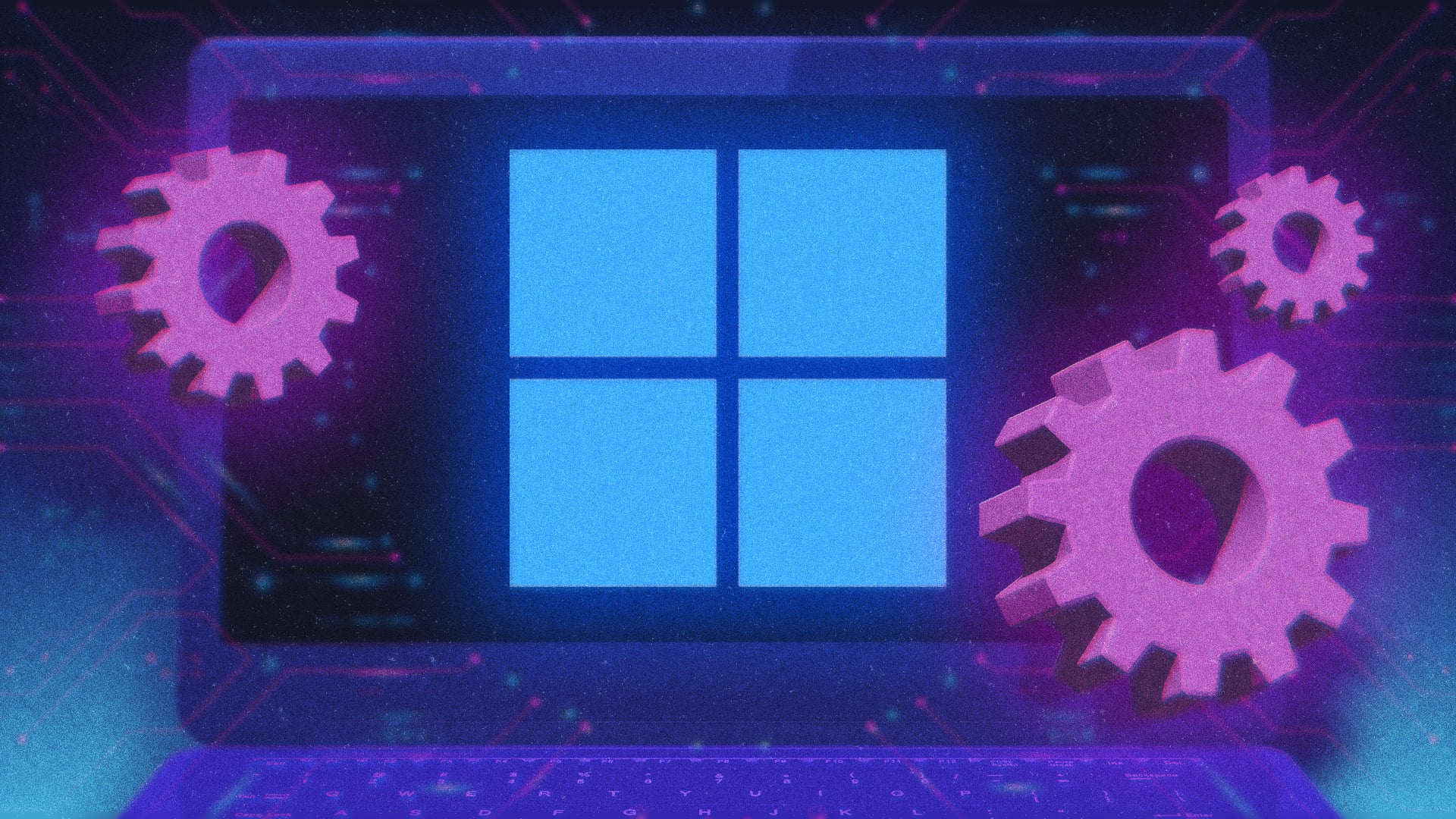
For those unfamiliar with Windows, the operating system offers a multitude of hidden features and settings that can enhance functionality and make life easier. Here are five lesser-known Windows settings that are available on Windows 11 Home and Pro, and should also be present on Windows 10.
Firstly, Windows has a built-in Clipboard History feature that allows you to store up to 25 of the most recent items you've copied, such as HTML links, text, or images up to 4MB in size. To access this feature, simply press Windows Key + V. Additionally, you can pin items to keep them in the clipboard history indefinitely. When the history fills up, the oldest items are automatically deleted when you shut down or reboot your PC.
Furthermore, you can access the native emoji selector from this window, which works in any app where text input is allowed.
Secondly, the End task setting in the Taskbar allows for a more efficient way to close applications. By default, closing an app from the Windows Taskbar may not fully terminate it. However, after enabling the End task option in Settings > System > Advanced, you can right-click an app in the Taskbar and directly end the task, closing both the app and its background processes without needing to go to the Task Manager or the System Tray.
Thirdly, you can realign your Start button to its original position in the lower left corner if desired. To do this, right-click a blank spot on your Taskbar and select Taskbar Settings. In the Taskbar icon alignment option, you can choose to keep everything in the center or move the Start button to the left. There are other customization options available, such as hiding the Taskbar on extra monitors, turning Widgets off, and adjusting the Taskbar's placement on your screen.
Fourthly, Windows allows you to create, apply, and modify themes according to your preferences. To access these settings, go to Settings > Personalization > Themes. You have three main options: downloading a theme from the Microsoft Store, editing an existing theme on your machine, or creating a custom theme. Each theme saves your background, including a slideshow if desired, the accent color scheme, your mouse appearance, and sounds.
You can also install Microsoft PowerToys to unlock additional settings options and features, such as the Keyboard Manager for creating new hotkeys and binding them to your keyboard. PowerToys plugs into Windows in a way that the stock Settings menu does not, providing access to a variety of previously inaccessible settings adjustments.
Written by urgent.news from Mashable's reporting — not their text. Machine-written — may contain errors; check the original before relying on it.