I turned my old Pixel into a USB webcam without installing a single app
A hidden feature worth knowing about.
My Pixel 8 sat idle after I switched to a Galaxy S25 Ultra, yet I sought a way to breathe some life back into it. While I didn't think highly of my laptop's webcam, I found an Android feature on my Pixel that did the trick without the need for third-party apps, tricky workarounds, or extra equipment. Since I shifted to my Samsung Galaxy S25 Ultra, I rarely used my Pixel 8, but I occasionally pulled it out to explore new Android features.
Surprisingly, Google had introduced USB webcam functionality for compatible Pixel phones, allowing them to function as webcams for computers. This feature had been around, yet I hadn't noticed it. As I hadn't anticipated my old Pixel 8 to become a permanent fixture on my desk, this discovery piqued my interest. Connecting my Pixel 8 to my Windows desktop via a USB-C cable was the first step.
Ensuring the cable supported data transfer was crucial, as a charging-only cable wouldn't suffice. Unlocking my Pixel 8 and pulling down the notification shade, I tapped the Charging this device via USB notification to open preferences. Under Use USB for, I selected Webcam. Tapping the new Webcam notification opened the camera preview, allowing me to adjust the framing.
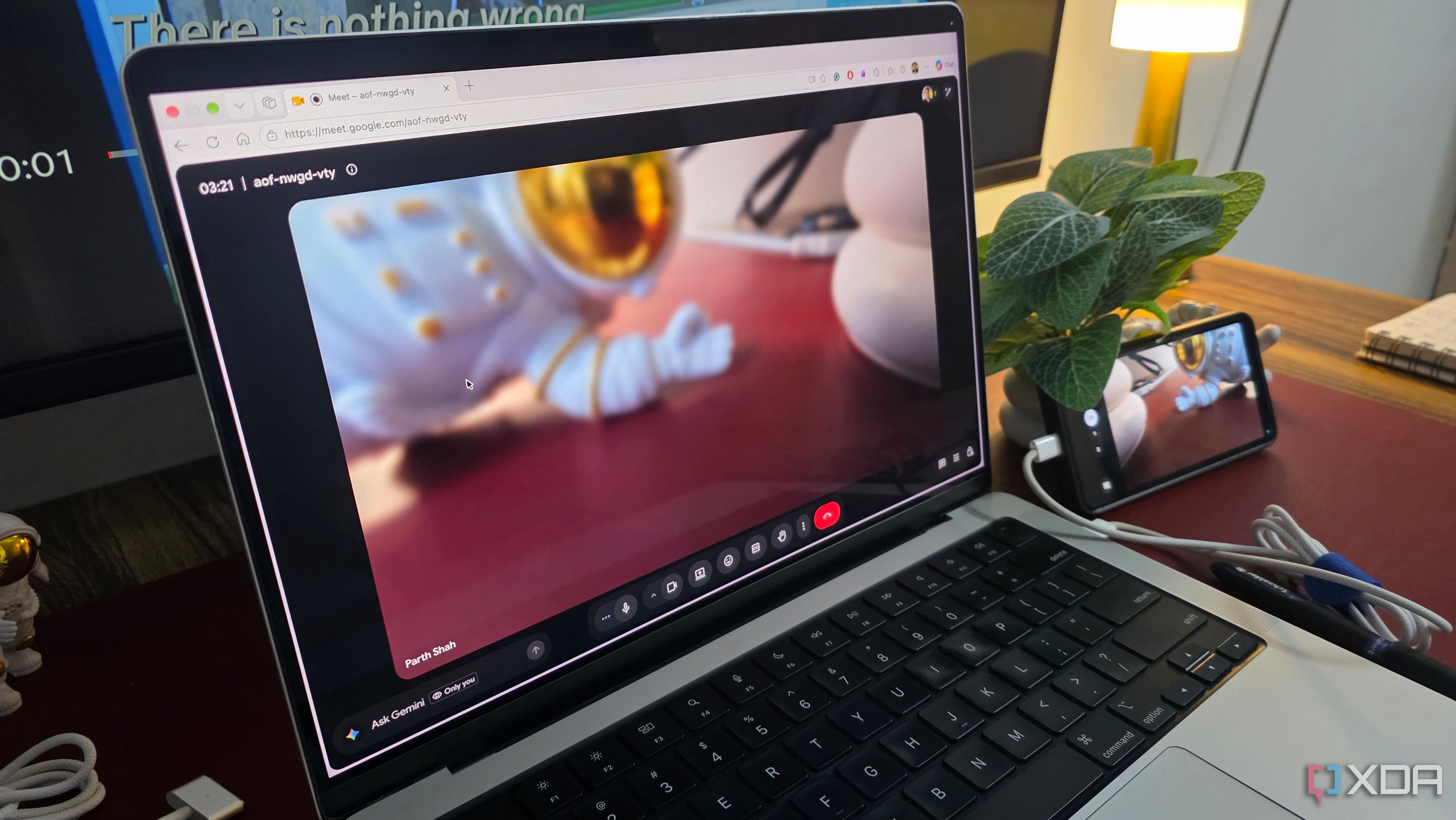
Lastly, I selected Android Webcam as my camera source in Google Meet on my desktop. With these steps, my Pixel was ready for video calls without the need for any additional software on either device. I could switch between the front and rear cameras and adjust the zoom directly from my phone. The Pixel's advanced 50MP main camera with a larger sensor and superior optics significantly improved the video quality, especially in suboptimal lighting conditions.
Although the webcam feed had its own limitations, it was still a practical improvement over using an ordinary laptop webcam. Once I activated Webcam mode, I could tap the Webcam notification on my Pixel for a live preview. From there, I could switch between cameras, use preset zoom controls, or adjust the framing by pinching the screen.
A helpful toggle provided the option to enhance the video feed quality. Conveniently, I didn't have to keep my Pixel's screen on during meetings. After adjusting the framing, I could lock the phone, and the webcam would continue functioning in the background while it charged through the USB cable. Google's implementation proved versatile, working seamlessly across both Windows and Mac platforms.
This feature provided a significant advantage over Apple's Continuity Camera, which necessitates an iPhone and a compatible Apple device. Though there were some limitations, the convenience far outweighed them. Having a compatible Pixel collecting dust or using one as a daily driver, I highly recommend trying this feature before investing in a new webcam.
Written by urgent.news from XDA Developers's reporting — not their text. Machine-written — may contain errors; check the original before relying on it.