3 hidden macOS security features you need to turn on right now
Whether it’s physically or digitally, your Mac can be left exposed to all sorts of bad actors — turn on these security features now.
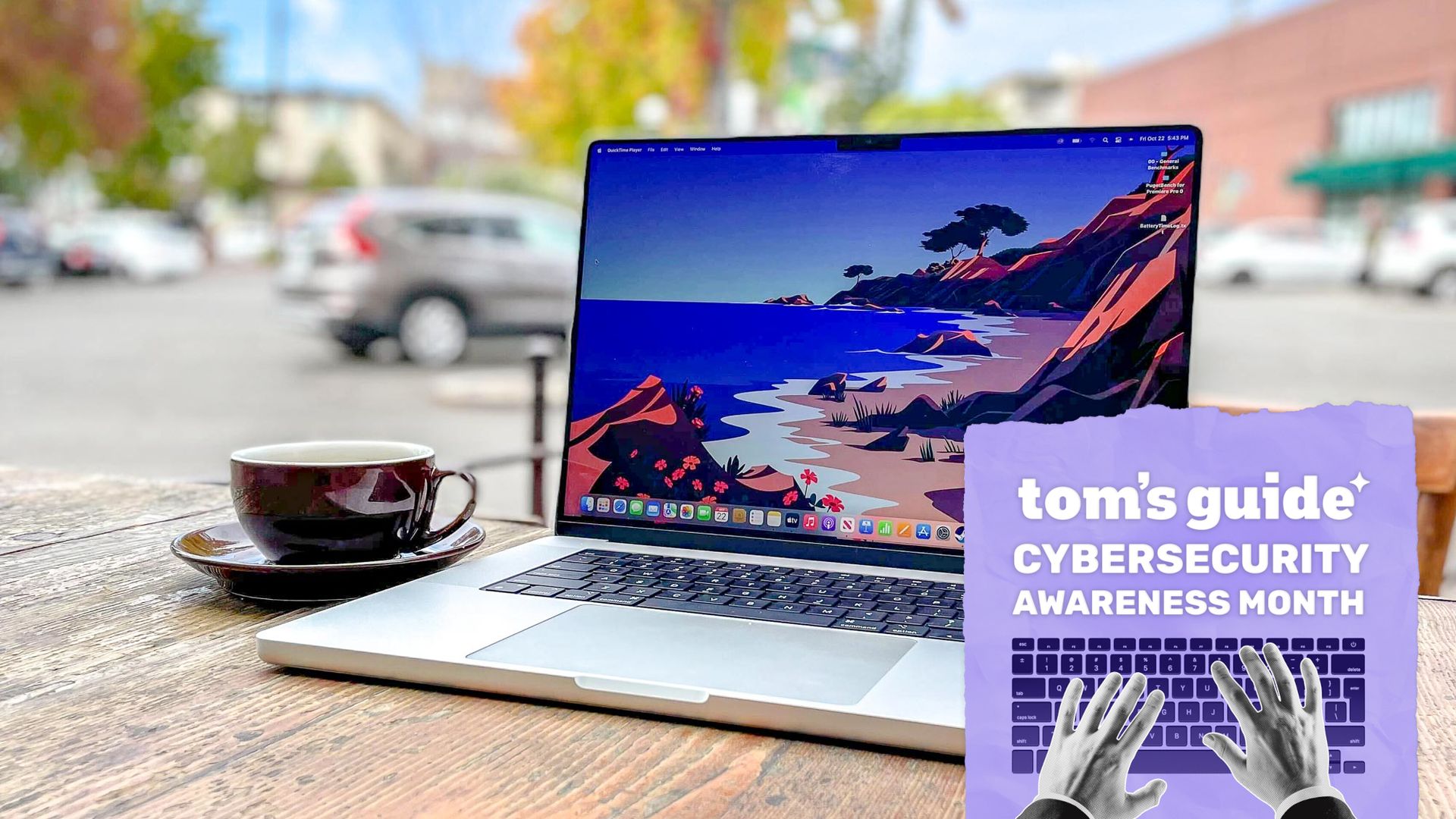
In an increasingly insecure world, taking steps to safeguard your digital assets is essential. Although macOS offers several security features, they are often buried within menus and settings. Here are three hidden macOS security features you should enable immediately.
First, activate the macOS Firewall and Stealth Mode. Although the Firewall is present on a new Mac installation, it is typically disabled. This security feature prevents unauthorized access to your device, especially when using public Wi-Fi networks. To enable it, navigate to System Settings > Network > Firewall. You can still allow incoming connections from trusted sources like Zoom or Spotify. Additionally, enable Stealth Mode to make your Mac invisible when connected to public networks.
Next, enable FileVault, a disk encryption feature that scrambles your data to protect it from unauthorized access. This encryption is crucial if you fear your Mac might be lost or stolen. To activate FileVault, go to System Settings > Privacy & Security > FileVault. You can choose to back up your recovery key to your iCloud account or create a local recovery key, allowing you to physically store it in a secure location. The latter option is recommended if you are concerned about potential iCloud account breaches.
Lastly, consider activating Lockdown Mode for maximum security. This feature blocks FaceTime calls from unknown contacts, Just-In-Time JavaScript compilations in Safari, and some file attachments in the Messages app. By doing so, it prevents both click and zero-click exploits from infecting your system. However, Lockdown Mode comes with trade-offs, such as potential difficulties in receiving certain messages or using specific web services.
To enable Lockdown Mode, navigate to System Settings > Privacy & Security > Lockdown Mode. If you find certain functionality troubling when using Lockdown Mode, you can exclude trusted sites from its restrictions in Safari settings.
In conclusion, these hidden macOS security features can significantly enhance your device's protection against potential threats. While some measures might seem extreme, they are worth considering, especially if you frequently travel or work in potentially risky environments. Additionally, disabling the Safari setting that allows files to open after downloading can further safeguard your device from potential malware.
Written by urgent.news from Tom's Guide's reporting — not their text. Machine-written — may contain errors; check the original before relying on it.