How to Disable Apple Intelligence on Your iPhone or Mac and Reclaim Valuable Space
The new Siri AI could be taking up a lot of storage on your device.
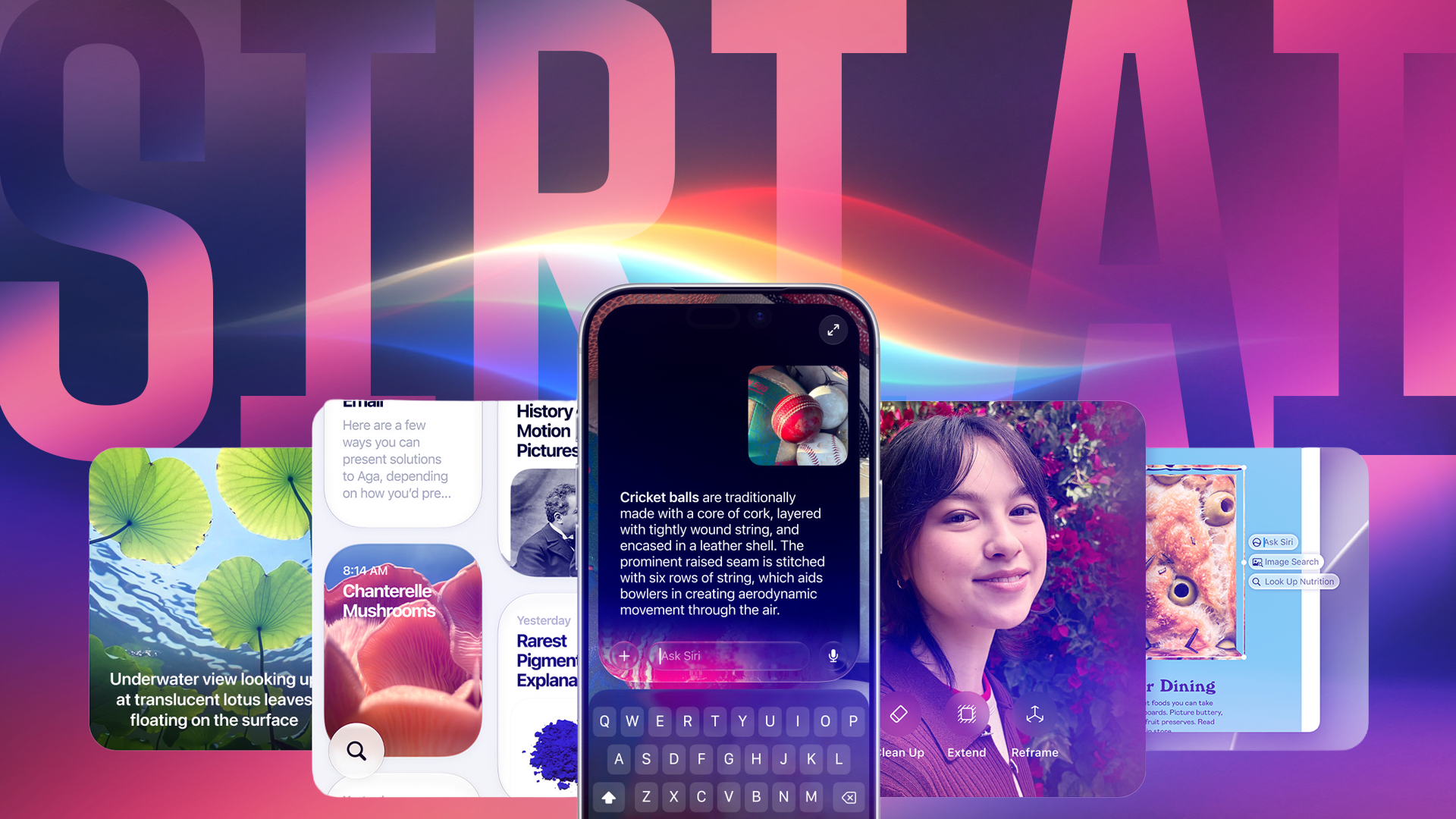
Apple introduced iOS 27 and macOS 27 in September, which brought about a new Siri AI powered by Apple Intelligence. While the updated Siri has improved, it can consume a substantial amount of storage space. For instance, on an iPhone, Apple Intelligence occupies roughly 6.4 GB of storage, while on a MacBook Neo, it uses around 17.9 GB. Users who aren't utilizing the new AI features can opt to disable or limit them, thereby reclaiming some of their valuable storage space.
To check how much space Apple Intelligence is using, go to Settings on an iPhone, then navigate to General, then iPhone Storage, and look for the Apple Intelligence tab. On a MacBook, click the Apple logo in the top-left corner, then head to System Settings, General, Storage, and click the i next to macOS. This will display the storage space Apple Intelligence is occupying on your MacBook.
Disabling Apple Intelligence on an iPhone with iOS 27 or later involves going to Settings, Siri, and turning off Siri. Subsequently, check your storage to confirm Apple Intelligence is no longer present. For iPhone users on iOS 26, disabling Apple Intelligence is slightly different. Navigate to Settings, Apple Intelligence & Siri, and toggle off the Apple Intelligence toggle.
This should free up some space. Additional Apple Intelligence features may need to be disabled by navigating to Settings, Screen Time, Content & Privacy Restrictions, and tapping the toggle next to Content & Privacy Restrictions. From there, tap Intelligence & Siri, followed by Image Creation, Writing Tools, and Intelligence Extensions, and select "Don’t Allow."
Disabling Apple Intelligence on macOS 26 is relatively straightforward. Click the Apple logo in the top-left corner, then proceed to System Settings, Apple Intelligence & Siri, and toggle off Apple Intelligence. This action should release a few gigabytes of data. Disabling Apple Intelligence on macOS 27, however, is more complex.
One method involves changing your language to a region where Siri AI is available, which may free up several gigabytes of storage space. Another method, as suggested by PCMag, involves navigating to System Settings, Screen Time, Content & Privacy, toggling Content & Privacy off, changing Siri to Siri Classic, and disabling each capability.
An additional step includes going to System Settings, Siri, and selecting "Don’t Allow Siri or Siri Classic," followed by disabling individual Apple Intelligence features in the system settings. Alternatively, users could simply switch their Siri language as previously mentioned.
Written by urgent.news from CNET's reporting — not their text. Machine-written — may contain errors; check the original before relying on it.