Switching to iPhone 18 Pro from Android? Don't lose your photos, chats and contacts — here's how
The iPhone 18 Pro went on sale on September 18, and it lands at the best moment in years to jump ship from Android. Apple's new flagship pairs a 2nm A20 Pro chip with a 48MP main camera that has a true variable aperture, from f/1.48 for night shots to f/4 for sharp group photos. The bigger change is how easy the move has become. Leaving Android for an iPhone used to mean a weekend of cables,…
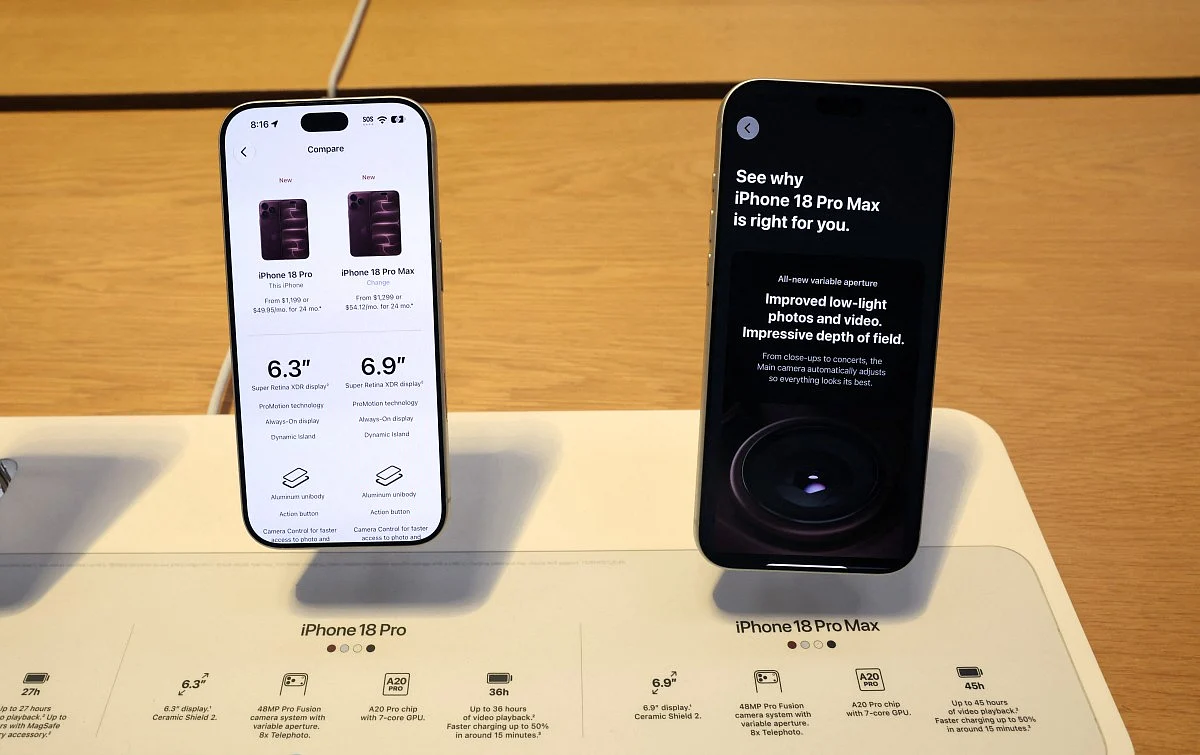
Apple has made the process of switching from an Android device to the new iPhone 18 Pro significantly easier. The new flagship smartphone comes equipped with a powerful 2nm A20 Pro chip and a versatile 48MP camera capable of variable aperture settings for both low-light and group shots. However, the real game-changer is how seamless the transition has become.
In 2026, migrating from Android to iPhone is mostly a 30-minute setup process, thanks to the built-in migration feature that Apple and Google have integrated into their respective setup screens. Pixel and Galaxy Android phones running Android 17 can seamlessly transfer data and eSIM profiles to the iPhone without the need for additional apps. End-to-end encrypted texts between platforms have been available since iOS 26.5, and WhatsApp chats carry over without issue.
Before making the switch, there are several steps to take. First, do not set up the iPhone yet, as the transfer only runs from the setup screen. Update your Android phone and Google apps, ensuring that Chrome is updated to enable bookmark synchronization. Check your Android version, as Android 17 on supported Pixel or Galaxy devices can transfer data without any additional app. Use the free Move to iOS app from Google Play as a backup option.
Backing up to Google is recommended as a safety net. Turn on Google Photos backup and confirm that contacts and calendars sync to your Google account. Remove any content on the microSD card that you want to keep, or confirm that it will be included in the transfer. Ensure that the total data fits within the iPhone's storage capacity. Take screenshots of your home screen and app list for easy reinstallation of apps later. Export two-factor authentication codes, keeping banking app re-registration details handy.
The actual transfer process has two options. Road A is for Android 17 supported devices, such as Pixel and Galaxy models, which can transfer data without using an app. Simply tap Transfer without App on the iPhone and follow the on-screen instructions. Scan the QR code with your Android camera, select the data to transfer, and complete the setup on the iPhone. If the QR code does not scan, use the alternative method on Android to pair with the iPhone using a session ID and pairing code.
Road B is for every other Android device using the Move to iOS app. Tap Transfer with App in Google Play, then accept terms and allow permissions. When prompted on the iPhone, tap Continue and wait for a six- or ten-digit code. Enter this code on Android and join the temporary Wi-Fi network created by the iPhone. A USB-C cable is recommended for faster transfer of large photo libraries. Keep both phones charged and powered throughout the transfer process.
Written by urgent.news from Gulf News's reporting — not their text. Machine-written — may contain errors; check the original before relying on it.