Endlich drucken ohne Kabel: Alter Drucker, neue Freiheit: Fritzbox bringt ihn ins WLAN
Ein alter Drucker ohne WLAN muss nicht ausrangiert werden: Wer eine Fritzbox nutzt, kann ihn darüber einfach ins Netzwerk einbinden - und dann etwa frei vom Notebook aus drucken, ganz ohne Kabel.
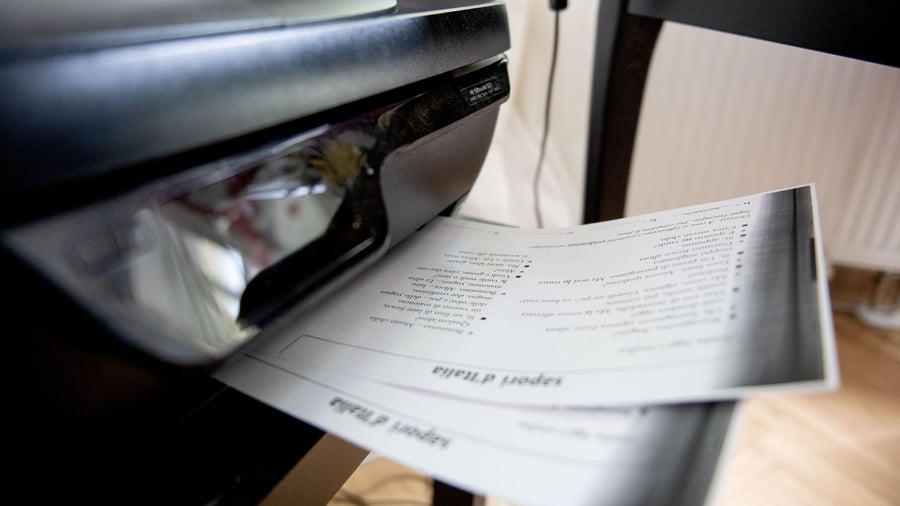
Practicality of network printers shines through as they enable convenient, cable-free printing from almost any device. However, for those considering purchasing a new printer due to an older one lacking Wi-Fi support, a word of caution is necessary. If a Fritzbox router is present in the household, and the printer features a USB port, connecting it to the network becomes a breeze, provided a relatively recent printer driver is available. The process involves five straightforward steps on a Windows 11 computer.
Firstly, connect the printer to the Fritzbox via a USB cable and power it on. Next, open the Fritzbox menu in a web browser (address: "fritz.box" or "192.168.178.1"), and navigate to "Home Network/USB/Storage/USB Remote Control." Ensure the "USB Remote Control" checkbox is unchecked to ensure proper functionality. Verify that the printer is detected under "Home Network/USB Devices."
In Windows, right-click the Start button, select "Settings," and proceed to "Bluetooth & Devices/Printers & Scanners/Add Printer or Scanner." Click the blue "Add Device" button, wait for the "Add a device manually" option to appear, and click on it. Select "Add a printer using a TCP/IP address or hostname," then click "Next." In the following window, choose "TCP/IP Device."
Enter "fritz.box" or "192.168.178.1" as the device type. If uncertain, consult the Fritzbox menu under "Home Network/Network/Network Settings." Next, enter a connection name, such as "Fritzbox-Printer." Ensure the box next to "Query the printer and automatically select the driver to use" is checked, then click "Next." Set the port settings to "RAW" for the protocol and 9100 for the port number; LPR should not be used.
Although the process works similarly on Macs and MacBooks, the initial two steps remain the same. In the next step, open System Preferences and go to "Printers & Scanners." Click "Add" and select "IP" at the top. Enter the Fritzbox's IP address, usually "fritz.box" or "192.168.178.1," for the address field. Choose "LPD" from the protocol dropdown.
Enter a name for the printer, like "Fritzbox-Printer." Select the appropriate printer driver; "General/HP LaserJet PSC 2310 Series" often works universally. Finally, click "Add" at the bottom right to complete the setup.
Written by urgent.news from Handelsblatt's reporting — not their text. Machine-written — may contain errors; check the original before relying on it.