If your Mac is suddenly running out of space after macOS 27, check this one setting
macOS 27 can use up to 14GB of storage for Apple Intelligence. Here's how to check what's using your Mac's space and safely turn off AI features.
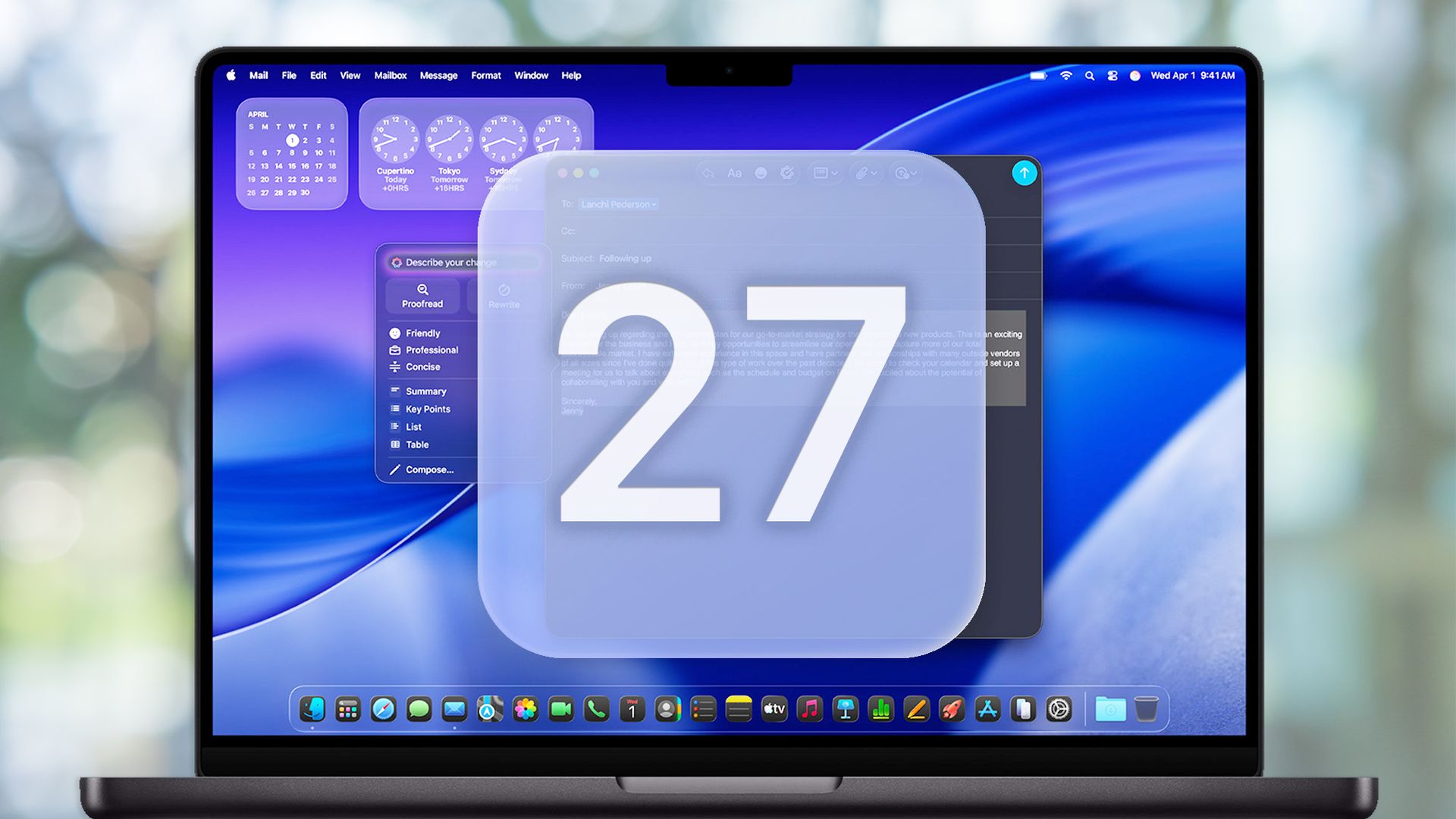
If you recently upgraded to macOS 27 and find your available storage space shrinking, Apple Intelligence may be the culprit. Reddit and Hacker News users have reported finding gigabytes of AI-related files on their Macs, consuming up to 10GB of storage on a 256GB MacBook Air or Mac mini. Apple Intelligence does not run solely in the cloud; some AI features rely on models stored and processed directly on your Mac, which enhances privacy but can also consume significant storage.
If you don't use Apple Intelligence, you may wonder why these files are taking up space on your SSD.
Apple Intelligence offers privacy benefits by performing AI tasks directly on your Mac. However, this requires downloading AI models to your device. Apple's latest architecture includes AFM 3 Core, a 3-billion-parameter on-device model, and AFM 3 Core Advanced, a more powerful multimodal model. Other Apple Intelligence features may utilize Apple's Private Cloud Compute infrastructure when additional processing power is needed.
The downside is that these models need a place to reside, and macOS manages them as system assets, making it challenging to determine exactly what is using your storage.
Before taking any action, check your Mac's storage. Click the Apple menu, select System Settings, go to General, click Storage, and let macOS calculate everything. You'll see your storage divided into categories like Applications, Documents, Photos, and System Data. While macOS doesn't provide a separate "Apple Intelligence models" entry, a large System Data category could indicate Apple Intelligence usage. Note your current free storage as a baseline for comparison.
If you don't use Apple Intelligence, turning it off is the safest first step. Open System Settings, select Apple Intelligence & Siri, find Apple Intelligence, and toggle it off. Keep in mind that disabling Apple Intelligence doesn't immediately remove downloaded models, as macOS manages system assets automatically. Avoid manually deleting anything from macOS system folders, as this can cause unintended issues.
Apple Intelligence models are system-managed assets, and deleting files from protected directories may not resolve the problem and could potentially break your macOS system.
Written by urgent.news from Tom's Guide's reporting — not their text. Machine-written — may contain errors; check the original before relying on it.