I use Google Chrome every day, and these are my 10 favorite tips and tricks
You’ll wish you knew some of them earlier.
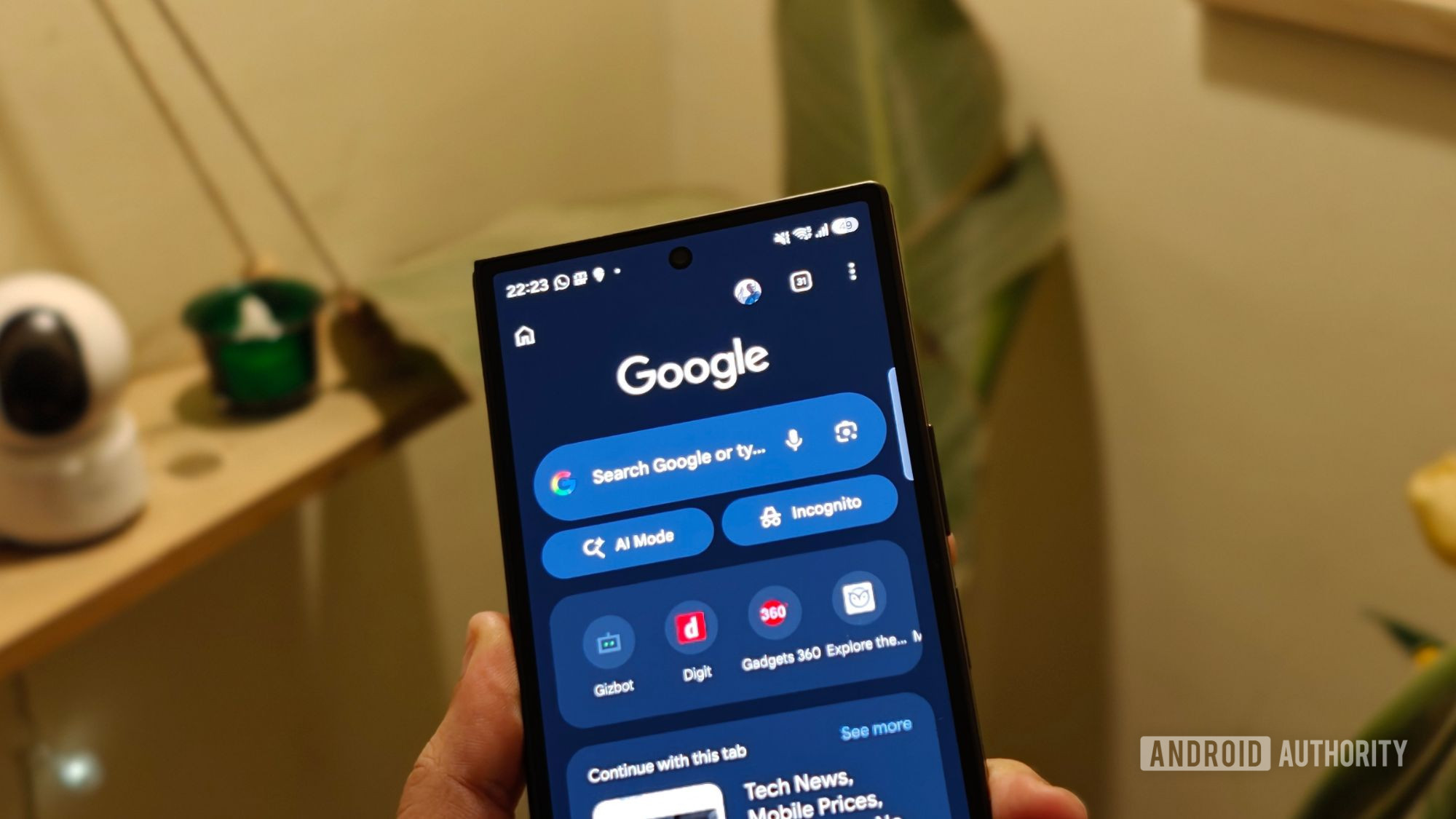
After conducting research, I have compiled a list of 10 useful Chrome tips and tricks that I frequently use. To begin, I customize the toolbar shortcut in Chrome to swiftly open new tabs. In the Chrome settings, navigate to Appearance, then Toolbar shortcut, and switch on the Toolbar shortcut toggle. Choose New tab as the shortcut to enable quick access to new tabs.
Sharing a specific text snippet from a webpage is another helpful feature. Highlight the desired text on the page, tap the Share button in the floating toolbar, and select the app you want to send the link through or share it directly with a person. You can also copy the link by tapping the copy icon next to it.
Some websites offer a dark mode, but not all. To force dark mode on websites that don’t have it natively, enable the Auto Dark Mode for Web Contents flag in Chrome. Search for this flag in chrome://flags, select Enabled, and restart Chrome.
Previewing a link without leaving the current page is possible through Chrome’s Preview page feature. Long-tap a link and select Preview page from the menu. The link will then open in a preview pane over the current page, allowing you to browse it without moving away.
Reading mode is beneficial for reading articles without distractions. To activate Reading mode, tap the three-dot menu in the toolbar and select Show Reading mode. You can customize the font, text size, and background color to your liking in the overlay panel.
When hands are occupied, Chrome’s listening mode can help catch up on articles. Tap the three-dot menu in the address bar and select Listen to this page. A small player will appear at the bottom of the screen, allowing you to adjust playback mode and controls.
For saving webpages, Chrome offers a PDF-saving feature. Open the webpage you want to save, tap the three-dot menu, choose Share, then select Print. Adjust the document properties as needed, and tap the download icon to save the PDF to your device.
Taking screenshots of long webpages can be tedious, but Chrome’s Long screenshot feature simplifies the process. Open the webpage, tap the three-dot menu, select Share, and choose Long screenshot. Scroll the webpage using the up and down arrows to select the area you want to capture, and tap the check icon to save the screenshot.
Lastly, Chrome’s Tab Groups allow for better organization of open tabs. Create a Tab Group by clicking the three-dot menu next to a tab and selecting Add to new group. Name the group and add other tabs to it, keeping your browsing experience organized.
Written by urgent.news from Android Authority's reporting — not their text. Machine-written — may contain errors; check the original before relying on it.