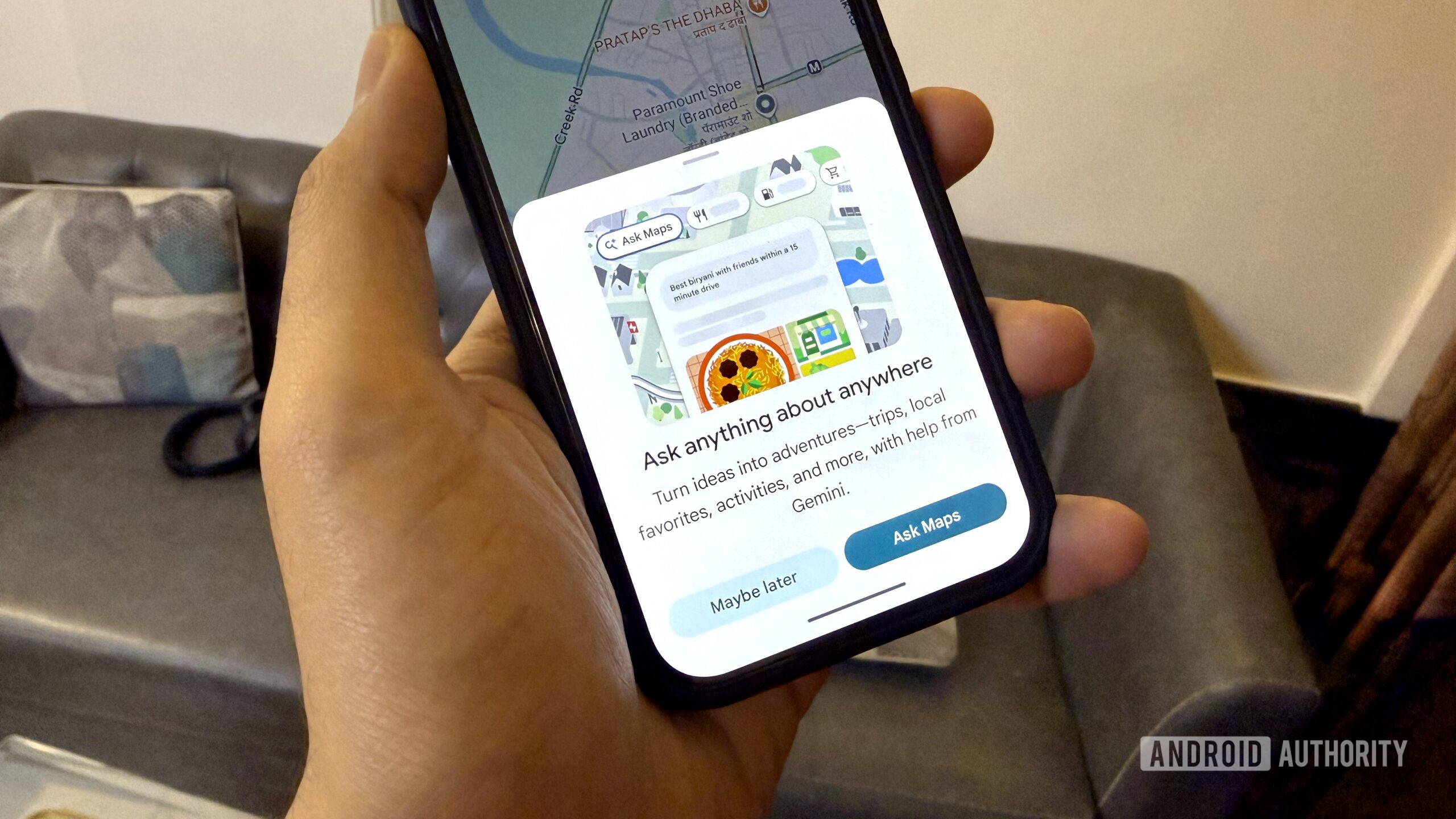
Google Maps just added a feature that lets you order food without leaving the app
The app is also getting Gmail and Calendar integration with Personal Intelligence, real-time transit updates, and more.
Google Maps is a widely-used navigation app, but it can sometimes hog significant storage space on devices with limited capacity. This storage overflow is due to a combination of factors: offline maps you've downloaded, location history data stored locally, and cached searches and map tiles. Here's how these culprits work and how to free up space.
The main storage consumers Unsurprisingly, offline maps are the first major storage consumer. If you frequently download maps for cities you visit, these small files can quickly add up, especially if you save large regions or entire states. Google's Timeline feature also contributes to storage bloat. It stores years of your location history directly on your device, which can accumulate hundreds of megabytes or more based on your mobility.
Finally, the app's persistent caching of searches, navigation routes, map tiles, and page content can lead to a significant storage increase over time. Reclaiming your storage space Regardless of whether you're using an iPhone or Android device, reclaiming your storage is relatively simple. Start by checking your offline maps. Open Google Maps, tap your profile icon, and select Offline Maps to view what you've downloaded and the space each map occupies.
Remove any maps you no longer need, particularly those you haven't visited in months. Additionally, disable auto-download settings for offline maps and recommended maps to prevent continuous background data consumption. Next, review your Timeline storage usage. To do this, go to Google Maps, Profile, and Your Timeline to see how long your location history has been tracked.
If you want to preserve your history, back it up before deleting it. Finally, clear the hidden cache. This cache includes search history, navigation directions, map tiles, and cached page content. While it's not visible in regular storage menus, it can balloon unnoticed. On iPhone, tap your profile icon in Google Maps, go to Settings, About & Terms, and select "Clear Application Data."
On Android, navigate to your phone's Settings app, find Google Maps, tap Storage, and then Clear Cache. A "Clear Data" option is also available. After clearing the cache, restart your phone and check how much storage Google Maps now occupies. In most cases, this should resolve the storage issue entirely.
Written by urgent.news from Tom's Guide's reporting — not their text. Machine-written — may contain errors; check the original before relying on it.
This story
This is one outlet's version. Read the fullest account.
- Ask Maps in Google Maps rolling out Personal Intelligence, real-time transit, global launch 9to5google.com
- Google Maps is getting dangerously good at planning your day digitaltrends.com
- Google Maps is eating up your phone’s storage — here’s how to reclaim it tomsguide.com
- Now you can chat with Google Maps to order food, reserve hotels and more engadget.com
- Google Maps borrowed Waze's best features, so why do I still need both apps? androidpolice.com