Common problems with Bluetooth speakers and how to fix them
Struggling with audio dropout or finnicky pairing? Ensure these common Bluetooth speaker problems aren't getting in the way of your auditory delights.
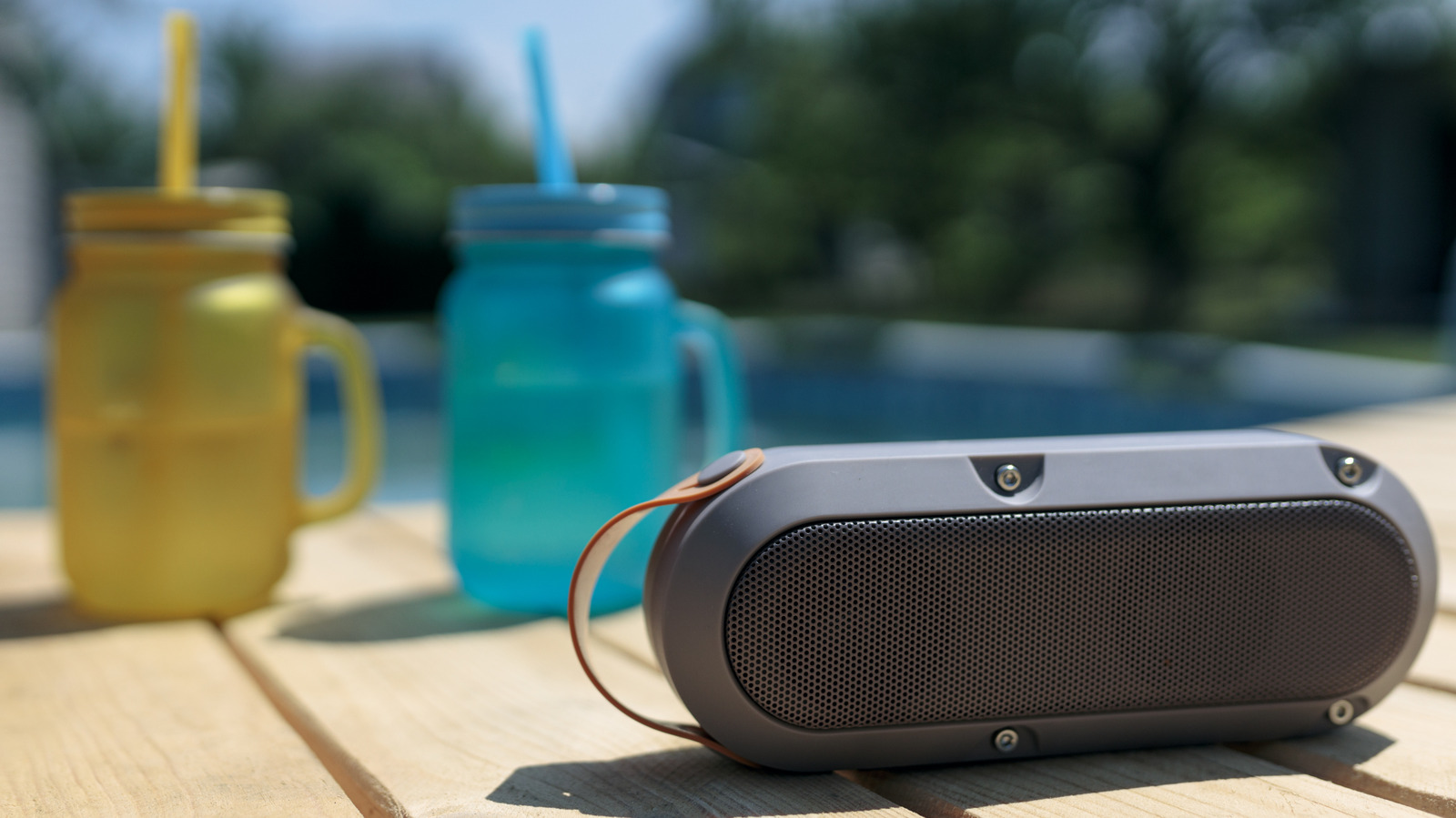
Bluetooth speakers are a convenient way to enjoy music wirelessly, but they can sometimes experience issues. Before writing off a non-functional speaker, try a few troubleshooting steps. First, restart both your Bluetooth speaker and the device you're trying to connect it to. This simple step can resolve minor bugs causing connection problems.
If the devices have been paired before, manually reconnect them using the Bluetooth menu on your phone, computer, or other device. On an iPhone, go to Settings > Bluetooth, find your speaker under My Devices, and tap it to see if it changes to Connected. For Android users, swipe down from the top of the screen, tap and hold the Bluetooth icon, and select your device under Saved devices.
If re-pairing doesn't work, put your speaker into pairing mode by checking your speaker's manual for instructions. Once in pairing mode, reconnect it via the Bluetooth menu on your device. Sometimes, toggling Bluetooth off and on in your phone's menu can help. Ensure the volume is turned up on both the speaker and the source device, as not all Bluetooth devices use the same volume control method.
On modern units, both the phone and speaker should control the same volume level, but older models may have independent volume sliders. If your speaker is connected but not playing audio, confirm it's set as the audio output device on your computer or phone. On Windows or macOS, choose the Bluetooth output in the audio options. On Android, go to Settings > Connected Devices, tap the gear next to your Bluetooth device's name, and enable Media audio and Phone audio.
If the speaker cuts out or has other audio problems, bring it closer to the connected device, as newer models with Bluetooth 5.0 or above can work at around 100 feet indoors. Avoid connecting too many Bluetooth accessories to one device, as this can lead to performance issues. Keep your speaker charged, as low battery levels can negatively impact range and audio quality.
If you're in a crowded area with many wireless signals, interference may be the cause, so try moving to a clearer location. Updating your speaker's firmware or connecting it to different devices can also help troubleshoot issues. If problems persist, check if your brand offers an app for audio adjustments and firmware updates. As a last resort, factory reset your speaker, following the instructions in the manual or online.
Connecting your speaker to different devices can help identify if the issue lies with the speaker or nearby interference.
Written by urgent.news from Engadget's reporting — not their text. Machine-written — may contain errors; check the original before relying on it.